
The modern workspace and gaming setup often rely on multiple monitors for increased productivity and immersion.
But what if you could go beyond merely extending your desktop and instead merge two monitors into a single, sweeping ultra-wide display? This immersive configuration allows you to experience applications, games, and workflows on a grand scale, with the effect of one continuous screen stretching across your visual field.
This article is your complete guide on how to combine two monitors into one functional unit, transforming your dual-monitor arrangement into an impressive panoramic canvas that feels seamless and cohesive.
Whether you’re a gamer looking to maximize your field of view or a professional aiming to streamline large projects, understanding and implementing this setup opens new horizons for productivity and enjoyment.
What Does It Mean to “Combine” Monitors?
Defining Combined vs. Extended Displays
When most people connect a second monitor to their computer, they use the “Extended Desktop” mode provided by Windows, macOS, or Linux. This expands your workspace so you can open windows on either screen, but the operating system still treats each monitor as a separate entity with its own boundaries and taskbars.
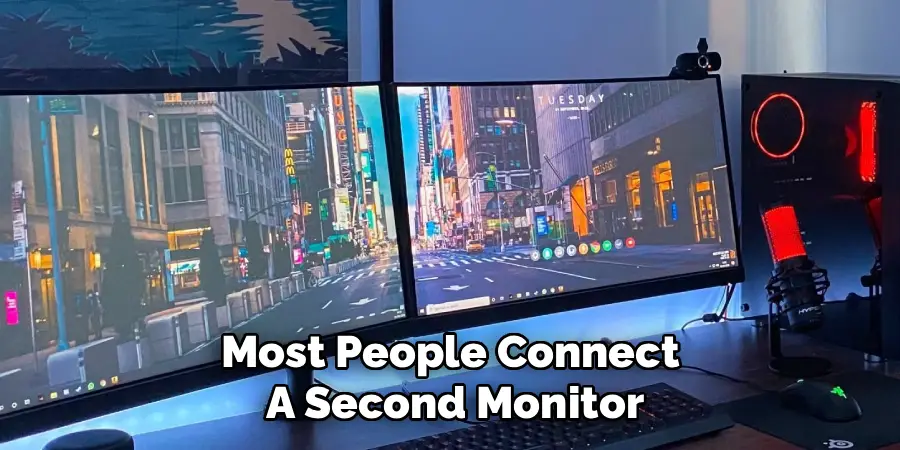
“Combining” monitors, however, goes a step beyond. This advanced setup uses specialized graphics software to stitch two physical screens into one giant virtual display.
The operating system and supporting applications see your monitors as a single, unified screen with a width equal to the combined horizontal resolutions. This is sometimes called display spanning or monitor fusion.
How Is This Different from Other Methods?
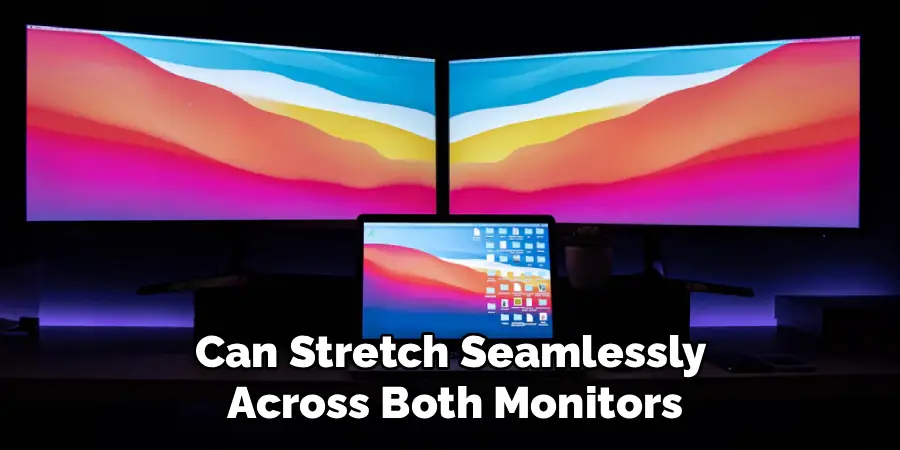
Unlike basic desktop extensions, combining your monitors through graphics card utilities like NVIDIA Surround and AMD Eyefinity ensures that full-screen content, such as games and simulations, can stretch seamlessly across both monitors.
It’s also distinct from technologies such as KVM switches—which let you control multiple computers with one set of peripherals—or virtual desktops, which simply provide multiple workspaces on the same monitor. Combining monitors is all about creating that continuous ultra-wide screen for a specific, unified experience.
Essential Requirements: What You Need Before You Start
Matching Monitors: Why Uniformity Matters
The most effective way to combine two monitors into one is by using identical screens—same brand, model, size, resolution, and refresh rate. When both displays match flawlessly, there’s no break in resolution or height, which guarantees smooth motion, straight lines, and consistent visuals across the entire span.
Graphics Card Capabilities: Dedicated GPU Required
For this advanced configuration, you need a dedicated NVIDIA or AMD graphics card rather than integrated graphics. Both NVIDIA Surround and AMD Eyefinity are built into the drivers of dedicated GPUs and require enough outputs to power two monitors simultaneously.
Check your card for compatible DisplayPort or HDMI connections and ensure you have the latest drivers installed.
High-Quality Cables and Direct Connections
Always connect your monitors directly to the dedicated graphics card—do not use the motherboard display ports if your system has both. Opt for high-quality DisplayPort or HDMI cables to ensure optimal transmission, avoid signal issues, and support higher resolutions or refresh rates.
Avoid mix-and-match adapters whenever possible, as they can introduce compatibility problems.
How to Combine Two Monitors into One: The NVIDIA Surround Method
Accessing NVIDIA Control Panel
The process begins by right-clicking on your desktop and choosing “NVIDIA Control Panel” from the menu. If you don’t already have this utility, download the latest version from the NVIDIA website to ensure compatibility and support for multiple displays.
Configuring Surround and PhysX
Inside the NVIDIA Control Panel, look for the navigation pane on the left and select the “Configure Surround, PhysX” section under “3D Settings.” This is where you’ll set up your monitors to work as a single unified display.
Activating Surround and Arranging Displays
To start the combination, check the option labeled “Span displays with Surround.” A wizard will guide you through selecting your desired topology. For two monitors, choose the “1×2” configuration—one row and two columns.
Pay close attention to the on-screen diagram and match the arrangement to your physical setup. You can drag and reorder the screens to make sure everything lines up correctly.
Completing the Process
Once your configuration matches your hardware, apply the changes. The desktop may flicker as the system restarts the display environment. When finished, Windows will treat both monitors as a single, panoramic workspace. You can now launch games or ultra-wide applications across both screens and enjoy a fully combined experience.
The AMD Eyefinity Method for Combining Displays
Launching AMD Software: Adrenalin Edition
For users with AMD Radeon graphics cards, open the AMD Software: Adrenalin Edition utility. This is typically accessible via a right-click on your desktop or through the Windows Start menu. If it’s not installed, download the latest version from the AMD website.
Navigating to Display Configuration
Within the software, click on the “Gaming” tab, then select the “Display” sub-tab. Here, you’ll find all relevant options for configuring your connected monitors.
Creating an Eyefinity Display Group
Locate the “AMD Eyefinity” section, then select the option to create a new display group. The software will automatically detect your monitors and propose possible layouts. For a horizontal two-monitor setup, choose the side-by-side (1×2) arrangement.
You’ll have the opportunity to drag and position each monitor in the software so its alignment matches your physical desktop.
Finalizing the Setup
Once you’re satisfied with the arrangement, proceed to apply the configuration. Like with NVIDIA Surround, your displays may flicker briefly. After setup, both screens are fused into one ultra-wide virtual screen, ideal for supported games, productivity software, or any activity benefiting from a single extensive workspace.
The Challenge on macOS: Limitations and Workarounds
macOS Restrictions
Apple’s macOS ecosystem is designed with simplicity and elegance in mind, but it does not offer a built-in feature equivalent to NVIDIA Surround or AMD Eyefinity. While you can still “extend” your desktop over two monitors, macOS cannot merge them into one continuous, spanned display recognized by all applications or games.
Workarounds and Third-Party Tools
There are a handful of third-party apps and command-line tools that attempt to mimic this functionality, but results are mixed and compatibility is not guaranteed, especially when it comes to gaming or highly specialized productivity software.
If you require a seamless, spanned display for gaming, Windows and dedicated GPU solutions remain the most reliable path.
Fine-Tuning Your Setup: Bezel Compensation
Understanding the Need for Bezel Compensation
A critical finishing touch when learning how to combine two monitors into one is addressing the distraction caused by monitor bezels—the black borders that separate your screens. Without adjustment, moving objects and straight lines may “jump” visibly when crossing from one screen to the other.
Enabling Bezel Compensation
Both NVIDIA Surround and AMD Eyefinity offer settings for bezel compensation. This feature creates a virtual gap in the display, allowing images to pass “behind” the bezels.
To enable it, revisit the same configuration area (NVIDIA Control Panel or AMD Adrenalin), and look for bezel correction or compensation options. These will allow you to specify the size of the physical bezels and adjust the way the unified image is rendered, ensuring a more visually seamless experience.
Adjusting Bezel Settings
After enabling bezel compensation, test the results by moving windows or playing games with long horizontal lines—for example, racing or flight simulators. Fine-tune until lines and objects appear to cross smoothly between screens, making your setup feel like a single, uninterrupted canvas.
Use Cases: When Does Combining Monitors Make Sense?
Immersive Gaming
The most common reason to combine two monitors into one is for immersive gaming. Racing simulators, flight simulators, and many first-person action games support ultra-wide resolutions, delivering a panoramic view and greater immersion than a single screen. You’ll notice enhanced realism as the action stretches beyond your peripheral vision.
Specialized Productivity Workflows
Certain professionals benefit from an extended, uninterrupted visual workspace. For example, video editors may need to view lengthy timelines in detail, data analysts might want to display vast spreadsheets without scrolling, and graphic designers can preview large-format layouts at once.
If your daily tasks involve navigating wide documents or multitasking on a grand scale, combining monitors simplifies your workflow and boosts efficiency.
Understanding Resolution and Performance Impact
Calculating the New Resolution
When you combine two monitors—each with a resolution of 1920×1080, for example—your computer sees a single 3840×1080 display. This extra real estate means your graphics card must render more pixels, which can impact performance.
Anticipating Performance Changes
A higher resolution requires more GPU processing power. You may need to adjust graphics settings in games to maintain smooth frame rates, especially if you notice lag, stutter, or dropped frames at the expanded resolution.
Some modern graphics cards handle dual-1080p or even higher combinations with ease, but older cards may struggle. Test your new setup in key applications and fine-tune settings to balance image quality and responsiveness.
Troubleshooting Common Issues
Applications Spanning Both Screens Unintentionally
When you configure your system to combine two monitors into one, some applications, videos, or pop-up windows may maximize across the full width, even when you want them on a single screen.
This is by design, as the operating system treats the combined display as one monitor. You can use window management features like Windows Snap to position windows quickly, or third-party utilities to restrict window placement for specific needs.
Cursor Alignment and Snagging
If your mouse cursor moves erratically between screens or gets “stuck” at the seam, double-check the monitor order and alignment in the graphics card software. Drag and reposition the displays in the configuration tool to match how they sit on your desk; proper arrangement smooths out cursor movement.
In-Game Field of View (FOV) Problems
Some games display a distorted “fish-eye” effect when running at extreme ultra-wide resolutions. Most modern titles allow you to adjust the field of view (FOV) in their video or graphics settings—look for these options and incrementally increase or decrease until objects look correct and your perspective feels natural.
Display Detection Problems
If one or both monitors aren’t recognized by your graphics software, first check the cables and ensure both screens are powered on. Next, update your GPU drivers from the manufacturer’s website.
In rare cases, system BIOS or Windows display settings may override GPU configurations—temporarily disconnect and reseat cables or reboot to help resolve conflicts.
Conclusion
Combining two monitors into one through techniques like NVIDIA Surround or AMD Eyefinity unlocks a whole new world of ultra-wide productivity and immersive gaming experiences.
By using the right combination of hardware—a dedicated graphics card, matching monitors, and high-quality cables—you can turn your workspace into a seamless virtual canvas that simplifies complex workflows and amplifies visual impact.
Don’t forget the finishing touches like bezel compensation, which makes the line between your displays visually disappear, and take time to fine-tune your resolution and performance settings for smooth, enjoyable use.
By following this guide on how to combine two monitors into one, you’ll transform your dual-screen setup from ordinary to extraordinary, enjoying every advantage this advanced configuration has to offer.
