
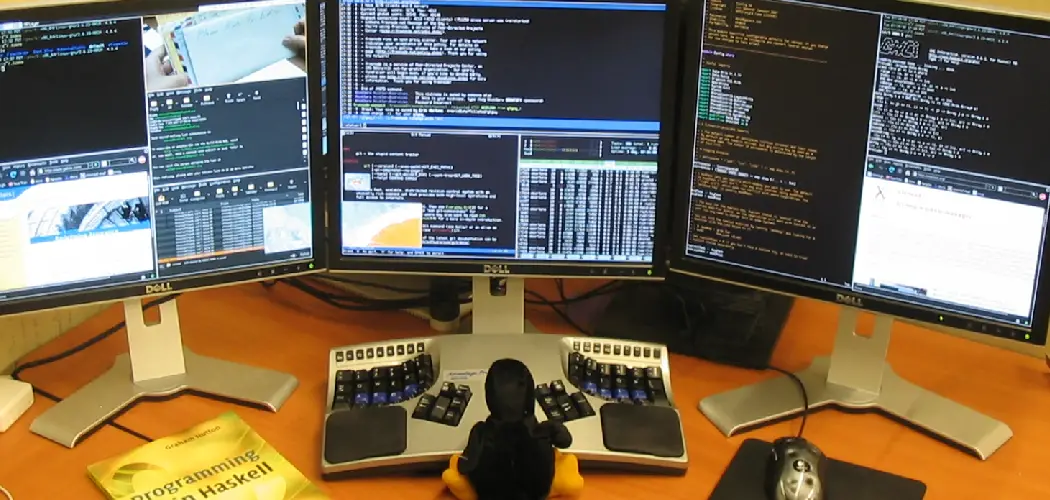
If you often find yourself wishing for more digital space—whether for programming, content creation, gaming, or managing multiple projects simultaneously—a three-monitor setup might be the solution you need. Embracing a multi-monitor configuration boosts efficiency, provides greater flexibility in arranging your workspace, and enhances both work and play.
This article on how to set up three monitors will walk you step-by-step through the process, address common challenges, and help you build a command center tailored to your needs. By the end, you’ll know not only how to physically connect everything but also how to fine-tune settings for optimal performance, comfort, and reliability.
Verifying Your System’s Display Capability
Before shopping for that third monitor or cable, start by confirming your computer’s ability to handle three displays.
Desktops: Reviewing GPU Specifications
On a desktop computer, your graphics processing unit (GPU) is where display magic happens. Most modern GPUs from manufacturers like NVIDIA or AMD support at least two and often three or more simultaneous outputs. Look up your graphics card model—found in your system settings or by opening your PC case—and consult the manufacturer’s website for the maximum number of supported displays. Also, make a physical check of the ports at the back of your computer; seeing three or more digital outputs (such as HDMI, DisplayPort, or DVI) is a good sign that a triple-monitor setup is within reach.
Laptops: Assessing Graphics and Docking Needs
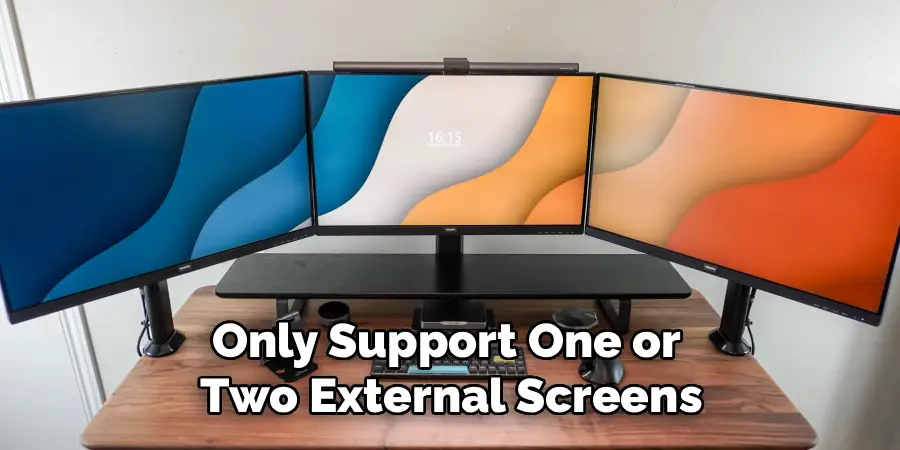
Laptops present a unique challenge, as their integrated graphics chips may only support one or two external screens. Many higher-end or business laptops with dedicated GPUs can handle three monitors with the help of a docking station. To check your laptop’s capacity, search for your model plus the words “external monitors supported.” If the specs mention DisplayPort Multi-Stream Transport (MST), Thunderbolt 3 or 4, or USB-C with display output, you’re in good shape. However, most consumer laptops require an external docking device to achieve three external screens in addition to the laptop’s built-in display.
A Complete Inventory of Your Ports
Next, take inventory of the available video outputs on your computer and the inputs on your monitors.
Identifying Video Outputs
Check your computer—desktop or laptop—for video output ports. Typical options include HDMI, DisplayPort, Mini DisplayPort, USB-C/Thunderbolt, and (less often now) DVI or VGA. Matching the number and type of ports to your intended monitors is crucial.
Assessing Monitor Inputs
Look at the backs of your monitors to determine which ports they support. While most modern models have HDMI and DisplayPort, some may also include older standards like DVI or VGA. Compatibility between your computer’s outputs and the monitors’ inputs will dictate which cables or adapters you need, so jot down your findings for each device.

How to Set Up Three Monitors: The Hardware Solution
With your compatibility list prepared, it’s time to select the right hardware for connecting all three monitors.
Direct Connection with Desktop GPUs
If you’re using a desktop, and your GPU has three or more outputs, this is often the simplest route. Connect each monitor to your GPU using the appropriate cables. For best results, use digital connections (HDMI, DisplayPort, or USB-C) for each screen rather than relying on adapters or splitters, which rarely provide full performance or stability for high-resolution, multi-monitor setups.

Docking Stations for Laptops
Most laptops, even with modern ports, are limited in the number of displays they can natively drive. A docking station overcomes this by adding multiple video outputs—typically via Thunderbolt or USB-C. When shopping for a dock, ensure it specifies support for three displays at your desired resolution (1080p or 4K). Some docks require special drivers, while others use technologies like DisplayLink to provide universal compatibility.
MST Hubs and DisplayLink Adapters
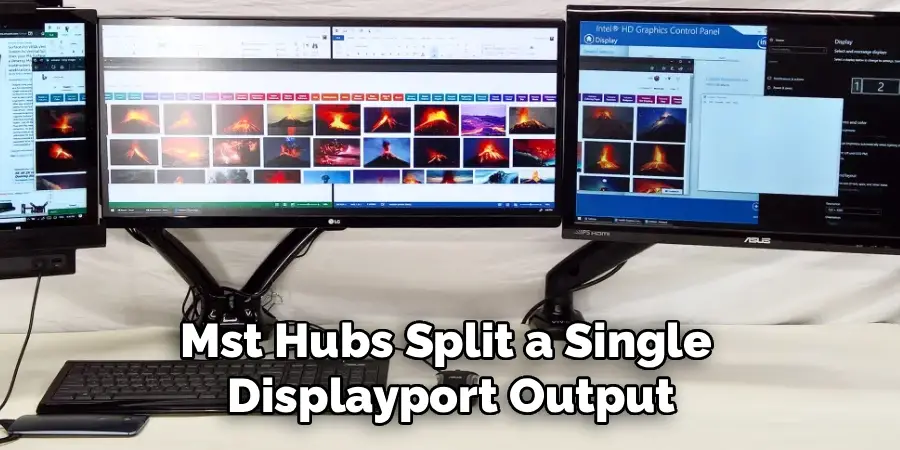
If your laptop or desktop doesn’t have enough direct outputs, an MST (Multi-Stream Transport) hub offers a creative solution for DisplayPort connections, especially on Windows. MST hubs split a single DisplayPort output into two or three independent screens. For USB-only laptops, DisplayLink adapters allow you to add video outputs by transmitting video over a standard USB-A or USB-C port, although some performance constraints may apply for gaming or graphics-heavy tasks.
Arranging Displays in Windows
Once you have physically connected your three monitors, the next step is to set them up within your operating system.
Accessing Display Settings
On Windows, right-click on the desktop and select “Display settings.” Here you’ll see a schematic of your connected screens, each with a number.
Identifying and Arranging Your Monitors
Click the “Identify” button and watch for the numbers to appear on each physical screen; this helps you match the digital diagram to your real-world setup. You can now reposition the monitor icons by dragging them to mirror the physical arrangement on your desk, whether side-by-side, in a vertical stack, or another pattern.
Extending the Desktop
Under the “Multiple displays” dropdown for each screen, select “Extend these displays.” This tells Windows to use all your monitors as one expansive virtual desktop rather than mirroring content.
Adjusting Primary Monitor
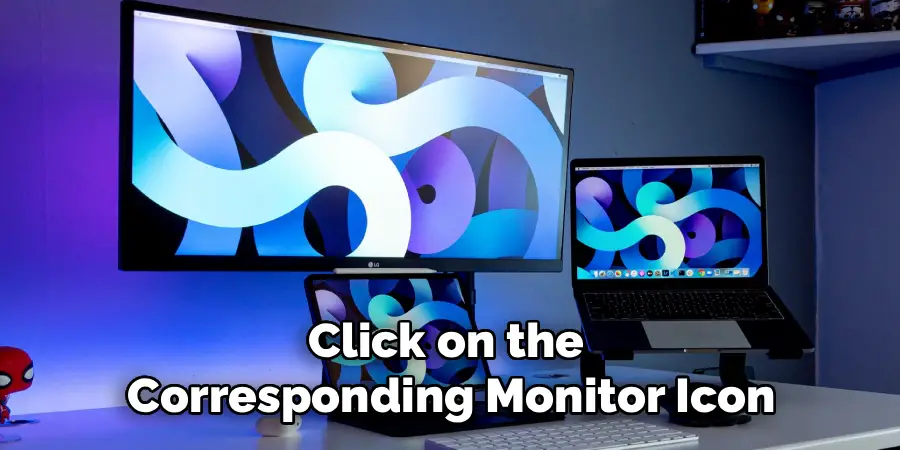
Decide which display you want as your main screen. This is often the one directly in front of you. Click on the corresponding monitor icon and check “Make this my main display.”
How to Configure Three Monitors on macOS
Apple users have a similar process, but should note device-specific limitations, especially with recent laptops.
Arranging Monitors in macOS Settings
Open “System Settings” (or “System Preferences” on older versions) and select “Displays.” Here, each monitor will appear as a rectangle in a layout diagram. Drag these around to mirror your desk layout.
Disabling Mirroring
Ensure “Mirror Displays” is unchecked. MacOS needs to be in “extended desktop” mode for true three-monitor productivity.
Apple Silicon Considerations
Be aware that MacBooks with standard Apple M1 or M2 chips support only one external monitor out of the box. To go beyond this, use a DisplayLink-enabled docking station and install the necessary drivers, which will allow three external monitors to function correctly.
Fine-Tuning Each Display: Resolution, Scaling, and Refresh Rate
A successful triple-monitor setup isn’t just about plugging in more screens. Each monitor should be adjusted for clarity, comfort, and performance.
Configuring Resolution and Scaling
For each display, choose the resolution that best matches the screen’s native capability. This makes the content sharp and clear. If your monitors are different in size or resolution, adjust scaling so that text and icons are a comfortable size across all screens. In Windows, this is found in Display Settings; on macOS, use the “Scaled” options within the Displays settings.
Adjusting Orientation and Refresh Rate
If you’re using a portrait (vertical) orientation for coding or reading, select the display in settings and change its orientation to “Portrait.” To ensure smooth motion—important for gaming or video—confirm that all monitors are set to their maximum supported refresh rate (e.g., 60Hz or higher), which you’ll find in the advanced display options.
Gaming vs. Productivity: Special Configurations
Your three-monitor setup can be customized for vastly different workflows, with specific approaches for gaming and productivity.
Multi-Monitor Gaming
For immersive gameplay, NVIDIA Surround and AMD Eyefinity technologies can combine three monitors into a single, ultra-wide canvas. These features, available in the respective GPU control panels, allow games to stretch across all three screens as if you’re sitting inside the action. Bezel correction tools help hide distracting gaps between screens, creating a seamless visual flow.
Productivity and Multitasking Layouts
For work, arrange your monitors so your main application or document is on the central display, with reference material, chat apps, or timelines on the side monitors. This logical arrangement reduces distractions, lets you view more tools at once, and eliminates the need to switch between tabs or windows constantly.
Desk Ergonomics and Cable Management
A thriving digital workspace is as much about comfort and tidiness as it is about screens.
Ergonomic Tips for Three-Monitor Setups
Position your primary monitor at eye level, directly in front of you, so you don’t strain your neck. Tilt and adjust secondary monitors so you can see them comfortably by turning your head rather than your whole body. If one monitor is vertical, place it at the edge where you reference information the most.
Keeping Cables Under Control
Three monitors mean lots of cables—power cords, video cables, and possibly USB or audio lines. Use cable sleeves, clips, or under-desk trays to corral wires and prevent tangles. Monitor arms can help free up desk space, and arranging power strips behind your desk keeps cords out of sight.
Troubleshooting Common Three-Monitor Problems
Even when everything seems correct, issues can crop up with a multi-monitor setup.
Third Monitor Not Detected
If one screen isn’t showing up, start by checking all cable connections and power switches. Sometimes, reseating the cable or swapping it for another one resolves the issue. Next, update your graphics drivers; outdated software can cause compatibility problems. Double-check your GPU or docking station’s documentation to ensure it supports three monitors at your desired resolution.
Unintended Mirroring or Limited Resolution
If two or more screens only show mirrored content or are stuck at a lower resolution, look for bandwidth limitations on hubs, adapters, or docks. Not all devices can support three screens at high resolution. Go through display settings and make sure each screen is set to “extend” and has the appropriate resolution assigned; sometimes, a system restart helps the computer recognize all monitors correctly.
Performance Issues and Lag
Driving three displays puts more demand on your GPU and system memory. If you experience slow performance or stuttering, try lowering the resolution or refresh rate on one or more monitors. Close unused applications to free up resources. In gaming situations, reduce graphics settings within your games or limit the number of background processes to maintain smooth gameplay.
Conclusion
Setting up three monitors may seem like a daunting task, but by verifying your graphics hardware, taking stock of your ports, selecting the right connection method, and properly configuring your operating system, you can achieve a seamless and powerful multi-screen setup. Not only does learning how to set up three monitors enhance your productivity and immersion, but it also transforms your workspace into a true command center—one that adapts to any workflow you undertake.
With the right adjustments, troubleshooting, and ergonomic considerations, your system will be as comfortable as it is capable. Now, get ready to enjoy the increased efficiency and expanded digital workspace that only a well-executed three-monitor setup can offer.
