
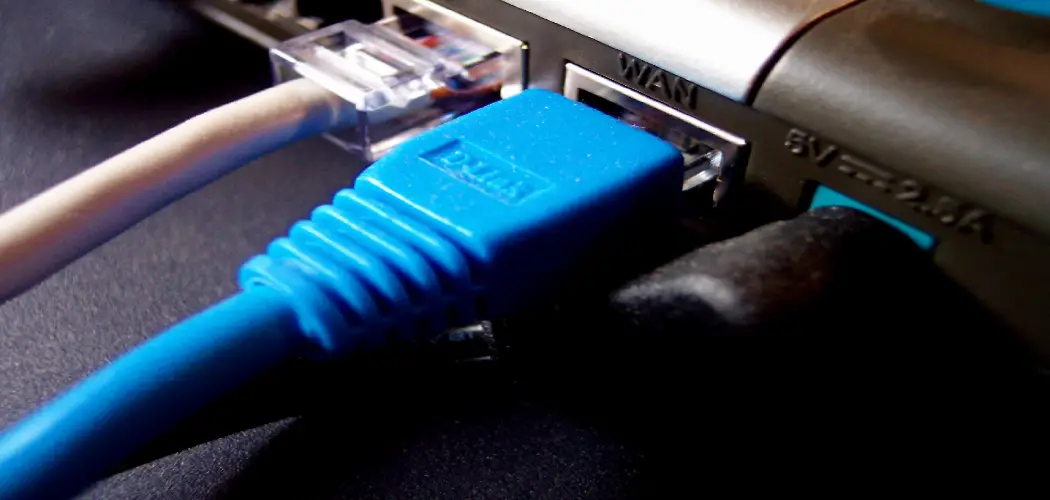
Setting up a printer doesn’t have to be complicated. Whether you’ve just unboxed a brand-new printer or you’re reconnecting an old one, a wired connection remains one of the most reliable ways to get the job done. Understanding how to connect printer to computer with usb cable gives you a stable, fast connection that doesn’t depend on Wi-Fi signals or network configurations.
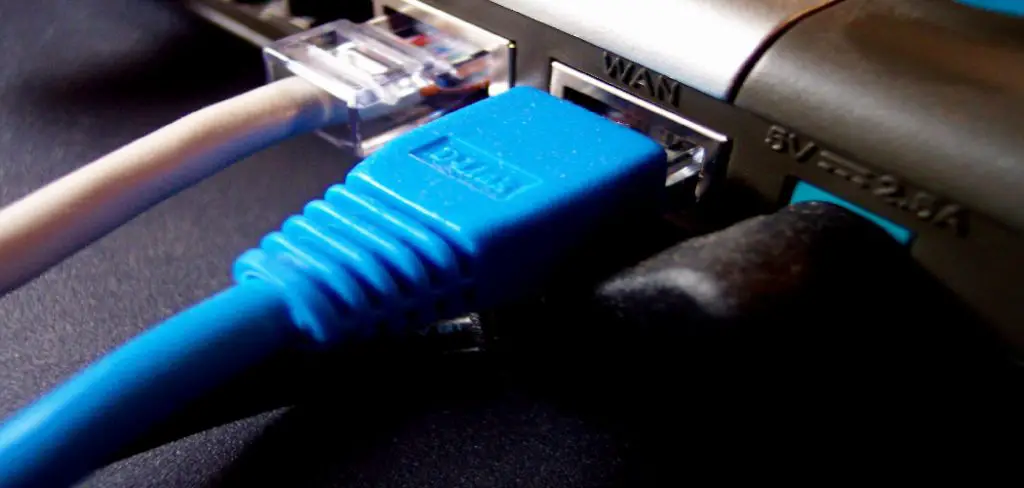
This guide is designed for anyone who has little to no technical experience. You won’t need an IT background or specialized knowledge — just a USB cable, your printer, and a few minutes of your time. By the end of this article, you’ll have a clear, confident understanding of each step involved, from unboxing to printing your first test page.
Why Connecting A Printer With A USB Cable Matters
A USB connection is one of the simplest and most dependable ways to link a printer to a computer. Unlike wireless setups, it doesn’t rely on router settings, network passwords, or signal strength. Once the cable is plugged in, the connection is direct and immediate.
This method also tends to be faster for large print jobs and more consistent for everyday use. Wireless printers can drop off a network unexpectedly, but a USB connection stays solid as long as the cable is intact. For home offices, students, and small workspaces, this approach reduces setup complexity significantly. It’s also the preferred method when troubleshooting printer issues, since it eliminates network variables entirely. If you want reliable printing without the hassle of wireless configuration, a USB cable is the straightforward answer.
Step-By-Step Guide To How To Connect Printer To Computer With USB Cable
Step 1: Check Your Printer And Cable Compatibility
Before anything else, confirm that your printer supports USB connectivity — most modern printers do, but it’s worth verifying in the product manual or on the manufacturer’s website. You’ll also want to check the type of USB cable your printer requires. Many printers use a USB Type-B connector on the printer end and a standard USB Type-A connector on the computer end, though some newer models use USB-C.
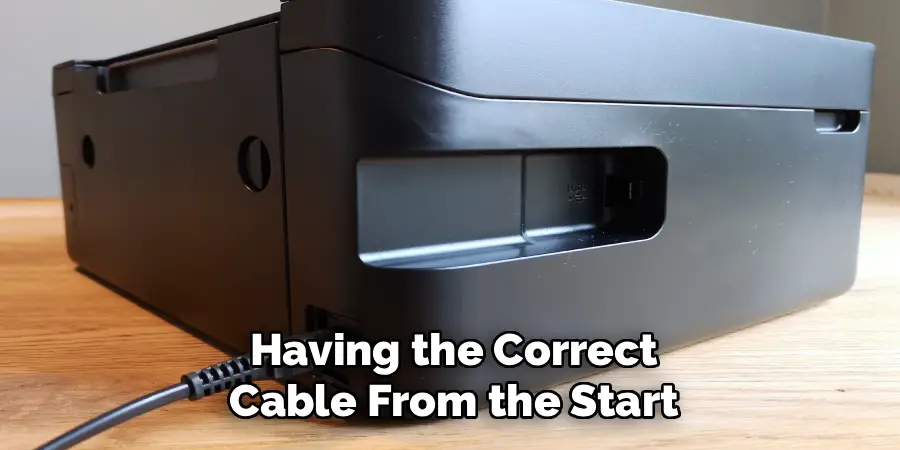
Having the correct cable from the start saves you from interrupting the setup process midway through. If the printer didn’t come with a cable in the box, you can find compatible cables at any electronics retailer or online. Look at the port on the back of your printer to identify the connector shape before purchasing.
Step 2: Power Off Both Devices Before Plugging In
It’s good practice to turn off both your printer and your computer before connecting them for the first time. While many modern systems can handle hot-plugging without issues, powering down first reduces the risk of any electrical interference during the initial handshake between the two devices.
Switch your printer off using its power button, and shut down your computer fully rather than just putting it to sleep. Once both devices are off, place them close enough together that the USB cable can reach comfortably without being stretched or bent at a sharp angle. A straight, relaxed cable connection holds longer and is less likely to cause intermittent disconnections over time.
Step 3: Connect The USB Cable To The Printer
With both devices powered off, take one end of the USB cable — the USB Type-B end, which is the larger, squarish connector — and plug it firmly into the USB port on the back of your printer. The port is usually labeled and located on the rear panel. Push the connector in until you feel it click or seat securely.
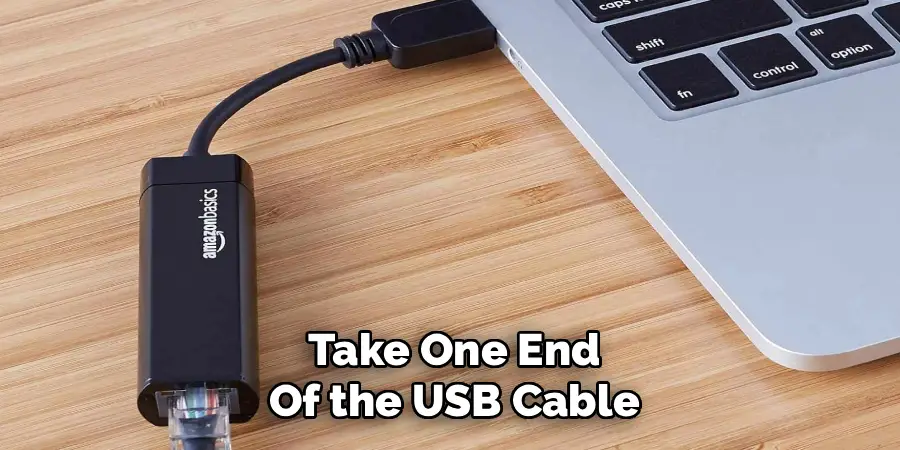
Avoid forcing the connector if it doesn’t slide in smoothly. If it feels like the wrong fit, double-check that you have the correct cable type for your specific printer model. A loose or mismatched connection at this stage can cause recognition errors later, so taking a moment to confirm a solid fit here is well worth it.
Step 4: Connect The Other End To Your Computer
Now take the opposite end of the cable — the USB Type-A end, which is the flat, rectangular connector — and plug it into one of the USB ports on your computer. Most laptops and desktops have several USB ports available along the sides or back. Choose a port that’s easy to access so you can remove the cable again if needed without reaching awkwardly.
If your computer only has USB-C ports, you’ll need a USB-A to USB-C adapter or a cable with the appropriate connectors on both ends. Once the cable is connected on both sides, you’re ready to power up. This is where the process of how to connect printer to computer with usb cable really begins to come together, as the hardware side is now complete.
Step 5: Power On The Printer And Then The Computer
Turn on your printer first by pressing its power button, and give it about 30 seconds to fully initialize before powering on your computer. Starting the printer first allows it to complete its self-test and be fully ready before the computer attempts to recognize it as a connected device.
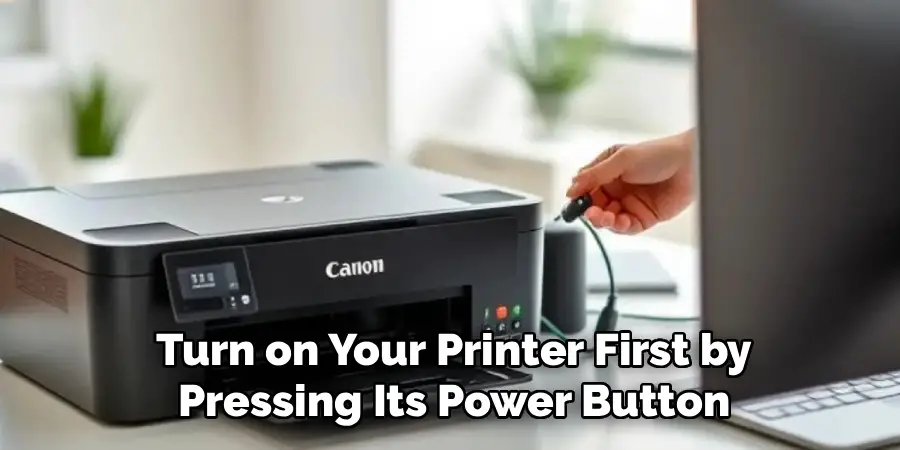
Once the printer is on and idle, power on your computer. As it boots up, the operating system will detect the newly connected device through the USB port. On Windows, you may see a notification in the bottom-right corner indicating a device has been detected. On macOS, the system will quietly register the connection in the background. Either way, the detection process begins automatically.
Step 6: Install The Printer Driver
In many cases, your operating system will locate and install the appropriate driver automatically. Windows 10 and Windows 11, along with recent versions of macOS, have extensive driver libraries that cover most major printer brands. If the automatic installation completes successfully, your printer may already be ready to use.
If the driver doesn’t install automatically, visit the printer manufacturer’s website and navigate to the support or downloads section. Enter your printer model number to find the correct driver for your operating system. Download the installation file, run it, and follow the on-screen prompts. This process typically takes just a few minutes and requires no advanced technical knowledge.
Step 7: Print A Test Page To Confirm The Setup
Once the driver is installed, confirm that everything is working by printing a test page. On Windows, go to Settings, then Bluetooth and Devices, then Printers and Scanners. Select your printer from the list, click Manage, and choose Print a Test Page. On macOS, open System Settings, go to Printers and Scanners, select your printer, and click Open Print Queue to send a test print.
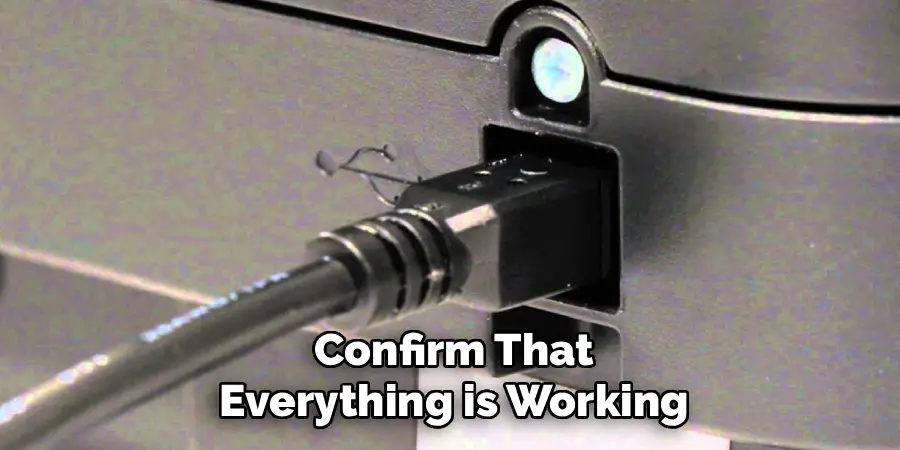
A successful test page confirms that the full setup is complete. This final step is also a useful checkpoint for the broader process of how to connect printer to computer with usb cable, because it verifies not just the physical connection but also the software communication between the two devices. If the page prints cleanly, you’re all set.
Frequently Asked Questions
Why Isn’t My Computer Recognizing The Printer After Plugging It In?
Try a different USB port on your computer, as some ports may be inactive or damaged. Also confirm the cable itself is functioning — test it with another device if possible. Restart both the printer and the computer, then reconnect the cable. If the issue persists, manually downloading the driver from the manufacturer’s website usually resolves recognition problems that automatic detection misses.
Do I Need To Install Software Before Plugging In The USB Cable?
In most cases, no. Modern operating systems like Windows 10, Windows 11, and macOS automatically detect and install basic drivers when you plug in a USB printer. However, for full access to advanced features like scanning or custom print settings, installing the complete software suite from the manufacturer’s website afterward is recommended and takes only a few minutes to complete.
Can I Use Any USB Cable To Connect My Printer?
Not exactly. While the USB standard is universal, you need a cable with the correct connector types for your specific printer. Most printers use USB Type-B on the printer end, but some newer models use USB-C or micro-USB. Check the port on the back of your printer and match it to the appropriate cable. Using the wrong connector type simply won’t fit, so there’s no risk of damage from trying.
What Should I Do If The Printer Shows As Offline After Connecting?
First, confirm the USB cable is firmly connected on both ends. Then go to your printer settings and set the printer as the default device. On Windows, right-click the printer in the Printers and Scanners menu and select See What’s Printing, then check the Printer menu to ensure Use Printer Offline is not checked. A quick restart of both devices often resolves this as well.
Does USB Connection Affect Print Speed Compared To Wireless?
USB connections are generally faster and more consistent than wireless for printing. Data transfers directly through the cable without the delays that can occur over a Wi-Fi network, especially during heavy network traffic. For everyday documents, the difference may be minimal, but for high-resolution images or large files, a USB connection typically delivers noticeably quicker results and fewer interruptions during the print job.
Conclusion
Setting up a printer through a wired connection is one of the more straightforward tech tasks you can take on, and now you have everything you need to do it with confidence. The process moves logically from checking your cable and powering down your devices, through making the physical connections, powering back up, installing the driver, and confirming the setup with a test print.
Understanding how to connect printer to computer with usb cable means you’re no longer dependent on wireless networks or guesswork when a print job needs to get done. Take these steps, work through them at your own pace, and you’ll have a stable, reliable printing setup ready to go whenever you need it.
