
Apple’s Magic Mouse looks simple — and that’s exactly the point. There are no visible buttons, no scroll wheel, and no clutter. But underneath that smooth surface is a multi-touch sensor that supports gestures, scrolling, and clicks that most people never fully explore.
If you’ve just unboxed one or recently switched from a traditional mouse, knowing how to use magic mouse properly makes a real difference in how efficient and comfortable your workflow becomes. Getting it wrong usually means missing half the features or dealing with a frustrating connection that keeps dropping.
This guide walks you through everything from first-time setup and pairing to gestures, tracking adjustments, and fixing common problems. It’s written for people who are brand new to Apple peripherals as well as anyone who’s been using a Magic Mouse for a while but suspects they’re not getting the most out of it. By the end, you’ll have a fully configured mouse, a working knowledge of its touch controls, and a clear idea of how to keep it performing well every day.
Why Using A Magic Mouse Matters
The Magic Mouse isn’t just a pointing device — it’s a gesture-driven tool that, when set up correctly, lets you navigate macOS faster and more naturally than a standard mouse allows.
Swiping between pages, scrolling through long documents, and switching between full-screen apps all become single-finger or two-finger movements rather than trips to a trackpad or keyboard shortcut. That fluidity adds up across a full workday.
There’s also the aesthetic and ergonomic side. The low-profile design works well on minimal desk setups, and once you adjust the tracking speed to suit your hand movement, it requires less wrist travel than most mice. Getting the configuration right at the start means the device works with your natural habits rather than against them. That’s the difference between a mouse that sits in a drawer and one you reach for every day.
Step-By-Step Guide To How To Use Magic Mouse
Step 1: Check Your Model And Charging Method
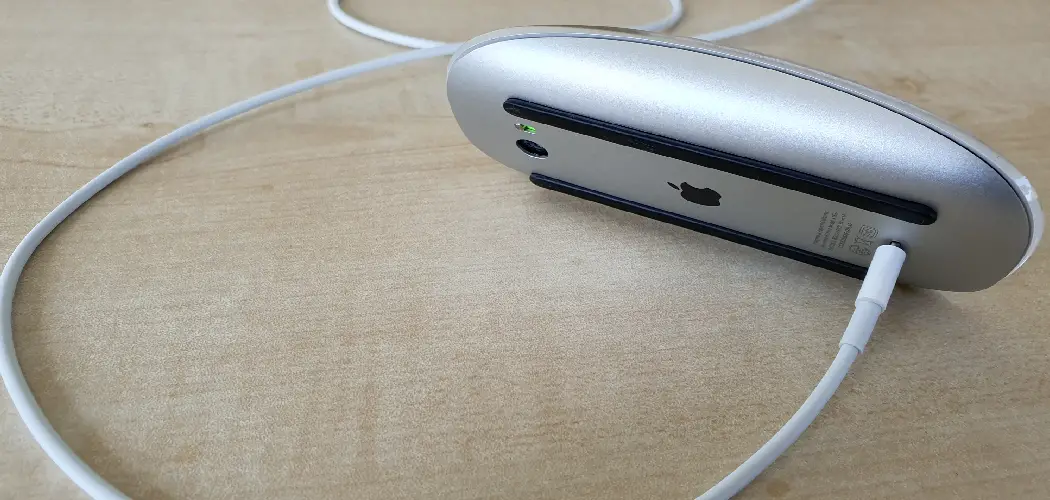
Before pairing anything, identify which Magic Mouse you have. The Magic Mouse 2 and Magic Mouse (USB-C, released in late 2021 onward) are rechargeable and don’t use disposable batteries. The original Magic Mouse uses two AA batteries accessed through a compartment on the underside. Knowing your model matters because the charging port location — or lack of one — determines what you do before your first use.

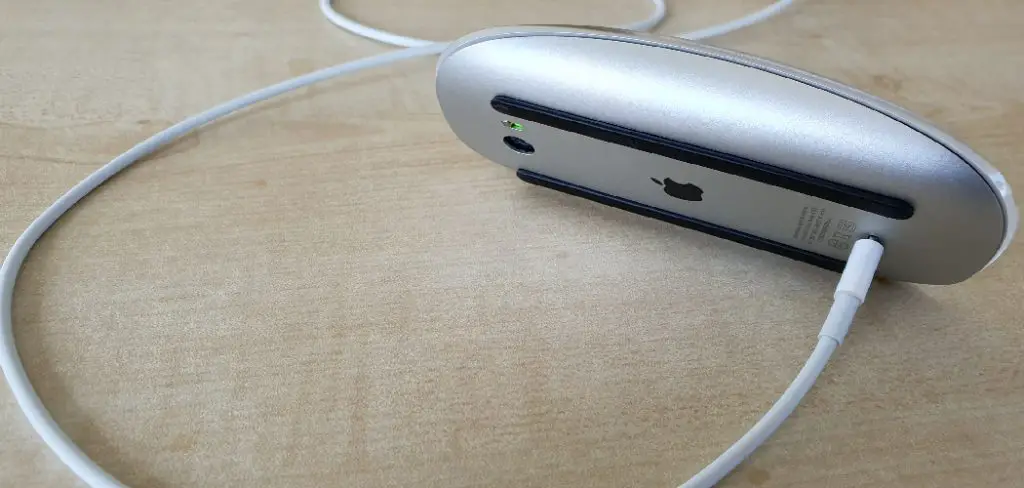
For rechargeable models, plug in the included cable and charge for at least 15 minutes before pairing. A fully drained mouse may not pair reliably until it has enough charge. For the original battery model, slide open the compartment, insert fresh AA batteries with the correct polarity, and close the cover firmly. A partially seated battery is one of the most common reasons a Magic Mouse won’t turn on.
Step 2: Turn On The Mouse And Check The Indicator
Flip the mouse over and slide the power switch to the on position. The switch is a small slider near the bottom edge of the underside — slide it toward the green indicator marker. A green light visible in the small window next to the switch confirms the mouse is powered on. If you see no light at all, the battery is either dead or the mouse isn’t charged enough to function.
Give it a moment after switching on before moving to the pairing step. Some units take two to three seconds to initialize. If the light blinks rapidly, the mouse is already in pairing mode and ready to be discovered. If it doesn’t respond at all after a confirmed charge or fresh batteries, try powering off and on once more before assuming there’s a hardware problem.
Step 3: Pair The Mouse With Your Mac
On your Mac, open System Settings (or System Preferences on older macOS versions) and navigate to Bluetooth. Make sure Bluetooth is turned on. Your Magic Mouse should appear in the list of available devices within a few seconds of being powered on. Click “Connect” next to its name and wait for the status to change to “Connected.”
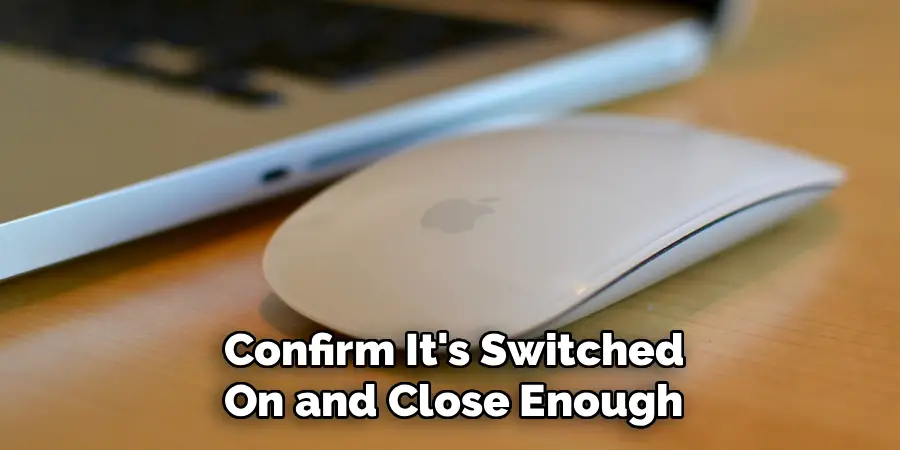
If the mouse doesn’t appear, confirm it’s switched on and close enough to the Mac — ideally within one meter during the initial pairing. If it still doesn’t show up, toggle Bluetooth off and back on on your Mac to refresh the scan. Once connected, the mouse is immediately usable with default settings, though you’ll want to adjust a few things in the next steps before using it comfortably for real work.
Step 4: Adjust Tracking Speed And Scrolling Direction
Go to System Settings, select Mouse, and look at the tracking speed slider. The default setting is often too slow for most users, especially on a large or high-resolution display where you need to move the cursor across a wide screen. Drag the slider toward “Fast” until the cursor movement feels natural for your hand size and desk space.
On the same screen, you’ll see an option to toggle “Natural scrolling” on or off. Natural scrolling moves the page in the direction your finger moves on the mouse surface — like swiping on a phone. Some people love this immediately; others find it disorienting if they’re used to a traditional scroll wheel. Try both directions for a day each before committing to one, since the preference tends to feel obvious once you’ve used either consistently.
Step 5: Learn The Basic Gestures
The Magic Mouse surface responds to single-finger and two-finger gestures, all of which are configurable under System Settings and then Mouse. Single-finger scrolling moves up and down within a page. A two-finger swipe left or right navigates backward and forward in Safari and many other apps. A double-tap with one finger zooms in on the current view, and another double-tap zooms back out.
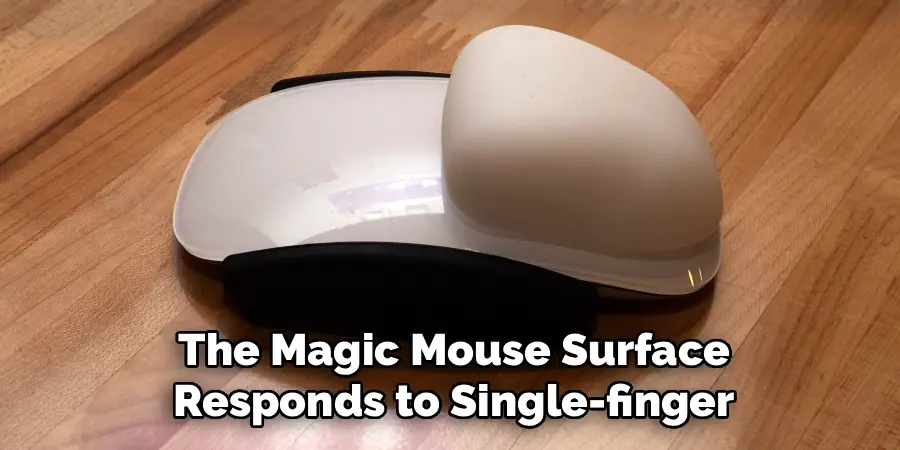
Take five minutes to practice each gesture individually before combining them. Understanding how to use magic mouse gestures naturally takes a short adjustment period — most people feel comfortable with the basics within a day or two. The key is to use light pressure and fluid movements rather than pressing down hard. The surface is a touch sensor, not a button — pressure doesn’t add anything, and heavy contact can actually reduce accuracy.
Step 6: Customize Gestures In Mouse Settings
Open System Settings, click Mouse, and explore the “More Gestures” tab if it’s available for your macOS version. Here you can enable or disable specific swipe behaviors, including Mission Control activation and between-space navigation. Not every gesture is turned on by default, and some that are enabled may conflict with how you naturally move the mouse.
Turn off any gesture you find yourself triggering accidentally — a two-finger swipe that keeps sending you back a page in your browser is a common frustration for new users. Disabling that gesture or adjusting how sensitive swipe detection is can make everyday browsing much cleaner. Customizing this section is worth 10 minutes of your time because it removes accidental inputs that make the mouse feel unpredictable when it’s actually just misconfigured.
Frequently Asked Questions
Can I Use The Magic Mouse While It’s Charging?
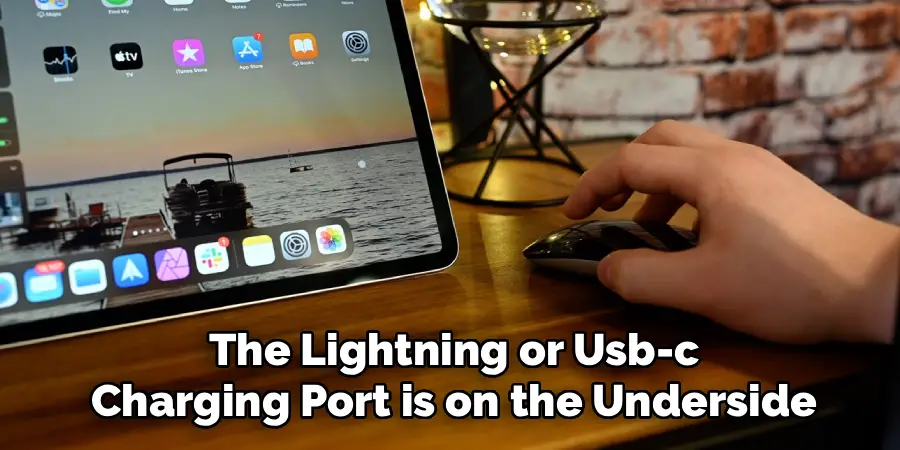
No. On rechargeable models, the Lightning or USB-C charging port is on the underside of the mouse, which means the mouse must be flipped over to charge — making it unusable at the same time. Apple designed it this way intentionally to encourage quick top-up charges rather than extended charging sessions. A 15-minute charge typically adds enough power for several hours of use, so building a short charging habit into your workflow is the most practical solution.
Does The Magic Mouse Work With Windows Or Non-Apple Devices?
It can pair with Windows via Bluetooth using standard HID drivers, and basic pointing and clicking will work. However, most gestures won’t function without third-party software like Magic Utilities or MagicPrefs for Windows. Scrolling may work natively, but swipe gestures rely on Apple-specific drivers. If you regularly switch between a Mac and a Windows machine, expect limited functionality on the Windows side without additional software installed.
How Do I Know Which Magic Mouse Model I Have?
Flip the mouse over and look at the underside near the charging port area. The Magic Mouse 2 has a Lightning port, while the newer model released from late 2021 onward has a USB-C port. The original Magic Mouse (first generation) has a battery compartment with a removable cap and no charging port at all. You can also check the serial number in System Information on your Mac for the exact model identifier if you’re unsure.
Why Is My Cursor Jumping Or Moving Erratically?
Erratic cursor movement is usually caused by a dirty mouse surface, a reflective or glass desk, or low battery. The optical sensor on the underside needs a non-reflective matte surface to track accurately. Use a mousepad or matte desk surface rather than glass, glossy wood, or shiny plastic. Wipe the sensor window with a soft dry cloth to remove dust. If the problem appears after normal use on a good surface, check battery level first before looking for other causes.
How Long Does The Battery Or Charge Last?
A fully charged Magic Mouse 2 or USB-C model typically lasts between four and six weeks with regular daily use, though this varies with how actively you use gestures and how often Bluetooth stays active in the background. The original battery model lasts a similar duration on a fresh set of AA alkaline batteries. Apple’s estimates assume moderate daily use. Heavy users who spend eight or more hours a day at a Mac may find they need to charge or replace batteries more frequently than the rated average.
Conclusion
The Magic Mouse rewards the people who take time to set it up properly. Getting the pairing right, adjusting tracking speed to match your workflow, and spending a few minutes on gesture configuration turns a confusing first impression into a genuinely smooth experience.
Now that you have a clear picture of how to use magic mouse from setup through everyday troubleshooting, the best next step is to open your Mouse settings right now and check your tracking speed. Small adjustments there often make the biggest immediate difference — and the rest of the features will start to feel natural faster than you’d expect.
