
Running two monitors is one of the best productivity upgrades you can make to your workspace. You get more screen space, easier multitasking, and a much smoother workflow overall. But there’s one frustrating issue that catches almost everyone off guard when they first set things up — the mouse moves in the wrong direction when crossing between screens.
Maybe your second monitor is physically sitting to the left, but your cursor keeps trying to exit to the right. Or your screens are stacked vertically, but the mouse insists on moving sideways. This happens because your operating system doesn’t automatically know how your monitors are physically arranged on your desk.
Knowing how to change mouse direction on dual monitors is a quick fix once you know where to look. Both Windows and macOS give you full control over the display arrangement, letting you drag your virtual screens into any layout that matches your physical setup. This guide will walk you through every step clearly, so you can get your cursor moving exactly the way you expect — right from the start.
Why Mouse Direction Matters On Dual Monitors
When your monitor layout doesn’t match what your operating system thinks it looks like, working across two screens becomes genuinely frustrating. You end up hunting for the cursor, overshooting windows when dragging, or accidentally clicking on the wrong screen entirely.
Getting the layout right removes that friction completely. The cursor flows naturally from one screen to the other, exactly where you’d expect it to go. This keeps your focus on your work rather than your setup.
Step-By-Step Guide To How To Change Mouse Direction On Dual Monitors
Step 1: Check How Your Monitors Are Physically Arranged
Before touching any settings, stand back and look at your actual desk setup. Note which monitor is on the left, which is on the right, or whether they’re stacked vertically. If you’re using a laptop with an external display, note where the external screen sits relative to your laptop screen. This physical layout is exactly what you’ll be recreating inside your display settings.
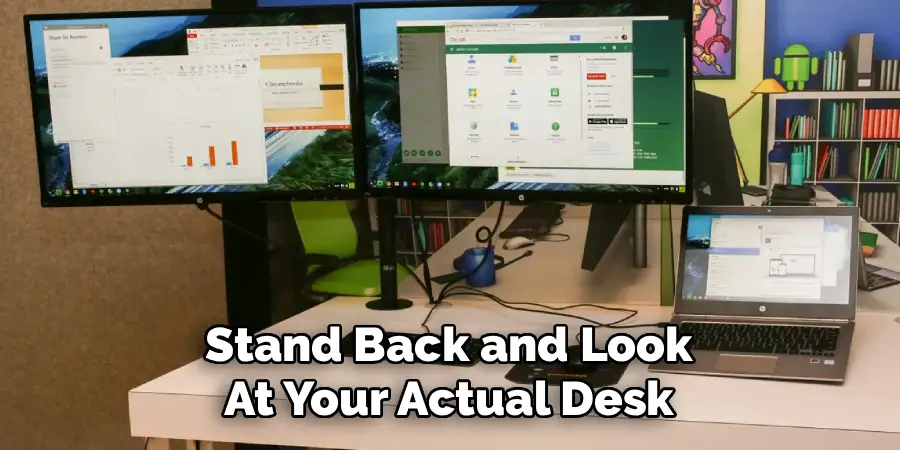
This step sounds obvious, but skipping it leads to confusion later. Many people jump into settings and start dragging things around without a clear picture of what they’re trying to match. Having a mental image of your real-world arrangement makes the next steps much faster and prevents you from having to go back and redo things.
Step 2: Open Display Settings On Windows Or macOS
On Windows 10 or 11, right-click on an empty area of your desktop and select “Display settings” from the menu. This opens the Settings app directly to the display configuration panel. On macOS, click the Apple menu in the top-left corner, go to “System Settings” (or “System Preferences” on older versions), and select “Displays.” Both paths take you to the same type of interface — a visual representation of your connected screens.
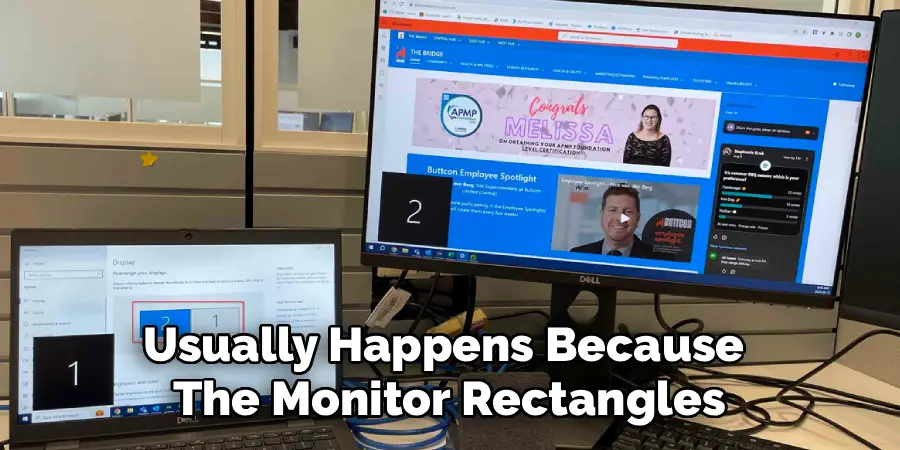
You should see two or more rectangles on screen, each representing a connected monitor. If you only see one rectangle but have two monitors connected, scroll down on Windows to check detection, or look for a “Detect Displays” button on macOS. If a second monitor still doesn’t appear, check your cable connections and make sure the monitor is powered on before continuing.
Step 3: Identify Which Rectangle Represents Which Monitor
Most operating systems label each monitor with a number — “1” and “2” on Windows, for example. To figure out which rectangle matches which physical screen, Windows offers a helpful “Identify” button on the display settings page. Clicking it briefly flashes a large number on each physical screen so you can match them to the rectangles on your settings page.

On macOS, you can hover your mouse over each rectangle in the Displays panel and watch which physical screen highlights or responds. Once you know which number corresponds to which physical monitor, you’re ready to rearrange them accurately. Getting this identification step right is the foundation of everything that follows — misidentifying screens leads to a layout that still doesn’t feel right even after you think you’ve fixed it.
Step 4: Drag The Display Rectangles Into The Correct Position
This is the core action that changes which direction your cursor travels between screens. Click and hold on one of the monitor rectangles in your display settings panel and drag it to match your real-world layout. If your second monitor sits to the left of your main screen, drag its rectangle to the left side. If it’s above or below, drag it there accordingly.
Windows and macOS both let you position screens at any angle — side by side, stacked, or even offset vertically so the top edges don’t align. That last option is useful if your monitors are different heights or sit at slightly different levels. Drag carefully and try to match the relative position as closely as possible, because even a slight offset in the virtual layout will affect exactly where the cursor crosses between screens.
Step 5: Apply The Changes And Test Cursor Movement
Once you’ve arranged the rectangles to match your physical layout, click “Apply” on Windows or simply close the panel on macOS — changes often save automatically. On Windows, a confirmation dialog will appear asking if you want to keep the new settings. Click “Keep Changes” before the countdown timer runs out, or the settings will revert. Give yourself a moment to move your mouse slowly from one screen to the other and verify the direction feels natural.
If the cursor crosses exactly where you expected — left to right, right to left, or top to bottom — you’re done. If something still feels off, go back into display settings and make small adjustments to the rectangle positions. Sometimes a monitor that’s placed slightly too high or low in the virtual layout causes the cursor to get “stuck” at certain positions along the edge rather than crossing smoothly.
Step 6: Fix Common Alignment And Resolution Issues
Two problems come up frequently after rearranging displays. The first is misaligned edges — the cursor can only cross between screens in a narrow band because the virtual rectangles don’t line up evenly along their shared edge. To fix this, drag the rectangles in display settings so their top or bottom edges align more precisely. The second is scaling confusion, where one monitor runs at a higher resolution or DPI setting, making the transition point feel inconsistent.
On Windows, check the “Scale and layout” setting under each display and ensure scaling is set appropriately for each screen. On macOS, check the resolution setting for each display separately under Displays in System Settings. Mismatched scaling doesn’t prevent cursor movement, but it can make dragging windows across screens feel jarring. Matching the scaling ratios as closely as your monitors allow resolves most of these issues without needing third-party tools.
Frequently Asked Questions
Why Does My Cursor Disappear Between Screens?
This usually happens because the monitor rectangles in your display settings have a gap between them rather than touching edge to edge. The cursor moves into that virtual gap and appears to vanish. Go into your display settings, drag the rectangles so they sit flush against each other with no space in between, and apply the changes. Once the edges connect properly, the cursor will transition between screens smoothly without disappearing.
Can I Rearrange Displays On Windows 11 Without Restarting?
Yes, changes to display arrangement on Windows 11 take effect immediately after you click “Apply” and confirm the new settings. No restart is required. The same applies to macOS — display layout changes apply instantly without a reboot. The only time a restart might be needed is if you’re installing a new graphics driver or connecting a monitor type your system hasn’t seen before and the device requires a driver update to function correctly.
Does Monitor Arrangement Affect Gaming Or Full-Screen Apps?
It can. In some games, the primary display determines where the game launches and which screen the cursor is locked to during full-screen mode. If your game keeps launching on the wrong screen, you may need to change which display is set as your primary monitor in display settings. On Windows, select the monitor you want as primary and check the “Make this my main display” option. Most games will then launch on the correct screen automatically.
Why Do My Display Settings Keep Resetting After Restart?
This typically happens with docking stations, certain USB-C adapters, or systems with multiple graphics outputs. The operating system may not recognize the connected monitors as the same devices each time and resets to a default layout. On Windows, this can sometimes be resolved by updating your graphics driver or using a dedicated display arrangement tool. On macOS, third-party apps like Display Menu or BetterDisplay can save and restore specific layout profiles reliably.
Can I Set Up Vertical Monitor Stacking The Same Way?
Absolutely. The same drag-and-drop method in display settings works for vertical arrangements. If your second monitor sits directly above your main screen, drag its rectangle to the top of the primary rectangle in settings. Your cursor will then move upward to reach the second screen, matching the physical layout. Just make sure the rectangles are properly aligned horizontally so the cursor can cross the full width of the shared edge without getting stuck.
Conclusion
Getting your dual monitor setup to feel natural comes down to one thing: making sure your virtual display layout matches your physical desk arrangement. You start by identifying how your monitors are positioned in real life, then recreate that layout in your display settings by dragging the screen rectangles into the right order and alignment. After applying the changes, a quick test of cursor movement tells you right away whether everything is working.
If your cursor still isn’t moving the way you want, go back through each step and check for the common issues covered here. Knowing how to change mouse direction on dual monitors means you only have to set it up correctly once — and from that point forward, your workspace just works the way it should.
