
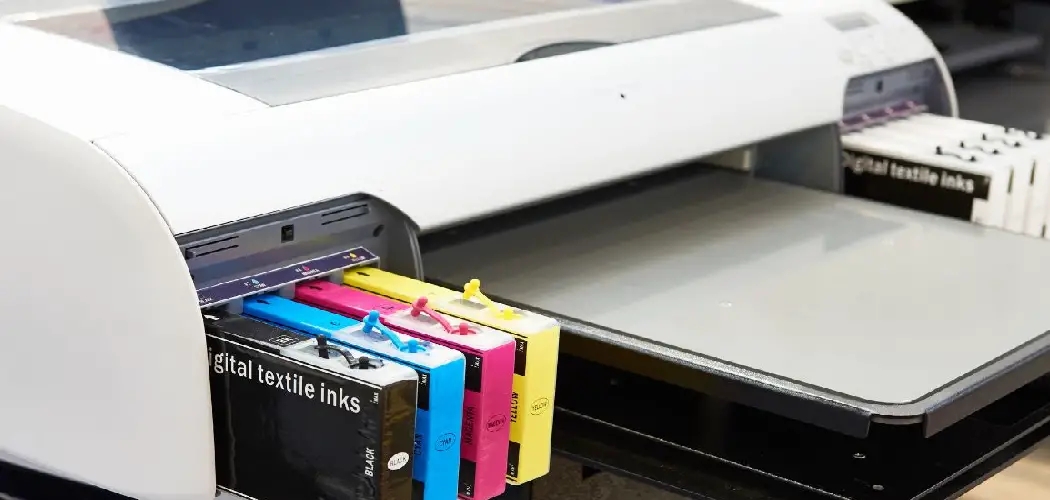
Running out of ink mid-print is one of those small frustrations that wastes time, paper, and patience. One moment your document looks fine, and the next you’re pulling out pages streaked with missing text or faded color. The fix is simple — but only if you stay ahead of it.
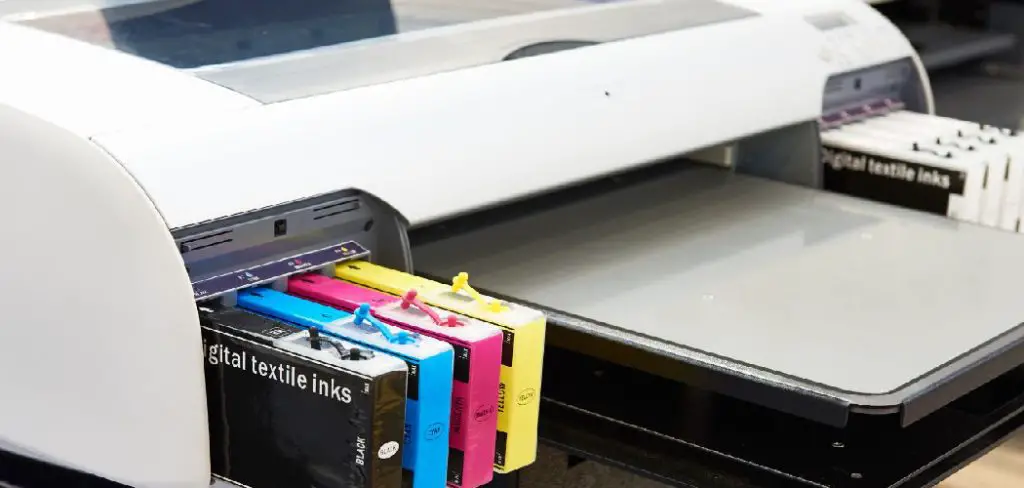
Knowing how to check printer ink levels takes less than two minutes on most devices, and it can save you from a last-minute dash to the store before an important print job. Whether you use a home inkjet printer, a shared office laser printer, or something in between, every major brand gives you at least one way to monitor remaining ink or toner — you just need to know where to look.
This guide walks through seven practical steps covering every common method: the printer’s own display, Windows and macOS settings, manufacturer apps, warning light interpretation, and what to do when the readings don’t look right. By the end, you’ll know exactly where to check and how to act on what you find.
Why Checking Printer Ink Levels Matters
Keeping track of ink levels prevents three problems that are easy to avoid but annoying when they hit: failed print jobs, wasted paper, and unnecessary cartridge replacements.
When ink runs low without warning, you often don’t find out until quality drops. That means reprinting documents, which uses more ink and wastes time. Checking regularly lets you order a replacement cartridge before you actually need it, rather than scrambling when something urgent comes up.
Step-By-Step Guide To How To Check Printer Ink Levels
Step 1: Start With The Printer’s Built-In Display
Many modern inkjet and all-in-one printers have a small LCD screen on the front panel. This is the fastest place to look before opening any app or software. Navigate to the home menu on the display, then look for an option labeled “Ink Levels,” “Cartridge Status,” or “Supply Levels” — the exact wording varies by brand, but it’s usually under a settings or maintenance menu.

The display will typically show a bar or percentage for each cartridge, including separate readings for black, cyan, magenta, and yellow in color printers. If your printer doesn’t have a screen, skip this step and move on to the software-based methods below. Laser printers rarely include detailed ink readings on the panel, but many show a basic low-toner warning when levels drop below a threshold.
Step 2: Use The Windows Device Settings
On a Windows computer, open the Start menu and go to Settings, then navigate to Bluetooth and Devices, followed by Printers and Scanners. Click on your printer’s name and select Open Printer Queue or Printer Properties, depending on your version of Windows. From there, look for a Maintenance, Preferences, or Supplies tab that includes ink or toner status information.
Not every printer exposes detailed ink data through Windows settings — this depends on the printer model and whether the manufacturer’s driver is fully installed. If you only see basic connectivity information and no ink data, the manufacturer’s dedicated app will give you more detail. That’s covered in the next step.
Step 3: Check Through MacOS System Settings
On a Mac, open System Settings and click on Printers and Scanners in the left panel. Select your printer from the list and click Open Print Queue. In the print queue window, look for a Supply Levels or Information option — on many printers connected via USB or network, this will show a color-coded ink chart directly in the window.
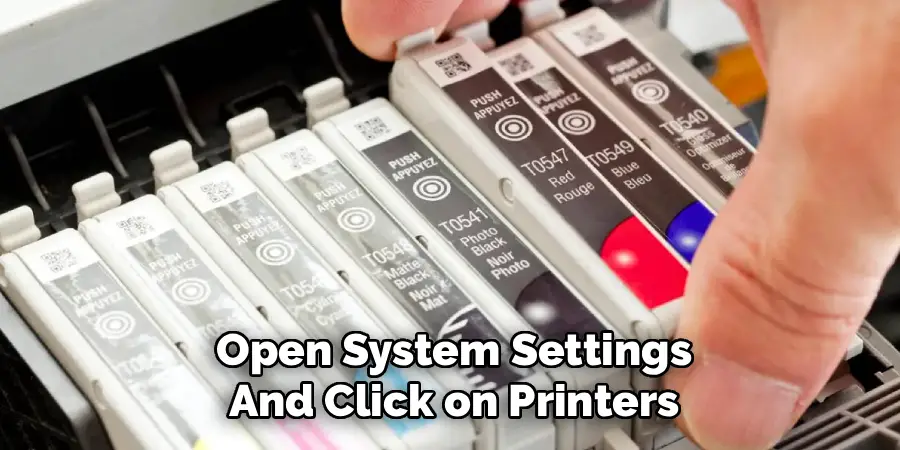
Some printer models require the full manufacturer driver to display supply levels in macOS. If the ink information doesn’t appear, check whether you’re using Apple’s generic AirPrint driver instead of the brand-specific one. Installing the manufacturer’s driver from their official website usually restores the full ink monitoring feature within a few minutes.
Step 4: Download And Use The Manufacturer’s App
Most major printer brands — HP, Canon, Epson, Brother — offer free desktop or mobile apps that give you more detailed supply information than the operating system alone. HP Smart, Epson iPrint, Canon PRINT, and Brother’s iPrint and Scan app all include ink or toner level displays as a core feature. Download the appropriate app for your printer brand from the manufacturer’s official site or your device’s app store.
Once installed and connected to your printer, the app typically shows a dashboard with ink level bars for each cartridge. Many apps also send automatic low-ink notifications, which removes the need to check manually at all. If you print regularly, enabling these notifications is one of the most practical things you can do to stay ahead of supply shortages.
Step 5: Interpret Warning Lights On The Printer Itself
If your printer doesn’t have a display screen, it still communicates ink status through LED indicator lights. A solid or blinking orange, amber, or red light near the ink or cartridge icon usually signals that one or more cartridges are low or empty. Check your printer’s manual or the manufacturer’s support page to decode the exact pattern — two blinks often means something different from five blinks.
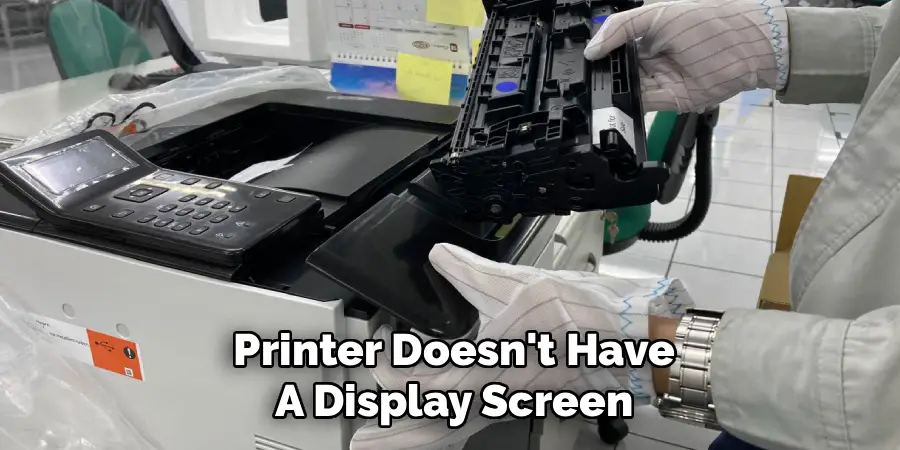
Understanding how to check printer ink levels through light patterns is particularly relevant for entry-level inkjet printers that lack screens. The warning lights don’t tell you exactly how much ink remains, but they do tell you that action is needed soon. Once a warning light appears, it’s a good idea to check the supply levels through software before your next important print job.
Step 6: Print A Printer Status Or Nozzle Check Page
Most printers can print a self-diagnostic page that includes supply level information. Access this through the printer’s settings menu, a physical button sequence on the device (often holding the power or maintenance button for several seconds), or through the printer driver on your computer. The resulting page typically shows a status summary including ink or toner percentages and a nozzle check pattern that reveals whether any colors are printing properly.
This method is especially useful when software readings and print quality don’t seem to match. If the status page shows adequate ink but your prints are coming out faded or streaked, the problem may be a clogged printhead rather than an empty cartridge. The nozzle pattern on the status page will show gaps or missing lines if that’s the case, pointing you toward a printhead cleaning cycle instead of a cartridge replacement.
Step 7: Handle Inaccurate Or Inconsistent Ink Readings
Ink level readings aren’t always perfectly accurate — this is a known limitation of most consumer printers. Cartridges track ink usage through estimated counts rather than direct measurement, so a cartridge that reads “low” may still have usable ink remaining, while a “full” reading after reinstalling a partially used cartridge may be overestimated. If your readings seem off, print a test page and compare it with what the software reports.
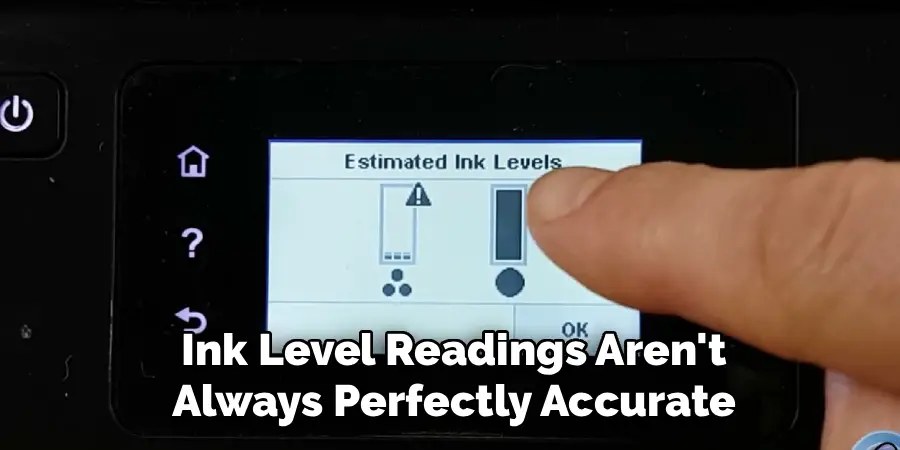
When readings are consistently unreliable, resetting the cartridge estimate (if your printer supports it) or switching to the manufacturer’s own cartridge brand can help restore accuracy. Third-party or refilled cartridges sometimes prevent accurate monitoring because their chip data doesn’t align with the printer’s expectations. Understanding these limitations helps you make better decisions about when to actually replace a cartridge versus when to trust the reading and keep printing.
Frequently Asked Questions
How Often Should I Check My Ink Levels?
For light home users, checking once a week is usually enough to stay ahead of any surprises. If you print daily or run a small office with shared printers, checking every couple of days — or enabling automatic low-ink notifications through the manufacturer’s app — is a better approach. The goal is to catch low levels before they affect a time-sensitive print job rather than after the damage is already done.
Why Does My Printer Say Ink Is Low When I Just Replaced The Cartridge?
This usually happens when the printer doesn’t recognize that a new cartridge has been installed. Try removing the cartridge and reinserting it firmly until it clicks into place. If the reading still shows low after reinstalling, the cartridge chip may not have reset properly. Turning the printer off, waiting 30 seconds, and powering it back on often clears the reading and forces the printer to re-read the new cartridge’s chip data.
Can I Still Print When The Ink Warning Light Comes On?
Yes, in most cases. A low-ink warning typically activates when the cartridge reaches around 10 to 20 percent of its capacity, so there’s usually enough ink remaining for several more pages. The printer will continue to function normally until the cartridge is truly empty. For critical documents or color-accurate prints, it’s worth replacing the cartridge sooner rather than risking a drop in quality partway through a job.
Do Third-Party Cartridges Affect Ink Level Monitoring?
They often do. Third-party and refilled cartridges use replacement chips that may not communicate accurately with your printer’s tracking system. The result is readings that are frozen, inaccurate, or replaced by a generic error message. Some printers will display a compatibility warning when a third-party cartridge is detected. If accurate monitoring matters to you, using the manufacturer’s own cartridges is the most reliable way to keep supply level readings consistent and trustworthy.
Why Is My Color Ink Running Out Faster Than Black?
Color cartridges drain faster than black on many inkjet printers because the printer uses color inks not just for colored text and images, but also to enhance the quality of black prints in certain modes. Some printers are set by default to use color inks as part of the black rendering process.
Conclusion
Keeping track of your ink supply is one of the simplest maintenance habits you can build as a printer owner. The key steps are checking the printer’s built-in display or manufacturer app first, using your operating system’s printer settings as a backup, and learning how to read warning lights and printed status pages when software isn’t available.
Take two minutes today to run through how to check printer ink levels on your own device. Knowing what’s in each cartridge before you need it is a small habit that prevents big interruptions.
