
If your VIVO corner desk or corner desk converter wobbles, tilts, or refuses to sit evenly on your surface, you’re not alone. This is one of the most common setup frustrations people run into after unboxing a new workstation piece — and the good news is that it’s almost always fixable without any special tools or professional help.
Knowing how to ensure vivo corner lies flat on desk is the foundation of a stable, comfortable workspace. An uneven desk doesn’t just feel annoying — it affects your posture, puts stress on your monitor arms, causes equipment to slide, and can even result in long-term damage to both the desk and whatever sits on it. Whether you’re setting up a sit-stand converter on top of an existing surface or assembling a full VIVO corner desk frame from scratch, getting a flat, level foundation is the first and most important task.
Why Ensuring A Stable Desk Setup Matters
A wobbly or uneven desk creates problems that go well beyond minor inconvenience. Monitors that aren’t sitting on a stable base can drift slightly over time, putting unexpected strain on the neck and shoulders. For anyone who spends long hours at a computer, even a small tilt in the surface becomes a meaningful ergonomic issue.
There’s also a practical safety concern. Monitors, laptops, and accessories placed on an unstable surface are at greater risk of sliding or tipping, especially if a sit-stand converter is raised to standing height. Instability at elevation is significantly more dangerous than instability at sitting height.
Step-By-Step Guide To How To Ensure Vivo Corner Lies Flat On Desk
Step 1: Check Whether The Problem Is The Floor Or The Desk Surface
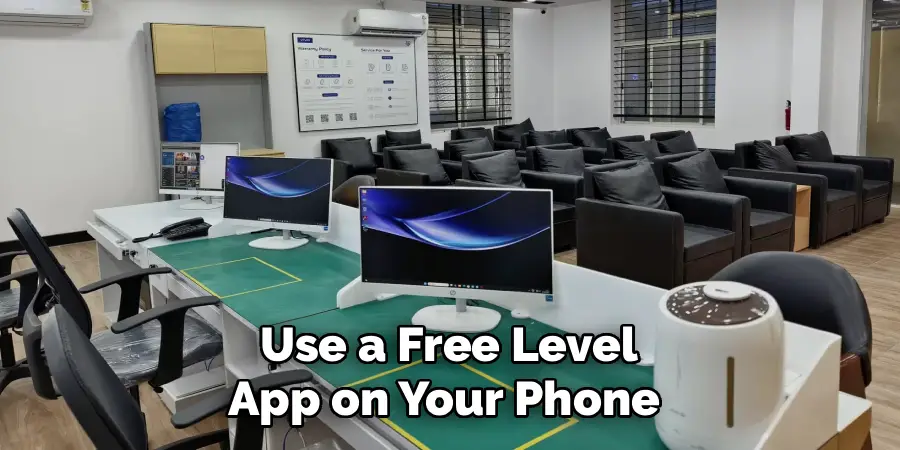
The first thing to do is figure out where the unevenness is coming from — the floor beneath the desk or the desk surface itself. Place a bubble level or use a free level app on your phone across the desk surface in several spots. If the level reads flat on the desk surface but your VIVO corner piece still tips, the issue is likely in the product itself. If the desk surface reads uneven, the floor is the likely culprit.
This distinction matters because the solutions are completely different. A floor-level problem is solved with adjustable feet, while a surface-level problem requires looking at the desk frame, assembly, or the mat underneath. Don’t skip this step — it saves you a lot of time troubleshooting in the wrong direction.
Step 2: Inspect And Tighten All Frame Bolts And Connection Points
Loose hardware is one of the most common reasons a desk corner section doesn’t sit flat. During the excitement of assembly, it’s easy to hand-tighten bolts without fully securing them, and over time, regular use causes them to loosen further. Go over every visible bolt and connection point on the frame using the appropriate Allen key or wrench, tightening in a deliberate pattern — don’t just tighten one side fully before touching the other.
Work your way from the base of the frame upward, tightening opposite joints evenly so you don’t inadvertently introduce a twist into the structure. A frame that’s unevenly tightened can actually warp slightly, causing the top surface to rock even on a flat floor. Snug all joints equally and test for stability after each section before moving on.
Step 3: Adjust The Leveling Feet On The Desk Frame
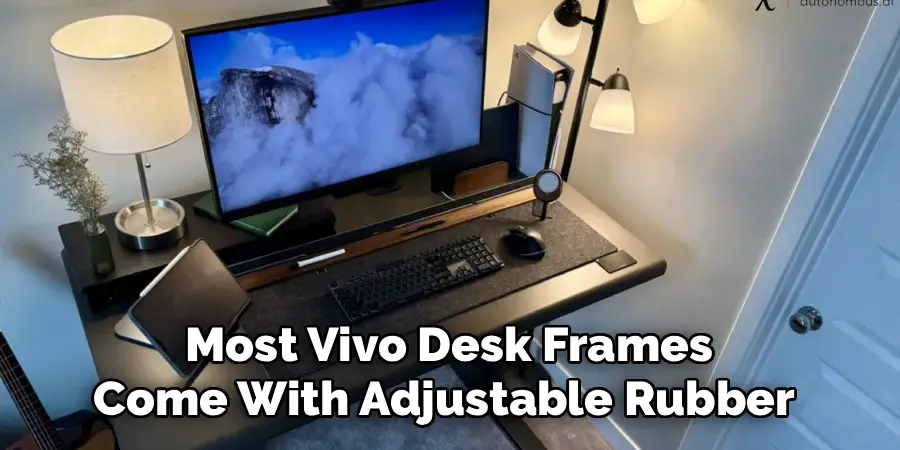
Most VIVO desk frames come with adjustable rubber foot pads on the bottom of each leg. These are specifically designed to compensate for minor floor irregularities. Turn the foot pads clockwise to lower that leg’s contact point and counterclockwise to raise it. The goal is to get all legs making firm, equal contact with the floor so the frame doesn’t rock in any direction.
Place your hand on each corner of the desk and press down gently while a second person watches the frame, or use your level to guide the adjustments. Make small turns — a quarter turn at a time — and recheck after each adjustment. It’s a slow process, but doing it carefully the first time means you won’t need to revisit it. Once all feet are set correctly, the rest of the stability issues often resolve themselves entirely.
Step 4: Re-Examine Your Assembly Against The Manual
It sounds obvious, but reassembling a section that was put together slightly out of order is surprisingly common. VIVO corner desks have specific panel connection sequences, and if one bracket was installed before its neighboring component was fully set, the whole structure can end up with a small but persistent twist. Understanding how to ensure vivo corner lies flat on desk often starts here — at the assembly stage.
Pull up the original assembly manual (available on VIVO’s website if you’ve lost the paper copy) and compare each connection point to the diagram. Pay particular attention to corner brackets and support rails, which carry the most weight and are most sensitive to being slightly misaligned. Partial disassembly and reassembly of the affected section, done carefully, can eliminate a structural tilt that no amount of foot-pad adjustment will fix.
Step 5: Remove Or Replace Desk Mats And Surface Accessories
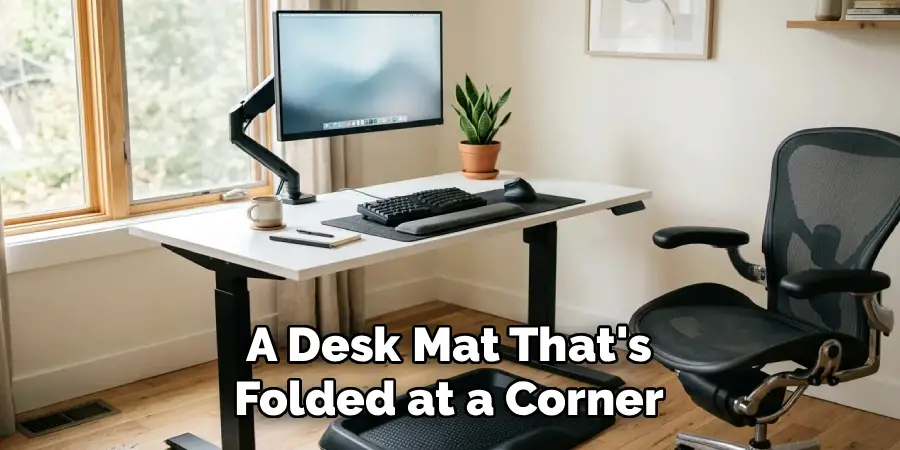
A thick desk mat, cable tray, or pad placed under a corner converter can introduce unevenness that feels like a structural problem. If your VIVO product sits on top of an existing desk surface rather than directly on the floor, lift the unit and inspect what’s underneath. A mat that’s bunched slightly at one corner, or one that’s thicker on one side due to wear, can cause a noticeable tilt.
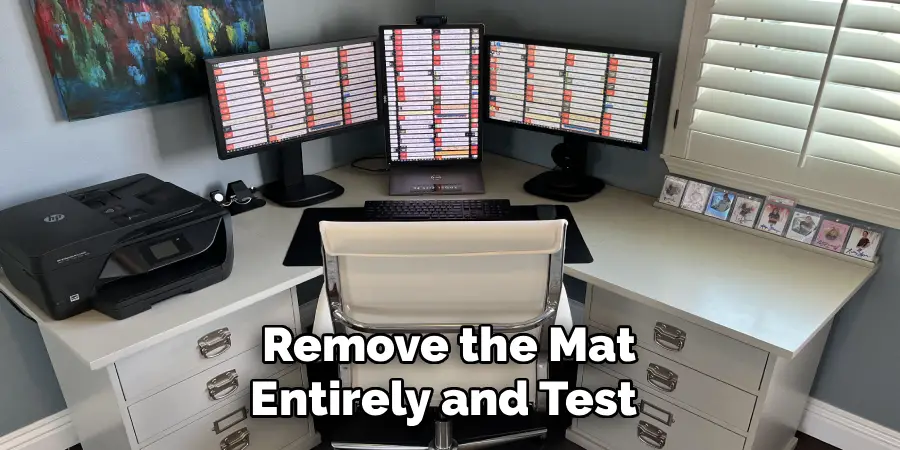
Remove the mat entirely and test the surface for flatness with your level. If things improve immediately, the mat was the problem. You can either use a thinner, more uniform mat or cut the mat to ensure it sits perfectly flat without any overlap or folding at the edges. This is a quick fix that often gets overlooked because the mat itself doesn’t seem like a likely suspect.
Step 6: Redistribute Weight And Check Monitor Arm Load Limits
An uneven load distribution can cause a surface that initially appeared flat to sag or tilt over time, especially on sit-stand converters. Understanding how to ensure vivo corner lies flat on desk includes paying attention to how weight is spread across the surface. If you have multiple heavy monitors clustered on one side, shift them toward the center or balance them across the span of the surface as evenly as practical.
Also check your monitor arm’s rated load limit if you’re using one. Overloading a single monitor arm puts rotational stress on the mounting clamp, which can cause the entire unit to lean. Check VIVO’s product page for your specific arm model to confirm the weight rating and compare it against your actual monitor weight including the stand base, if applicable. Staying within rated limits protects both the arm and the desk surface it clamps to.
Frequently Asked Questions
Why Does My Vivo Corner Desk Rock Even After Tightening Everything?
Rocking after tightening usually means the floor beneath the desk is uneven rather than the desk itself. Use a phone level app to check the floor directly, then adjust the leveling feet on each leg until all four make firm contact with the surface. If the desk has only three legs, a single adjustable foot can often resolve the issue entirely. A small rock before adjustment becomes a significant wobble once monitors and equipment are added.
Can A Desk Mat Cause My Vivo Converter To Sit Unevenly?
Yes, it can. A desk mat that’s folded at a corner, worn unevenly, or too thick in certain areas creates an inconsistent base for any surface converter. Even a 2mm difference in mat thickness can cause a noticeable tilt once a monitor is mounted overhead. Try removing the mat entirely and testing the setup directly on the bare desk surface to see whether the mat is contributing to the problem before investing in a replacement.
How Tight Should The Frame Bolts Be On A Vivo Desk?
Bolts should be firmly snug — tight enough that they don’t move under normal use, but not so tight that you’re forcing the wrench with full strength. Overtightening can strip threads or warp the frame bracket, which creates new alignment problems. A good rule is to tighten until you feel solid resistance, then add a quarter turn. Recheck bolts after the first few weeks of use, as new furniture hardware tends to settle slightly with regular loading.
What Weight Limit Should I Keep In Mind For A Vivo Corner Setup?
VIVO publishes specific weight ratings for each product model, and these vary significantly depending on whether you have a full corner desk or a sit-stand converter. Exceeding the rated weight limit doesn’t just create stability issues — it can permanently damage the frame, stress the adjustment mechanism, and void the warranty. Check the product listing or the manual for your specific model, and account for the combined weight of all monitors, accessories, and anything else placed on the surface.
Is It Normal For A New Vivo Desk To Need Leveling Right Out Of The Box?
Yes, it’s completely normal. Leveling feet exist precisely because no two floors are perfectly flat, and even small variations in flooring — tile grout lines, slight subfloor flex, carpet padding — affect how a desk frame sits. Most VIVO desks ship with adjustable feet as a standard feature, not an afterthought. Spending five to ten minutes dialing in the leveling feet during initial setup makes the entire desk more stable long term and reduces wear on the frame over time.
Conclusion
Getting your workspace level and solid doesn’t require any technical expertise — it just requires working through the right steps in the right order. Start by identifying whether the problem is coming from the floor, the frame, the assembly, or what’s sitting under the surface. Tighten all hardware evenly, adjust the leveling feet carefully, and make sure you’re not overloading one side of the surface with unbalanced weight. If a desk mat is in play, check whether it’s contributing to the tilt before assuming the desk itself is at fault.
Following these steps is the most reliable way to learn how to ensure vivo corner lies flat on desk and enjoy a workspace that’s stable, ergonomic, and ready for everyday use. Most problems have a simple fix, and tackling them methodically means you’ll have a solid setup in under an hour. Start with Step 1, work through each stage, and don’t hesitate to reach out to VIVO support if a manufacturing issue turns out to be the root cause.
