
Most laptops and desktops come with a single HDMI port, which can feel like a hard wall when you want a dual-monitor setup. You plug in one screen and wonder — is that it? The answer is no, and that’s exactly what this guide is here to show you.
Knowing how to use two monitors with one HDMI port opens up a world of productivity. You can keep your email on one screen while working on a presentation on another, or have your reference material visible without constantly switching tabs. It’s a game-changer for remote workers, students, designers, and anyone who spends hours in front of a computer.
The key is understanding that there are several legitimate ways to expand beyond that single port — docking stations, USB-to-HDMI adapters, DisplayPort outputs, and USB-C alternate mode, among others. There are also common misconceptions worth clearing up, like the idea that a basic HDMI splitter will do the job. This guide walks you through every step clearly, so you can build a dual-monitor setup that actually works.
Why Using Two Monitors Matters
A dual-monitor setup is one of the highest-return upgrades you can make to your workspace. Studies consistently show that working across two screens reduces the time spent switching between apps and windows, which adds up to meaningful time savings across a workday.
Beyond productivity, two monitors reduce mental load. When related information stays visible at all times — a brief on one screen, your document on the other — you spend less energy remembering what you just read. For creative professionals, having a design canvas on one display and your tool panels on the other is simply a better workflow.
Step-By-Step Guide To How To Use Two Monitors With One HDMI Port
Step 1: Check What Other Ports Your Computer Has
Before buying anything, take a close look at every port on your laptop or desktop. Many computers that appear to have just one HDMI port also have a DisplayPort, Mini DisplayPort, USB-C, or Thunderbolt output — any of which can drive a second monitor independently. A USB-C port with DisplayPort Alternate Mode, for example, can output video directly without any adapters other than a simple USB-C-to-HDMI cable.
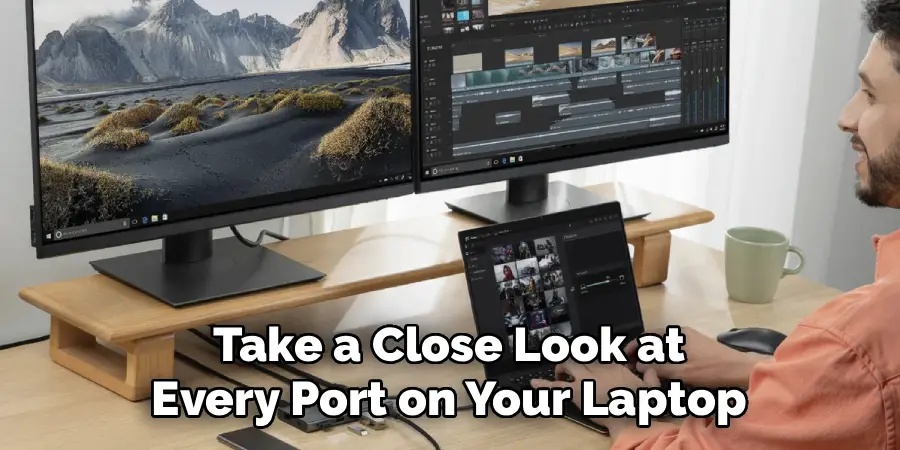
Checking this first could save you money. If your machine has a spare DisplayPort or USB-C video output, you can connect one monitor via HDMI and the second through that alternate port. Look up your laptop’s model number online to confirm which ports support video output, as not all USB-C ports carry display signals.
Step 2: Understand What An HDMI Splitter Can And Cannot Do
An HDMI splitter is a small device that takes one HDMI signal and sends it to two screens simultaneously. This is a common first instinct, and it’s an understandable one — but it’s important to know that a standard HDMI splitter mirrors your display. Both screens show the exact same image at the exact same resolution. You cannot extend your desktop across two independent screens this way.
If your goal is an extended display — separate content on each monitor — a splitter won’t deliver that. It’s useful for presentations or digital signage where identical output on multiple screens is the goal. For true dual-screen productivity, you’ll need one of the methods covered in the next steps instead.
Step 3: Use A Docking Station For The Most Reliable Setup
A docking station connects to your laptop via USB-C or Thunderbolt and breaks out into multiple video outputs — often two HDMI ports, a DisplayPort, or a combination. This is the cleanest and most reliable solution for most users. You plug one cable into your laptop, and the dock handles the rest. Many docks also add USB ports, ethernet, and card readers at the same time.

When choosing a dock, confirm it explicitly supports dual video output at your preferred resolution. Some budget docks only activate one video output at a time or cap resolution at 1080p. Look for a dock rated for your laptop’s port type — USB-C docks and Thunderbolt docks are not always interchangeable, and using the wrong one may limit functionality significantly.
Step 4: Add A USB-To-HDMI Adapter As A Simpler Alternative
If a docking station feels like more than you need, a USB-to-HDMI adapter is a compact and affordable option. These small adapters plug into a standard USB-A or USB-C port and add an HDMI output powered by your computer’s graphics hardware through a technology called DisplayLink. Your existing HDMI port handles monitor one, and the adapter handles monitor two — giving you a fully extended desktop.
DisplayLink adapters require a driver installation, which you download from the manufacturer’s website. The setup takes about five minutes and works on both Windows and macOS. Performance is excellent for office tasks, browsing, and video playback, though graphic-intensive applications like 3D games or video editing software may show minor performance differences compared to a native output.
Step 5: Configure Display Settings In Windows Or Macos
Once both monitors are physically connected, your operating system needs to be told how to use them. On Windows, right-click the desktop and select “Display settings.” You’ll see both monitors listed, and under the “Multiple displays” dropdown, choose “Extend these displays.” This is the setting that gives each screen independent content. You can also drag the monitor icons to match their physical positions on your desk.
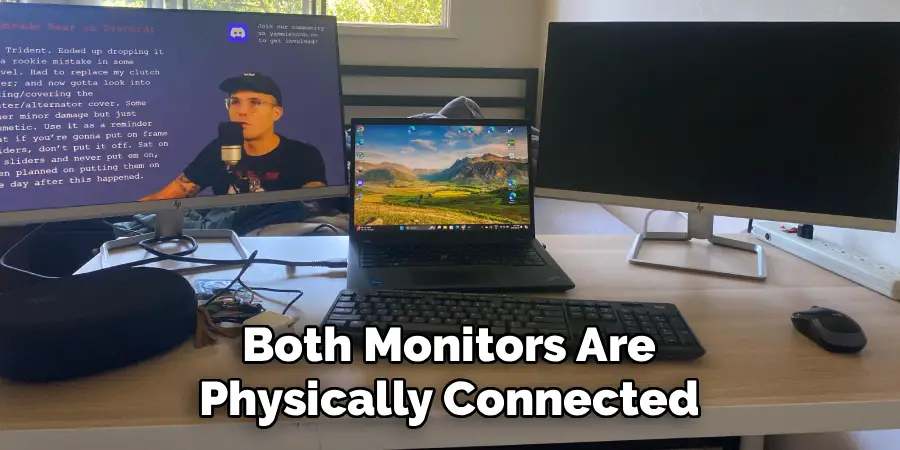
On macOS, go to System Settings, then Displays. Your external monitors will appear, and you can arrange them by dragging their icons to match your physical layout. By default, macOS may mirror displays — look for the “Use as Separate Display” option or uncheck “Mirror Displays” to enable extended mode. Both operating systems save your preferences, so you won’t need to reconfigure every time you reconnect.
Step 6: Adjust Resolution And Refresh Rate For Each Monitor
After extending your displays, check that each monitor is running at its native resolution and preferred refresh rate. A monitor running below its native resolution looks noticeably soft and less sharp, which defeats the purpose of a second screen upgrade. In Windows Display Settings, click on each monitor individually and set the resolution using the dropdown — most modern monitors run at 1920×1080 or 2560×1440 natively.
Refresh rate matters if you’re connecting a 75Hz or 144Hz monitor. A lower-quality adapter or an older HDMI cable may cap the signal at 60Hz regardless of what the monitor supports. If you notice the refresh rate option is limited, try a different cable or check whether your adapter supports higher refresh rates in its product specifications. Understanding these settings is part of knowing how to use two monitors with one hdmi port effectively and without frustration.
Frequently Asked Questions
Will A Basic HDMI Splitter Let Me Extend My Desktop?
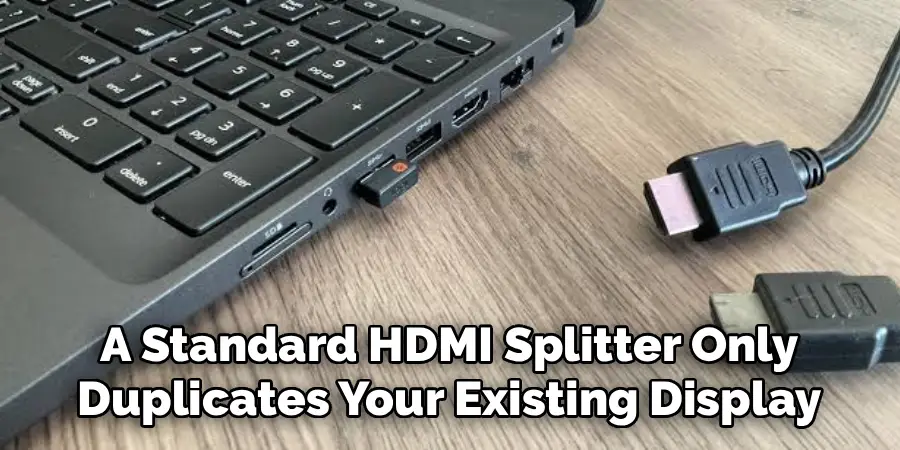
No — a standard HDMI splitter only duplicates your existing display across two screens. Both monitors show the same content at the same resolution, which is useful for mirroring but not for productivity-focused extended setups. To extend your desktop and use each screen independently, you need a docking station, a USB-to-HDMI adapter with DisplayLink technology, or a secondary video output port on your computer such as DisplayPort or USB-C.
Does USB-To-HDMI Work On Both Windows And Macos?
Yes, DisplayLink-based USB-to-HDMI adapters support both Windows and macOS, though macOS support can vary depending on the operating system version. After Apple introduced changes with macOS Ventura and Sonoma, some DisplayLink adapters required updated drivers to function correctly. Always check the adapter manufacturer’s compatibility page before purchasing, and download the latest driver version from their official site to avoid setup issues after installation.
Can I Connect Two Monitors To A Laptop With Only USB-C Ports?
Yes, if your USB-C ports support DisplayPort Alternate Mode or Thunderbolt, you can connect monitors directly or through a multi-output dock. A Thunderbolt 4 dock, for example, can support two 4K monitors from a single USB-C connection. However, not every USB-C port supports video output — check your laptop’s specifications carefully, as some USB-C ports are designed only for data and charging and will not carry a display signal regardless of what you plug in.
What’s The Difference Between Mirroring And Extending Displays?
Mirroring shows the same image on both screens simultaneously, which is ideal for presentations or showing content to multiple viewers. Extending displays treats each monitor as its own independent workspace — you can have different applications, windows, or content on each screen at the same time. Extended mode is what most productivity-focused users want. You switch between these modes in your operating system’s display settings, and the difference in workflow between the two is significant.
Do I Need A Powerful Computer To Run Two Monitors?
Not necessarily. Running two monitors in extended mode for everyday tasks like browsing, documents, email, and video calls requires very little additional processing power. The graphics hardware in most modern computers handles this comfortably. Where it matters is when you’re running demanding software — video editing, 3D rendering, or high-frame-rate gaming — on both screens simultaneously. In those cases, a dedicated GPU rather than integrated graphics will give you a noticeably smoother experience across both displays.
Conclusion
Expanding to a dual-monitor setup when you only have one HDMI port is completely doable — you just need to pick the right method for your situation. Check your existing ports first, since a spare DisplayPort or capable USB-C output may solve the problem instantly. If not, a USB-to-HDMI DisplayLink adapter is a low-cost, plug-and-play solution, while a docking station offers the cleanest setup with added connectivity. Always configure your display settings to “extend” rather than mirror, and adjust each monitor’s resolution and refresh rate to match its native specs.
Avoid the HDMI splitter trap if independent screens are your goal — it’s one of the most common beginner mistakes. With the right hardware and a few minutes of setup, learning how to use two monitors with one HDMI port is straightforward, and the productivity boost you’ll feel on day one makes the effort well worth it. Start with Step 1 today and get your dual-screen workspace running before the end of the afternoon.
