
A daily file system is a practical way to sort digital or physical documents around the work you actually do each day. To build one that lasts, review your routine, create a simple folder structure, use clear file names, and set aside a few minutes for regular cleanup.
A messy desktop does not usually look like a serious problem at first. A few screenshots here, a downloaded invoice there, a folder called “New Folder 3.” Then, at the worst possible time, you need one specific document and spend 20 minutes searching through places you never meant to use as storage.
That kind of friction adds up. It interrupts your focus, makes routine tasks feel heavier, and can quietly lower the quality of your work. A daily file system helps because it removes a small but repeated decision: Where does this go?
The goal is not to create a perfect archive worthy of a records department. Most people do not need that. What you need is a system clear enough that files are easy to save, easy to find, and easy to move out of the way when the work is done. In this guide on how to make a daily file system, we will walk you through the steps to create a simple and effective system for organizing your daily files.
Understanding the Purpose of a Daily File System
A daily file system works like a map for your working life. It gives every active document a reasonable place to live, so you are not relying on memory, guesswork, or your search bar every time you need a proposal, receipt, draft, spreadsheet, or contract.
This matters because most disorganization is not caused by laziness. More often, it happens when there is no obvious next action. If you do not know where a file belongs, you save it to the desktop “just for now.” If you do not have a naming rule, you call it “final,” then “final2,” then “actual_final.” The system breaks down in small, ordinary ways.
A good daily file system creates a bit of resistance against that drift. Active work stays visible. Finished work moves to an archive. Reference material has a home. You still need discipline, but the system does some of the thinking for you.
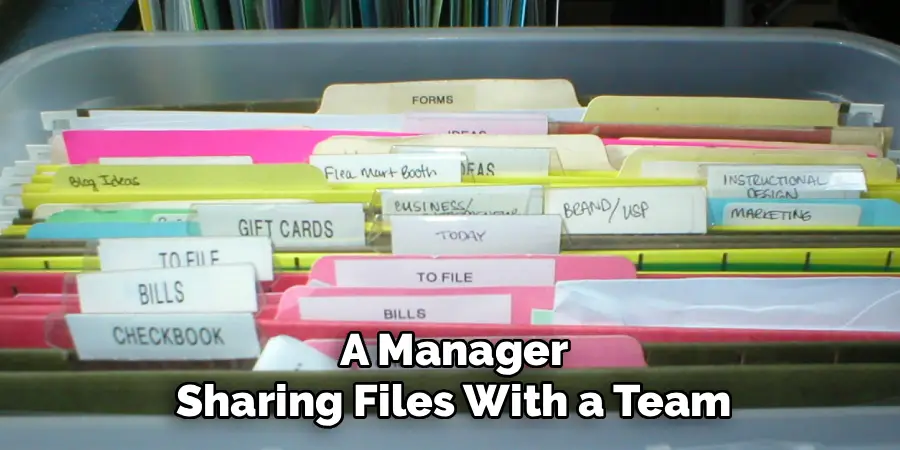
It also becomes more useful as your responsibilities grow. A freelancer managing five clients, a manager sharing files with a team, and a small business owner tracking invoices all need slightly different structures. Still, the principle is the same: when the storage logic is clear, people waste less time asking where things are, which version is current, or whether a document has been saved at all.
7 Simple Step-By-Step Guidelines on How to Make a Daily File System
Step 1: Assess Your Current Workflow Needs
Before you create new folders, pause and look at how you already work. This step is easy to skip because organizing feels like action, while observing feels slow. But if you build a system before understanding your habits, you may end up with a neat structure that you do not actually use.
Spend a few days noticing:
- Which files do you open every day
- Which documents do you create most often
- Where new downloads currently land
- Which folders do you avoid because they are confusing
- Which files are hardest to find when you need them
A designer, for example, may need folders organized by client and campaign. An accountant may think in terms of month, tax year, vendor, or account. A project manager may need active work separated by team, deadline, or project phase. None of these approaches is universally better. The useful one is the one that matches how you retrieve information.
Once you have a rough picture, group your files into broad categories. Common starting points include:
- Active projects
- Administrative documents
- Financial records
- Client or customer files
- Reference materials
- Personal documents
- Archive
This first audit will usually expose old files you no longer need. It may also show that some categories are too vague. A folder called “Documents,” for instance, often becomes a junk drawer unless it has a more specific purpose.
The point is not to design an elegant system on paper. It is to build one that follows your actual work patterns closely enough that using it feels natural.
Step 2: Choose the Right Storage Platform
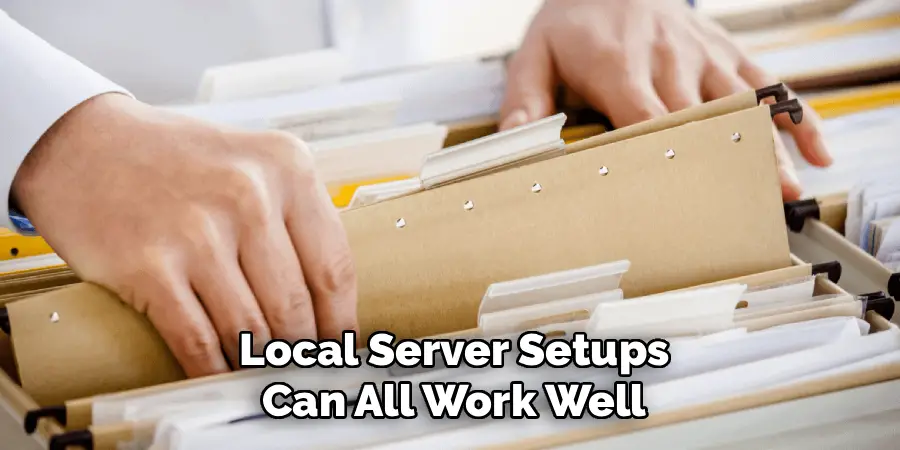
Your file system needs a reliable place to live. For most people, that means choosing a storage platform that fits the tools they already use. Google Drive, Microsoft OneDrive, Dropbox, and local server setups can all work well, depending on your work environment.
The best choice depends on a few practical questions:
- Do you need access from more than one device?
- Do you share files with clients, coworkers, or contractors?
- Does your workplace already use Google Workspace or Microsoft 365?
- Do you need version history?
- Are permissions and access controls important?
- How much storage do you realistically need?
It is tempting to chase the platform with the longest feature list. That is rarely necessary. A good platform should make ordinary file handling easier, not add another layer of management.
If you work alone, your priorities may be search, backup, and simple folder navigation. If you work with others, permissions matter more. You need to know who can view, edit, download, or share a file. Version control also becomes more important when several people may touch the same document.
Cloud sync is especially useful because it protects you from some common failures: a damaged laptop, an accidental deletion, or the problem of needing a file while away from your main computer. It is not a substitute for every kind of backup, but it does give your daily system a safer foundation than a single local folder.
Once you choose a platform, avoid scattering files across several services unless you have a clear reason. A file system becomes harder to trust when half your work is in Drive, some is in Dropbox, a few items are on your desktop, and the rest are still attached to emails.
Step 3: Establish a Logical Folder Hierarchy
A daily file system needs structure, but not too much of it. The best folder hierarchy is usually broad at the top and specific only where needed.
Start with five to seven top-level folders. That is enough to separate major areas of work without creating a maze. For example:
- 01_Current_Projects
- 02_Admin
- 03_Finances
- 04_Clients
- 05_Reference
- 06_Personal
- 07_Archive
The numbers are not decorative. They force folders to appear in the order you choose instead of alphabetically. This can be useful when you want current work at the top and archived material at the bottom.
Inside each top-level folder, create subfolders based on how you naturally think about the work. A client-based setup might look like this:
- 01_Current_Projects
- Client_A
- Proposals
- Drafts
- Final_Deliverables
- Client_B
- Meeting_Notes
- Reports
- Client_A
A finance folder might be organized by year and month:
- 03_Finances
- 2026
- 01_January
- 02_February
- Invoices
- Receipts
- 2026
The main risk here is overbuilding. If you need to click through six nested folders to reach one file, the system will feel tedious. A useful rule of thumb: most documents should be reachable within three or four clicks.
The opposite problem is dumping everything into one giant folder. That may feel easy at first, but it shifts the burden to search. Search tools are helpful, but they should support your file system, not replace it entirely.
A workable folder hierarchy should answer one simple question: if you were tired, busy, and slightly distracted, would you still know where to save the file?
Step 4: Create Strict Naming Conventions
Folders give your system shape. File names make it usable.
A vague file name forces you to open the document to understand what it is. A clear file name gives you the date, subject, and version at a glance. This saves time in small increments, which is exactly where file systems either succeed or fail.
A strong naming format might include:
- Date
- Client, project, or category
- Short description
- Version number, if needed
For example:
2026-05-12_ClientName_ProjectProposal_v2
Or, for internal documents:
2026-05-12_Admin_TeamMeetingNotes
The YYYY-MM-DD date format is useful because it sorts files in chronological order. If you use May-12-2026, your computer may not order the files the way you expect. Small details like this matter more than they seem.
Try to avoid names such as:
- Final
- Final_final
- New Document
- Notes
- Presentation updated
- Invoice latest
These names make sense for about six minutes. After that, they become a problem.
It helps to write your naming rules down, even if you work alone. A short note inside your top-level folder can be enough:
Naming rule: YYYY-MM-DD_ClientOrProject_Description_v#
If you work with a team, this becomes more important. People will not follow a rule they cannot see. And if each person invents their own naming style, the system gradually becomes unreliable.
Naming conventions can feel rigid at first. That is partly the point. A small amount of rigidity now prevents a larger amount of confusion later.
Step 5: Implement a Daily Archiving Routine
A folder structure is static. A daily file system is active.
The difference is movement. Finished work should not sit forever beside current work. Old drafts, completed deliverables, closed client folders, and outdated reference files need a place to go once they stop being part of your daily attention.
At the end of each workday, spend five minutes moving files into the right places. This does not need to become a grand cleanup ritual. Keep it simple:
- Move completed work to the archive
- Rename files that were saved quickly during the day
- Clear the desktop and downloads folder
- Remove duplicate drafts if they are no longer needed
- Check that active project folders contain only current material
This routine is similar to clearing a physical desk before leaving the office. It creates a small sense of closure. More importantly, it prevents clutter from becoming normal.
If you skip this step for a day or two, nothing terrible happens. But if you skip it for a month, your active folders may become hard to read. You will see old material mixed with urgent tasks, and your brain has to sort the difference every time you open the folder.
That is why the daily reset matters. It protects the usefulness of the whole system.
Step 6: Use Shortcuts and Quick Access Links
Even a well-designed folder structure can become annoying if you have to click through it constantly. Shortcuts solve that problem without damaging the underlying organization.
Use your operating system’s sidebar tools, such as:
- Quick Access on Windows
- Favorites on macOS
- Pinned folders in cloud storage tools
- Desktop aliases or shortcuts, when used carefully

Pin only the folders you use right now. For example, if you are actively working on two client projects and a monthly report, those folders can sit in your sidebar for quick access. When the projects close, unpin them and replace them with the next active folders.
This approach keeps your file system stable while your daily workspace stays flexible. The permanent folder structure remains intact. The shortcuts simply act as doorways into the parts you need most often.
One caution: do not use shortcuts as a second, messy file system. A shortcut should point to a real folder. It should not become another place where documents pile up.
Used well, shortcuts reduce friction. And lower friction usually means you are more likely to keep using the system.
Step 7: Schedule Regular System Audits
No file system works perfectly from the first day. Your job changes. Clients change. Projects grow in strange directions. A folder that made sense six months ago may now feel awkward.
That does not mean the system failed. It means it needs maintenance.
Set aside about 30 minutes at the end of each month for a review. During that time, ask:
- Which folders became dumping grounds?
- Which files were hard to name?
- Which active projects should now be archived?
- Which shortcuts are no longer useful?
- Are the top-level categories still accurate?
- Do any naming rules need to be clarified?
This monthly audit permits you to adjust the system without constantly tinkering with it. That matters. If you revise your structure every few days, you create a moving target. If you never revise it, the system may stop matching your work.
Look for repeated friction. If you keep creating files that do not fit anywhere, the problem may not be your discipline. The structure may be missing a category. On the other hand, if a folder has existed for months and contains two files, it may not deserve to be a top-level category.
Treat the file system as a working tool, not a monument. It should change slowly, for clear reasons. Following these steps on how to make a daily file system work, you can avoid clutter and confusion on your computer.
Common Mistakes to Avoid
One common mistake is creating too many folders. This often comes from good intentions. You want everything to have a precise place, so you create categories for every possible document type. The result is usually a structure that looks organized but feels exhausting to use.
Another mistake is saving files to the desktop as a temporary habit. The desktop is visible, so it feels convenient. But it can quickly become a holding area for unfinished decisions. If you use the desktop at all, treat it as a short-term landing zone and clear it daily.
Duplicate files also create trouble. When the same document appears in several folders, it becomes hard to know which version is current. Shortcuts or aliases are usually better than copies when one file belongs in more than one context.
A fourth mistake is ignoring backups. A tidy file system still needs protection. Cloud storage helps, but depending on your work, you may also want a secondary backup location. The point is simple: organization is not very useful if the files disappear.
Finally, avoid designing a system that only makes sense to you on your best day. If you work with a team, or if someone else may need to find files during an absence, the structure should be plain enough for another person to follow.
Productivity Tips for Better File Management
Once the basic system is working, small improvements can make it easier to maintain.
You might use automation tools to route downloads into specific folders. For example, PDFs could go into a review folder, images into a media folder, and spreadsheets into a temporary finance folder. This is not necessary for everyone, but it can help if your downloads folder fills up quickly.
Tags can also be useful. On macOS, color-coded tags can mark priority items or files waiting for review. On Windows, custom icons or pinned folders can serve a similar purpose. Use visual cues sparingly, though. If everything is marked as important, nothing is.
Bulk-renaming tools can help when you are cleaning up older files. Instead of renaming 80 documents by hand, you can apply a consistent pattern across a batch. This is especially helpful when bringing old project files into your new naming system.
A simple “inbox” folder can also work well. This is a temporary place for unsorted files that arrive during the day. The keyword is temporary. Empty it during your daily reset, or it will become another junk drawer.
One habit matters more than any tool: do not save a file without naming it properly. It takes a few extra seconds. Those seconds are cheaper than searching later.
Maintaining the System Long-Term
Long-term success depends less on the original setup and more on repetition. A file system only works if you keep trusting it. And you will only trust it if the rules stay consistent.
When you start a new client, project, quarter, or reporting period, create the needed folders immediately. Use the same structure each time. If a project folder usually includes Drafts, Final, Notes, and Assets, make that your template. Do not reinvent it for every new job.
For teams, write a short file management guide. One page is usually enough. Include:
- Where files should be saved
- How folders are structured
- What naming format to use
- How versions should be handled
- When should files be archived
- Who can create or delete top-level folders
This may sound overly formal for a small group, but it prevents confusion. People cannot follow an unwritten standard with any reliability.
It also helps to decide who owns the system. If everyone can change the structure whenever they want, the folders may slowly lose coherence. One person does not need to control every file, but someone should be responsible for keeping the structure clean.
Over time, the goal is for file management to become ordinary. Not exciting. Not elaborate. Just a quiet habit that keeps your work easier to find.

Reclaiming Your Digital Workspace
Building a daily file system is not about becoming perfectly organized. It is about reducing the small, repeated messes that make work feel harder than it needs to be.
Start with your real workflow. Choose one reliable storage location. Build a folder structure that is simple enough to use on a busy day. Name files clearly. Archive completed work before it clutters your active folders. Then review the system once a month and adjust it when your work changes.
If the whole process feels too large, begin with one active project. Organize that folder today using the rules above. Once that feels manageable, apply the same structure to the next project. A useful file system is built through repetition, not one heroic cleanup session. Thanks for reading this guide on how to make a daily file system.
