
A monitor can change how comfortable, focused, and productive you feel during the workday. It affects how clearly you see text, how much space you have for apps, how tired your eyes feel, and even how well your desk fits your routine. That is why learning how to choose a monitor for home office is worth a little time before you buy.
The right screen does not have to be the most expensive one. It needs to match your work style, desk space, device, eyesight, and budget. A writer may need sharp text and a simple setup, while a designer may need strong color accuracy. Someone who works with spreadsheets may care more about screen size and layout.
This guide breaks the process into simple steps. You will learn what specs matter, which features are worth paying for, and how to avoid common mistakes when setting up your home workspace.
Why Choosing The Right Monitor Matters
Choosing the right monitor matters because your screen is one of the tools you use most during remote work. A poor fit can lead to eye strain, neck pain, clutter, and slower task switching. A better fit can make daily work feel smoother and less tiring.f
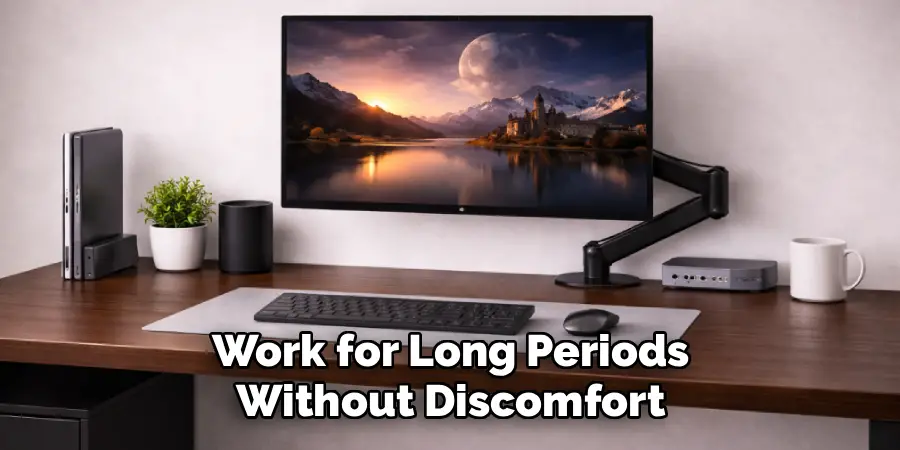
The right monitor gives you enough room to organize windows, read text clearly, join video calls, and work for long periods without discomfort. It can also reduce the need for extra devices or constant resizing of apps.
A smart choice saves money too. Instead of buying based on hype, you can choose the features that support your actual work. That means better comfort, better focus, and a setup that lasts longer.
Step-By-Step Guide To How To Choose A Monitor For Home Office
Step 1: Define Your Main Work Tasks
Start by thinking about what you do most during the day. Your monitor should support your daily tasks, not just look impressive on paper.
If you spend most of your time writing emails, editing documents, or using web apps, sharp text and comfort matter more than advanced gaming features. If you manage large spreadsheets, a wider screen or higher resolution can help you view more data at once.
Creative work needs a different focus. Photo editors, video editors, and designers should care more about color accuracy, brightness, and resolution. Your best choice begins with your real workflow.
Step 2: Choose The Right Screen Size
Screen size affects both comfort and productivity. A monitor that is too small can make multitasking harder, while one that is too large may overwhelm a compact desk.
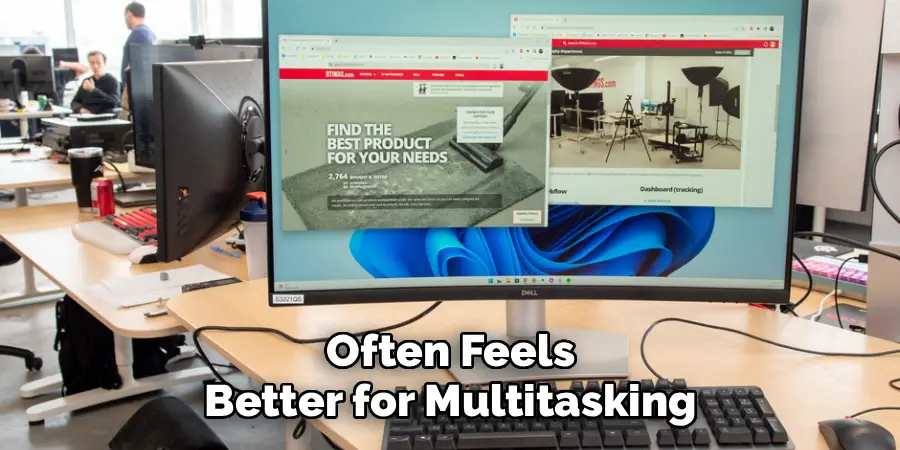
For many home offices, a 24-inch monitor is a practical starting point. It fits most desks and works well for basic office tasks. A 27-inch monitor gives more room and often feels better for multitasking, spreadsheets, and side-by-side windows.
When thinking about how to choose a monitor for home office, do not pick size alone. Consider how far you sit from the screen and how much desk depth you have. Bigger is useful only when it feels comfortable.
Step 3: Pick A Resolution That Matches The Size
Resolution controls how sharp your screen looks and how much information fits on it. The most common options are full hd, qhd, and 4k.
Full hd can work well on a 24-inch monitor, especially for basic tasks. On larger screens, it may look less sharp because the pixels spread out. Qhd is a strong choice for 27-inch monitors because it gives a good mix of clarity, space, and cost.
A 4k monitor offers very sharp text and images. It is helpful for creative work and detailed viewing, but it may cost more and require scaling settings. Match resolution to screen size and your comfort needs.
Step 4: Understand Panel Types
Panel type affects color, viewing angles, contrast, and motion. The three common types are ips, va, and tn, though tn is less common for office use now.
Ips panels are popular for home offices because they offer good color and wide viewing angles. They are a safe choice for writing, design, video calls, and general multitasking.
Va panels usually provide stronger contrast, which can make dark scenes and black text look richer. They can be good for mixed work and entertainment. For most office users, an ips or quality va panel will be a better choice than chasing the cheapest option available.
Step 5: Check Connectivity Before You Buy
A great monitor can still be frustrating if it does not connect easily to your laptop or desktop. Before buying, check the ports on both your computer and the monitor.
Common connections include hdmi, displayport, usb-c, and thunderbolt. Hdmi works for many setups, but usb-c can be especially useful for laptops because it may carry video, data, and power through one cable.
This is a key part of how to choose a monitor for home office because a clean connection setup saves time and reduces desk clutter. If you use a work laptop, confirm that your device supports the monitor’s resolution and refresh rate.
Step 6: Focus On Ergonomics And Adjustability
Comfort matters more than many buyers realize. A monitor that cannot be adjusted may force you into poor posture, which can lead to neck, shoulder, or eye discomfort.
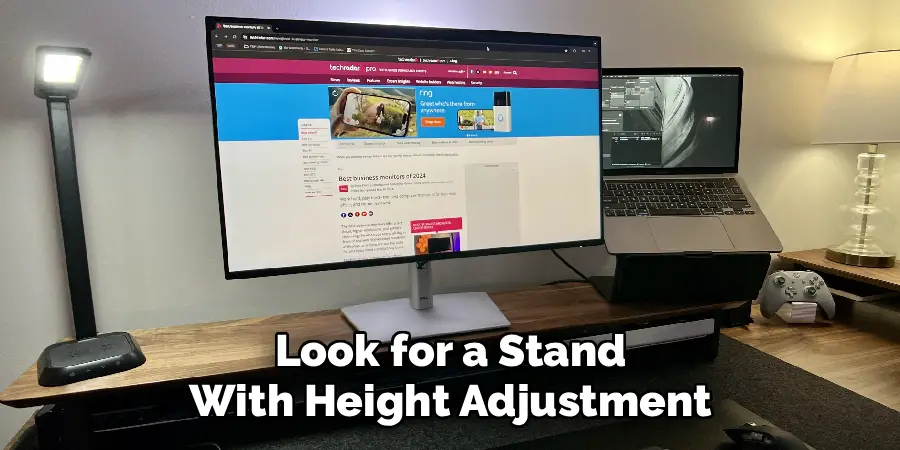
Look for a stand with height adjustment, tilt, and swivel if possible. Height adjustment is especially helpful because the top of the screen should usually sit near eye level. If the included stand is limited, check whether the monitor supports vesa mounting.
A monitor arm can free desk space and make positioning easier. Even a high-quality display can feel wrong if it sits too low, too high, or too close.
Step 7: Consider Eye Comfort Features
Long workdays can be hard on your eyes, especially if your screen is too bright, too dim, or difficult to read. Eye comfort features can help, but setup habits matter too.
Look for flicker-free technology and low blue light modes if you are sensitive to screen fatigue. Matte screens can also reduce glare from windows and lamps. Brightness should be easy to adjust, because the best setting changes with your room lighting.
Do not rely only on built-in features. Take short breaks, increase text size when needed, and position the monitor to avoid reflections. A comfortable screen supports steady focus.
Step 8: Set A Practical Budget
Budget helps narrow your options, but the cheapest monitor is not always the best value. A low-cost screen may save money upfront but disappoint you with poor sharpness, weak adjustability, or limited ports.
For basic office use, you can often find a good 24-inch or 27-inch model at a reasonable price. If you need qhd, usb-c, better color, or strong ergonomics, expect to pay more.
Think of the monitor as a long-term work tool. Spending a little extra on the right features can improve your daily comfort for years. Choose based on value, not just the lowest price.
Frequently Asked Questions
What Size Monitor Is Best For A Home Office?
For most home offices, a 24-inch or 27-inch monitor works best. A 24-inch screen is compact, affordable, and comfortable for basic work. A 27-inch screen gives more space for multitasking, documents, and spreadsheets. If your desk is deep enough and you work with many windows, 27 inches often feels like the better long-term choice.
Is A 4K Monitor Worth It For Office Work?
A 4k monitor can be worth it if you want very sharp text, detailed images, or extra workspace. It is especially helpful for design, editing, coding, and document-heavy tasks. However, many office users are happy with qhd on a 27-inch screen. If your budget is limited, qhd often gives a strong balance of clarity, performance, and price.
Should I Buy One Large Monitor Or Two Smaller Monitors?
Both options can work well. One large monitor creates a cleaner setup and avoids the gap between screens. Two smaller monitors can make it easier to separate tasks, such as email on one screen and documents on another. Your choice depends on desk space, work habits, and personal comfort. Many users prefer one 27-inch or 32-inch screen for simplicity.
What Ports Should A Home Office Monitor Have?
At minimum, your monitor should have a port that matches your computer, such as hdmi, displayport, or usb-c. For laptops, usb-c is very useful because it can reduce cables and may charge the device at the same time. If you use accessories, a built-in usb hub can also help keep your desk organized and easier to manage.
How Far Should I Sit From My Monitor?
A comfortable distance is usually about an arm’s length from the screen, though this depends on size and resolution. Larger monitors may need a bit more distance. You should be able to read text without leaning forward or squinting. Place the screen so the top edge is near eye level, then adjust brightness and text size for comfort.

Conclusion
The best home office monitor is the one that fits your work, your space, and your comfort needs. Start with your daily tasks, then choose the right size, resolution, panel type, ports, ergonomics, eye comfort features, and budget. Each choice should make your workday easier, not more complicated.
If you are unsure where to begin, focus on a 24-inch or 27-inch screen with clear text, reliable connectivity, and an adjustable stand. From there, add features that match your workflow.
Now that you know how to choose a monitor for home office, take a few minutes to review your desk, devices, and daily tasks before buying. A thoughtful choice can improve focus, reduce strain, and make remote work feel much more comfortable.
