
Your monitor is the window to everything you do on a computer — yet most people never touch its settings after plugging it in. A slightly blurry image, washed-out colors, or eye-straining brightness can quietly reduce your productivity and comfort every single day.
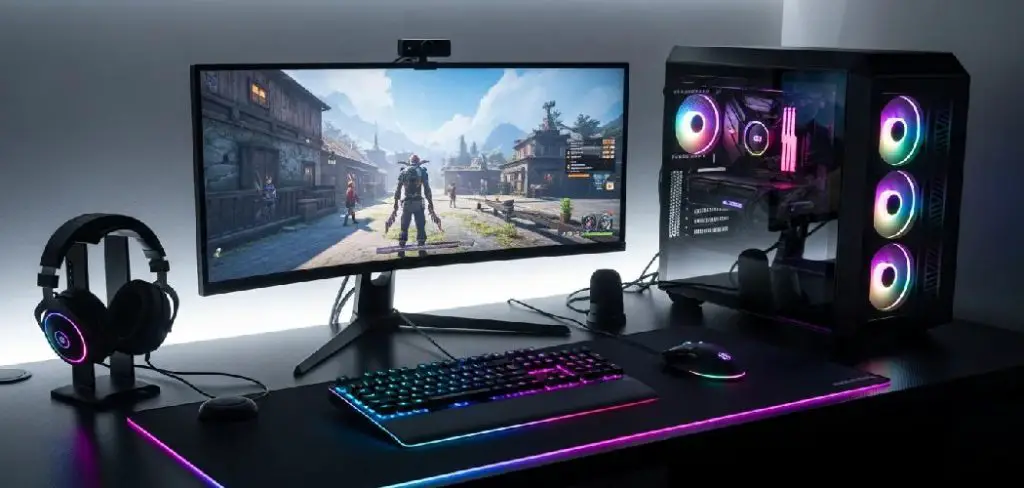
The good news is that you don’t need expensive hardware to fix these problems. Knowing how to make monitors better is mostly about adjusting what you already have and adding a few smart habits. Whether you’re a student, remote worker, or casual user, the steps in this guide are simple enough for anyone to follow. By the end, you’ll have a noticeably sharper, more comfortable display — without spending a fortune.
Why Better Monitors Matter
A well-optimized monitor does more than look nice. It directly affects your health, focus, and output. Eye strain is one of the most common complaints among people who spend long hours in front of a screen. Poor brightness levels, incorrect color temperature, and low resolution contribute to headaches and fatigue. Fixing these issues can make a real difference in how you feel after a full workday.
Beyond health, display quality affects how accurately you see content. Designers need true colors. Writers need crisp text. Gamers need fast, smooth visuals. Even for everyday browsing, a clear and properly calibrated screen simply makes the experience more enjoyable. A few simple adjustments can unlock significantly better performance from a monitor you already own.
Step-by-Step Guide To How To Make Monitors Better
Step 1: Adjust Your Monitor’s Brightness and Contrast
Start with the two most impactful basic settings: brightness and contrast. Brightness should match the ambient light in your room — not too high in a dim room, not too low in a bright one.
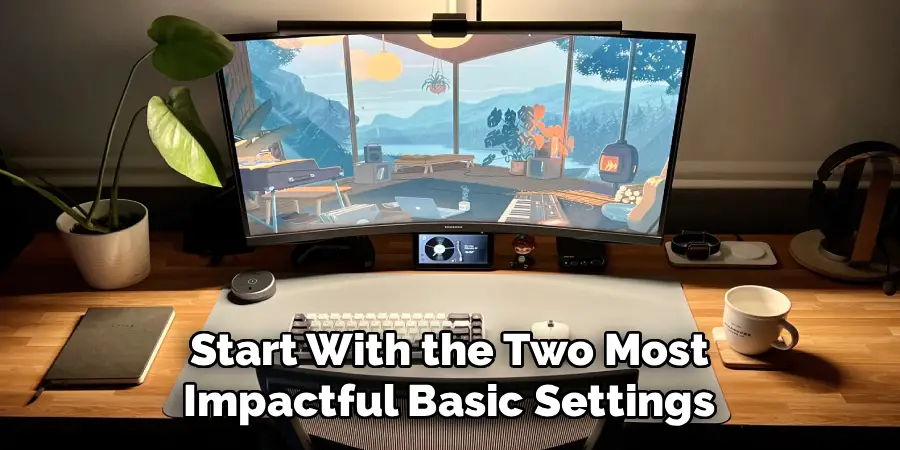
A good starting point is to set brightness around 50% and adjust from there until text looks comfortable on a white background. Contrast controls the difference between light and dark areas. Setting it between 70–80% usually gives clear, defined visuals without washing out shadows or blowing out highlights.
Step 2: Set the Correct Color Temperature
Color temperature controls whether your screen looks warm (yellowish) or cool (bluish). Most monitors let you choose between presets like “warm,” “cool,” or a specific Kelvin value.
For daytime work, a neutral setting around 6500K is widely recommended. In the evenings, switching to a warmer tone (around 5000K or lower) reduces blue light exposure, which can interfere with sleep. Many monitors include a “night mode” that does this automatically, so check your display menu for that option.
Step 3: Calibrate Your Monitor’s Colors
Color calibration ensures that what you see on screen matches real-world colors as closely as possible. Both Windows and macOS include built-in calibration tools — search “color calibration” in your system settings to find them.
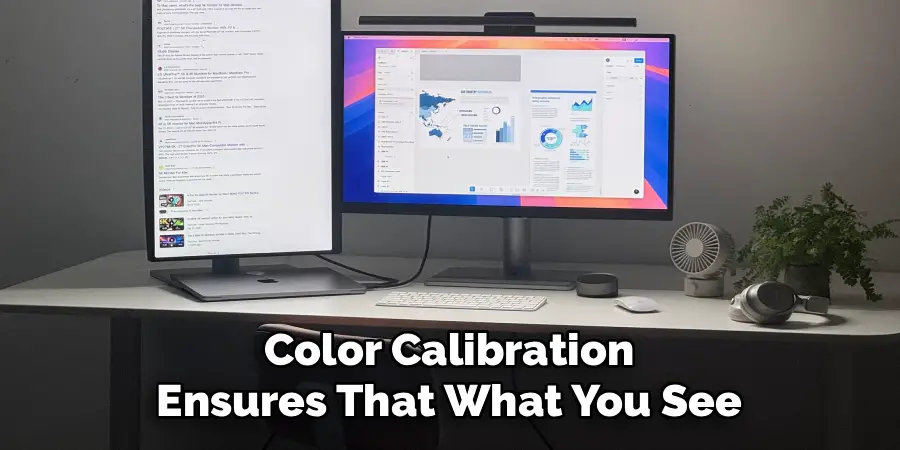
The calibration wizard walks you through adjusting gamma, brightness, contrast, and color balance using visual tests. Even if you’re not a designer, a quick calibration session takes less than ten minutes and produces noticeably more accurate colors. Running this once a year keeps your display performing at its best.
Step 4: Enable or Adjust Your Monitor’s Sharpness Setting
Sharpness is often misunderstood. Setting it too high creates an artificial, over-processed look with harsh edges. Setting it too low makes everything appear soft and slightly blurry.
Most monitors look best with sharpness set somewhere in the middle — often between 40–60% depending on your display. Test it by pulling up a webpage or document with fine text and adjusting until letters look clean without noticeable halos or ringing around the edges. This small tweak alone can make text significantly easier to read.
Step 5: Update Your Graphics Driver and Display Settings
Your graphics card plays a major role in display quality, and outdated drivers can cause color inaccuracies, screen tearing, or resolution issues. Visit your GPU manufacturer’s website (NVIDIA, AMD, or Intel) to download the latest driver for your card.
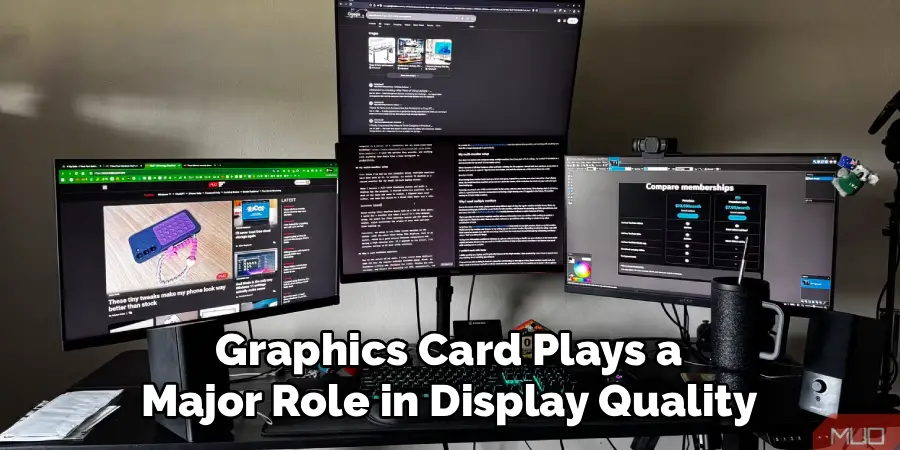
Once updated, open the graphics control panel and verify your output resolution matches your monitor’s native resolution. Also check the refresh rate — using a lower-than-maximum refresh rate makes motion look choppy. Setting it correctly, usually 60Hz or higher, makes scrolling and video playback look much smoother.
Step 6: Optimize Your Physical Setup and Lighting
No amount of software adjustment can fix a poorly positioned monitor. Ideally, your screen should sit at arm’s length, with the top of the display at or just below eye level. This reduces neck strain and keeps your eyes naturally aligned with the content.
Ambient lighting matters too. Avoid placing your monitor directly in front of or behind a window, as glare and backlighting make your screen harder to see. A bias light — a soft LED strip placed behind your monitor — can reduce eye fatigue during long sessions by softening the contrast between your bright screen and the dark wall behind it.
Step 7: Use Software Tools To Fine-Tune Your Display
Beyond built-in settings, several free tools can help you get even more control over your display. F.lux and Windows Night Light automatically shift your color temperature throughout the day. DisplayCAL is a free, professional-grade calibration tool for users who want precise color accuracy.
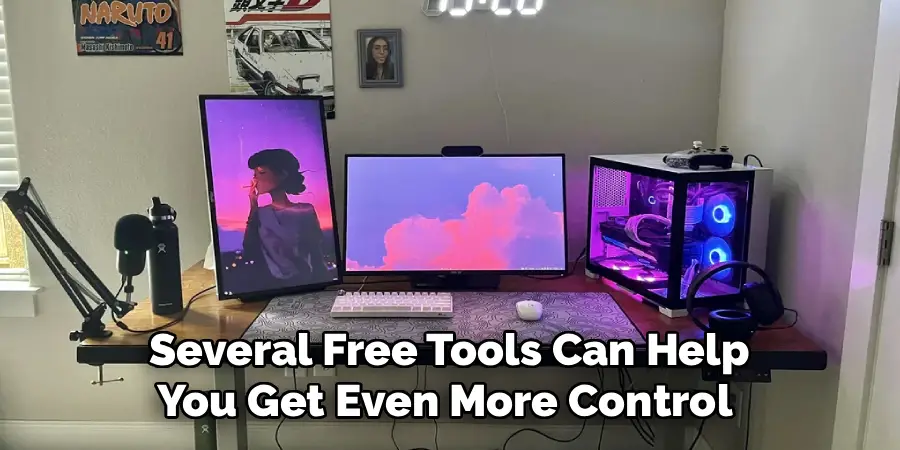
If you’re looking at how to make monitors better for specific tasks like photo editing or gaming, your graphics card’s control panel often includes game-specific profiles and HDR settings. Taking ten minutes to explore these tools can unlock a noticeably improved visual experience tailored to how you actually use your screen.
Additional Tips for Monitor Display Optimization
Apart from the tools mentioned in the previous section, there are a few other tips and tricks that can help you optimize your monitor’s display. These may not require any additional software or hardware and can be easily implemented by adjusting settings on your computer or monitor itself.
One of the most basic ways to improve your monitor’s display is by adjusting its brightness and contrast levels. This will not only affect the overall picture quality but also reduce eye strain and fatigue. Most monitors have dedicated buttons or menus for adjusting these settings.
Common Calibration Mistakes
Another important factor to consider for optimizing your monitor’s performance is adjusting the refresh rate and response time. For tasks like gaming or video editing, a higher refresh rate—such as 120Hz or 144Hz—can provide smoother motion and reduce screen tearing. Similarly, reducing the response time helps minimize ghosting effects, which can be especially noticeable during fast-paced action scenes or animations.
Most modern monitors allow you to tweak these settings via their on-screen display menus, or through companion software provided by the manufacturer. Ensuring these adjustments align with your intended use can greatly enhance both accuracy and overall visual satisfaction.
Frequently Asked Questions
What Is the Best Resolution for a Monitor?
The best resolution depends on your screen size and use case. For a 24-inch monitor, 1080p (Full HD) works well. For 27 inches and above, 1440p (QHD) offers noticeably sharper detail. If you do professional photo or video work, a 4K display provides the most accurate and detailed image quality available for consumers.
How Often Should I Calibrate My Monitor?
For general use, calibrating once or twice a year is usually enough. If you work with color-sensitive tasks like graphic design, photography, or video production, calibrate every one to three months. Monitors naturally drift over time, and regular calibration ensures consistent, accurate color output throughout the life of your display.
Does Monitor Refresh Rate Affect Eye Strain?
Yes, it can. A higher refresh rate, such as 120Hz or 144Hz, produces smoother motion, which can reduce the visual fatigue caused by choppy scrolling or animation. For everyday office work, 60Hz is adequate. For gaming or fast-moving video content, upgrading to a higher refresh rate monitor makes a clear and noticeable difference.
Can a Cheap Monitor Look Good With Proper Settings?
Absolutely. Most budget monitors come with poor factory settings but are capable of much better performance once calibrated. Adjusting brightness, contrast, color temperature, and sharpness can dramatically improve image quality. While an expensive display has better panels and hardware, proper settings close the gap considerably, making your current monitor look far better than its price suggests.
Should I Use Monitor Presets Like “Game Mode” or “Movie Mode”?
Presets are a convenient starting point, but they’re often optimized for dramatic effect rather than accuracy. “Game mode” typically boosts contrast and reduces input lag. “Movie mode” may warm up colors for cinematic viewing. It’s worth trying them, but manual adjustment often produces better results for your specific environment, lighting conditions, and personal preferences.
Conclusion
You don’t need to buy a new screen to enjoy a significantly better viewing experience. From adjusting brightness and color temperature to calibrating colors and updating your drivers, each of these steps costs nothing but a few minutes of your time.
The biggest takeaway is that monitors are rarely set up well out of the box. A little intentional effort goes a long way. Understanding how to make monitors better gives you sharper visuals, reduced eye strain, and a more comfortable workspace — whether you’re working, gaming, or just browsing.
Start with Step 1 today. Work through the guide at your own pace, and notice the difference each adjustment makes. Your eyes will thank you.
