
Removing a monitor stand sounds straightforward until you’re standing over your desk, unsure whether to pull, push, or press something — and worried about cracking the screen in the process. Acer monitors are well-built, but their stand removal mechanisms aren’t always obvious, especially if you’ve never done it before.
Maybe you’re switching to a wall mount for a cleaner desk setup. Maybe the base is taking up too much room, you’re packing the monitor for a move, or you need to replace a broken stand. Whatever the reason, knowing how to remove acer monitor stand correctly saves you time, protects your hardware, and avoids unnecessary frustration.
The process varies slightly across Acer models. Some use a visible release button, others rely on a sliding latch or hidden screws near the VESA mounting plate. None of them require special tools in most cases — just patience, a soft surface, and the right technique. This guide walks you through every step clearly and carefully, so you can get the stand off safely and move on to your next setup task with confidence.
Why Removing An Acer Monitor Stand Matters
Most people don’t think about their monitor stand until it becomes a problem. But removing it at the right moment — and doing it correctly — has real, practical benefits.
Wall mounting your Acer monitor frees up significant desk space and puts the screen at a better ergonomic height. A monitor arm gives you more flexibility to tilt, swivel, and adjust throughout the day, reducing neck and shoulder strain over long work sessions.
Beyond ergonomics, removing the stand is often required when packing the monitor for transport, switching to an aftermarket base, or fitting the screen into a tight workspace. Doing it incorrectly risks damaging the plastic housing, snapping internal clips, or scratching the screen. A clean, controlled removal keeps the monitor in perfect condition and makes reinstallation — if you ever need it — just as easy.
Step-by-Step Guide To How To Remove Acer Monitor Stand
Step 1: Gather Your Tools And Workspace
Before touching the monitor, prepare your workspace properly. You’ll need a soft, flat surface — a folded blanket or microfiber cloth on a table works perfectly. Have a Phillips-head screwdriver nearby in case your model uses screws to secure the stand, and keep a small container handy for any hardware you remove.
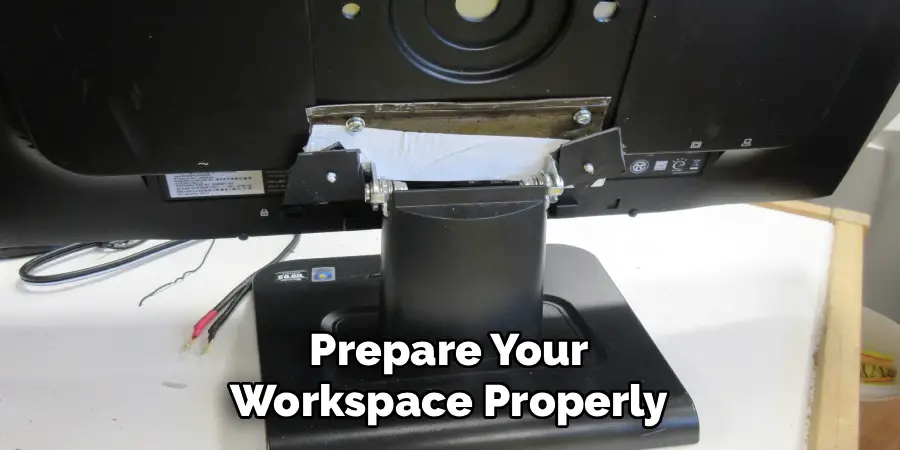
Clearing the area around the monitor gives you enough room to work without bumping anything. Good lighting helps too, since the release mechanism on some Acer models is subtle and easy to miss at a glance.
Step 2: Power Down And Disconnect All Cables
Turn the monitor off completely and unplug the power cable from the wall. Then disconnect any HDMI, DisplayPort, USB, or audio cables attached to the back of the display. Don’t skip this step even if it feels unnecessary — cables create tension that can pull the monitor unexpectedly while you’re working.
Leaving the monitor plugged in is also a safety risk, particularly if the cable runs close to the mounting area. A clean, disconnected monitor is far easier and safer to handle, especially when you’re turning it face-down in the next step.
Step 3: Lay The Monitor Face-Down On A Soft Surface
Carefully place the monitor face-down on your prepared soft surface. This protects the screen from scratches and pressure damage while giving you full access to the back of the panel where the stand attaches. Make sure the screen isn’t resting on anything hard or uneven.
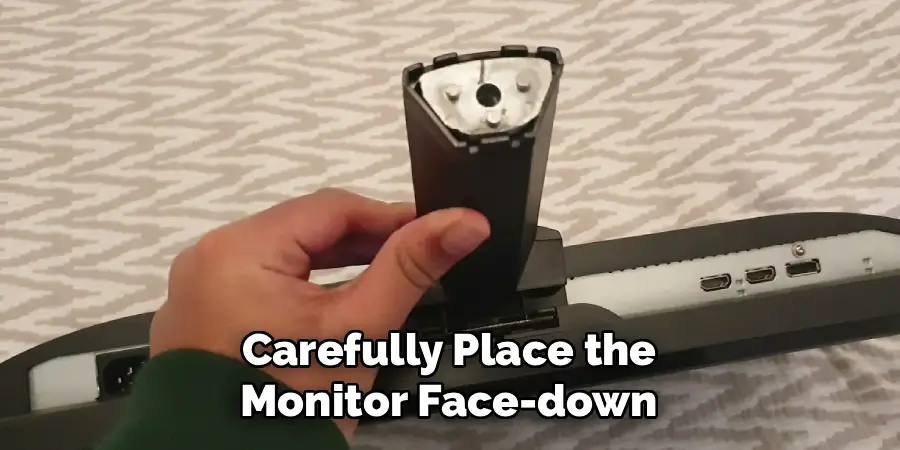
Position the monitor so the stand points upward and the back of the panel faces you clearly. Take a moment to look at the connection point between the stand and the monitor body — this is where you’ll find the release mechanism, whether it’s a latch, button, or screws.
Step 4: Locate The Stand Release Mechanism
Acer monitors use a few different attachment systems depending on the model. Many newer models have a small release button or sliding latch near the top of the stand neck, just where it meets the monitor’s back plate. Pressing or sliding this mechanism disengages the lock so the stand lifts free.
Older or budget-range Acer monitors may use two to four Phillips-head screws instead, hidden under a plastic cover near the VESA mount area. Check your specific model number against the manual if you’re not sure which system your monitor uses — this one step prevents most of the confusion and accidental damage that people run into.
Step 5: Release The Latch Or Remove The Screws
If your model uses a release button, press it firmly with one thumb while gently pulling the stand away from the monitor body with your other hand. The two motions need to happen simultaneously — pressing without pulling, or pulling without pressing, won’t work. Keep the movement slow and controlled rather than forcing it.
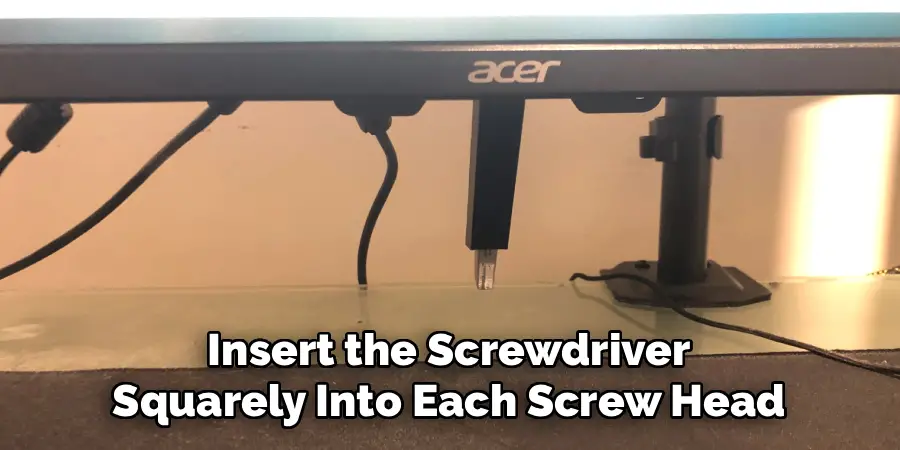
If your model uses screws, insert the screwdriver squarely into each screw head and turn counterclockwise until each one comes free. Place them in your small container immediately so they don’t get lost. Once all screws are removed, the stand should lift away from the back plate cleanly without requiring any force.
Step 6: Detach The Stand Base From The Stand Neck (If Needed)
On many Acer monitors, the stand consists of two separate parts: the vertical neck and the flat base. If you only need to remove the full stand assembly, you may already be done after Step 5. But if you’re replacing just the base or packing the monitor more compactly, the base detaches from the neck separately.
Most Acer bases connect to the neck via a central screw underneath, or a twist-and-lock mechanism. Turn the base counterclockwise while holding the neck steady, or unscrew the retaining bolt beneath the base plate. A firm but gentle action is all that’s needed — this is a common point where people apply too much force unnecessarily.
Step 7: Inspect The VESA Mount And Store The Stand Safely
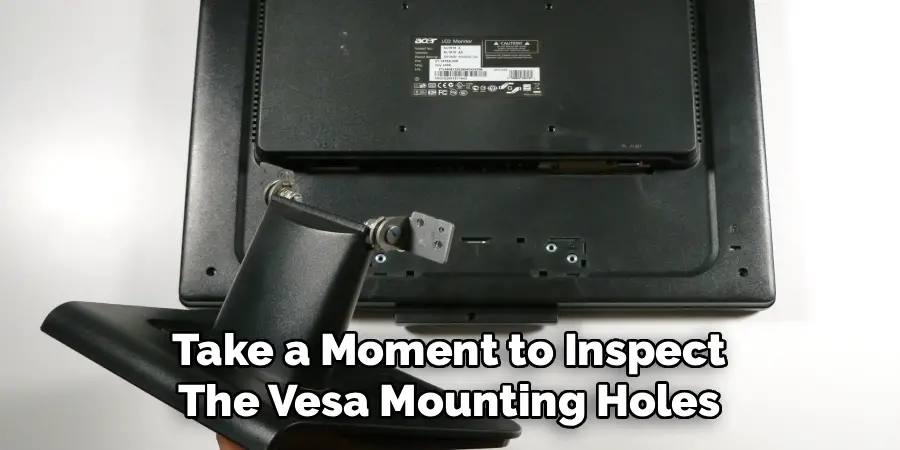
With the stand fully removed, take a moment to inspect the VESA mounting holes on the back of the monitor. Most Acer displays use a 75x75mm or 100x100mm VESA pattern — confirming this now saves time when installing a wall mount or monitor arm later.
If you plan to reattach the original stand in the future, store the stand, base, and any screws together in a labeled bag or box. Understanding how to remove acer monitor stand properly is only half the job — storing the hardware correctly means you’ll never have to search for missing pieces when you need to reassemble. Now your monitor is ready for mounting, storage, or whatever comes next.
Frequently Asked Questions
Do I Need Special Tools To Remove An Acer Monitor Stand?
In most cases, no special tools are required. A standard Phillips-head screwdriver covers the models that use screws, while latch-based models require nothing more than your hands. It’s worth keeping a soft cloth and a small dish for screws nearby, but that’s more about protecting your workspace than any technical requirement.
If you’re working on an older Acer model with unusual fasteners, consult the manual or Acer’s support site for model-specific guidance before starting.
What If The Stand Won’t Release Even After Pressing The Button?
Try pressing the release button more firmly and ensuring you’re pulling the stand at the same time — both actions need to happen together. If it still resists, check whether there are hidden screws under a plastic cover near the base of the neck that also need to be removed first. Avoid forcing it, as the clips can break under pressure.
Downloading the manual for your specific Acer model number from Acer’s support website usually resolves the confusion quickly.
Will Removing The Stand Void My Warranty?
Removing the stand for the purpose of VESA mounting is a standard, expected use case, and Acer does not void warranties for stand removal alone. However, if you break a component during removal by applying excessive force or using the wrong technique, that physical damage typically falls outside warranty coverage.
Always follow the correct process for your specific model, and consult Acer support if you’re uncertain before proceeding.
What VESA Mount Size Do Acer Monitors Use?
Most Acer monitors use either a 75x75mm or 100x100mm VESA pattern, which are the two most common standards and compatible with the vast majority of wall mounts and monitor arms on the market. The specific pattern for your model is listed in the manual and on Acer’s product page.
Measure the hole spacing on the back of your monitor before buying a mount to confirm compatibility, since some compact or ultra-thin Acer models use proprietary brackets instead of standard VESA.
Can I Reattach The Stand After Removing It?
Yes, Acer stands are designed to be removable and reattachable. Latch-based models click back in by aligning the stand head with the mounting slot and pressing until it locks. Screw-based models simply require reinserting and tightening the original screws.
As long as you store the stand and hardware properly after removal, reassembly is straightforward and takes just a few minutes. Keeping all the original components together is the most important thing you can do to make future reattachment hassle-free.
Conclusion
Removing an Acer monitor stand is a simple process once you understand the mechanism your specific model uses. The key steps are preparing a safe, soft workspace, disconnecting all cables, identifying whether your monitor uses a release latch or screws, and applying steady, controlled movement rather than force.
Whether you’re switching to a wall mount, replacing the base, or packing for a move, now that you know how to remove acer monitor stand correctly, you can approach the task with confidence. Check your VESA pattern before buying a new mount, store your original hardware somewhere safe, and refer to your model’s manual if anything feels unclear.
The whole process takes under ten minutes when done properly. Go ahead and get started — your cleaner, better-positioned monitor setup is closer than you think.
