
You’ve just connected your KOORUI monitor, the display looks great, but there’s no sound coming through — and you have no idea why. This is one of the most common frustrations people run into after setting up a new monitor, and the good news is that it’s almost always fixable without any special tools or technical background. Knowing how to get sound on KOORUI monitor setups properly can save you hours of confusion and turn a silent screen into a fully functional audio and video workstation.
The fix could be as simple as switching your Windows audio output, adjusting the monitor’s OSD menu, or using the correct cable type. Some KOORUI models have built-in speakers, while others require an external audio solution — and knowing which situation applies to your specific model is the first step. This guide walks you through seven clear, beginner-friendly steps that cover everything from checking your monitor’s hardware specs to routing audio through HDMI, DisplayPort, or a 3.5mm audio-out port.
Why Getting Sound on a KOORUI Monitor Matters
Audio and video working together from a single monitor creates a cleaner, more functional setup. Instead of managing a separate speaker system with its own cables and power source, getting your monitor to handle audio directly reduces desk clutter and simplifies your workflow. For PC users, laptop users, and console gamers alike, a monitor that outputs sound reliably means fewer devices to maintain and fewer points of failure when something goes wrong.
It also matters for practical reasons. If you’re using your KOORUI monitor for video calls, streaming, gaming, or general media consumption, missing audio isn’t just an inconvenience — it makes the entire experience incomplete. Understanding how your monitor handles sound also helps you make smarter decisions about cables, adapters, and peripherals going forward, so you’re not constantly troubleshooting the same problem every time you upgrade your setup.
Step-by-Step Guide to How to Get Sound on KOORUI Monitor
Step 1: Check Whether Your Specific Model Has Built-In Speakers
Before troubleshooting anything, you need to confirm whether your KOORUI monitor actually includes built-in speakers. Not every KOORUI model does. Some models in their gaming and budget lines are display-only, meaning they have no internal speakers at all — no matter what cable you use or how many settings you adjust, no sound will come from the monitor itself on those units.
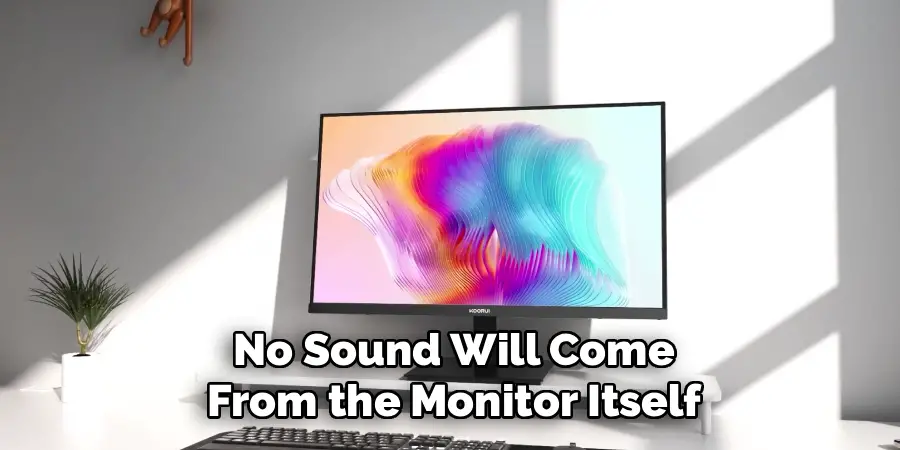
To check this, locate the model number printed on a sticker on the back of your monitor and search for it on KOORUI’s official website or in the product listing where you purchased it. Look specifically for a “speakers” entry in the technical specifications.
Step 2: Use the Right Cable — HDMI Carries Audio, VGA Does Not
The cable connecting your monitor to your PC, laptop, or console plays a direct role in whether audio can pass through at all. HDMI cables carry both video and audio signals in a single connection, which makes them the most practical choice for getting sound through your monitor. DisplayPort also supports audio transmission and works well for desktop PC setups. However, VGA cables carry only video — they have no ability to transmit audio under any circumstances, regardless of your settings.
If you’re currently using a VGA cable and wondering why there’s no sound, switching to an HDMI cable will immediately open up the possibility of audio output through the monitor.
Step 3:Setting It as the Default Audio Device
Even when your monitor is connected via HDMI and has built-in speakers, Windows won’t automatically route audio to it. Your computer defaults to whatever audio device was set up first — usually your laptop’s built-in speakers or your PC’s motherboard audio output. You need to manually tell Windows to send sound to the monitor instead.
To do this, right-click the volume icon in the bottom-right corner of your Windows taskbar and select “Open Sound Settings.” Under the “Output” section, click the dropdown menu and look for your KOORUI monitor listed as an audio device — it may appear under its model name or simply as “HDMI Output” or “Digital Audio (HDMI).”
Step 4: Check the Monitor’s OSD Menu for Volume Settings
Once your monitor is selected as the audio output in Windows, the volume on the monitor itself also needs to be set above zero. KOORUI monitors include an OSD (on-screen display) menu that you can access using the physical buttons on the back or bottom edge of the monitor. One of the menu options controls the monitor’s internal volume level, which is separate from the volume control in Windows.
Press the menu button on your monitor to open the OSD, then navigate to the audio or sound section using the directional buttons. Increase the volume to at least 50 percent as a starting point, then test your audio again.
Step 5: Connected to a Console
Connecting a game console like a PlayStation or Xbox to your KOORUI monitor through HDMI follows a slightly different process than a PC setup because consoles manage their own audio output settings independently. If you’re getting video but no sound, the first place to check is your console’s audio output settings rather than your monitor’s OSD menu.
On PlayStation, go to Settings, then Sound, and set the audio output to HDMI. On Xbox, go to Settings, then Display and Sound, then Audio Output, and make sure HDMI audio is enabled.
Step 6: Use the Monitor’s Audio-Out Port
If your KOORUI monitor has a 3.5mm audio-out port — which many models do — you can plug in a standard pair of headphones or external speakers even if the monitor has no built-in speakers of its own. The audio-out port receives the audio signal from the HDMI connection and passes it through to whatever is plugged in. This is a practical solution for monitors that lack internal speakers and for users who prefer dedicated headphones or desktop speakers over built-in monitor audio.
To use this, plug your headphones or speaker cable into the 3.5mm port on the monitor, then make sure the monitor is still set as the HDMI audio output device in Windows.
Step 7: Update Your Graphics Driver if the Monitor
If your KOORUI monitor doesn’t show up as an available audio device in Windows at all — even after using an HDMI cable — the issue may be with your graphics driver rather than the monitor or cable. HDMI audio output on a PC is handled by the graphics card’s audio driver, not the motherboard’s. An outdated or corrupt graphics driver can prevent Windows from recognizing the monitor as an audio-capable display.

To fix this, open Device Manager in Windows, expand the “Sound, video and game controllers” section, and look for an entry related to your graphics card — something like “NVIDIA High Definition Audio” or “AMD High Definition Audio Device.” Right-click it and select “Update driver.”
Frequently Asked Questions
Does Every KOORUI Monitor Have Built-In Speakers?
No, not every KOORUI monitor includes built-in speakers. Many of their budget and gaming-focused models are display-only. Before assuming a speaker setup problem, check your monitor’s model number and review the full specification sheet on KOORUI’s website. If built-in speakers aren’t listed, you’ll need to use the monitor’s audio-out port with external headphones or speakers to get audio from your setup.
Why Is My KOORUI Monitor Not Showing Up as an Audio Device in Windows?
This usually happens because the HDMI cable isn’t carrying audio, the graphics driver is outdated, or the monitor is connected via VGA. Try switching to a different HDMI cable, updating your GPU driver through Device Manager, and restarting your PC. Windows should detect the monitor as an audio output device after the driver refreshes. If it still doesn’t appear, check that your GPU’s HDMI port supports audio pass-through.
Can I Use Bluetooth Speakers With a KOORUI Monitor?
KOORUI monitors do not have built-in Bluetooth connectivity. To use Bluetooth speakers, you would need to pair them directly with your PC or laptop rather than with the monitor. Your computer’s Bluetooth settings handle that connection independently. Alternatively, you can plug wired speakers into the monitor’s 3.5mm audio-out port if your model has one, which is a simpler and more reliable solution for most users.
What Should I Do if the Sound Is Distorted or Very Low?
First, check that both the Windows output volume and the monitor’s OSD volume are set appropriately — neither should be at extreme levels. Distortion can occur when the OSD volume is set to maximum while the Windows volume is also very high. Try setting the OSD volume to around 70 percent and controlling the overall level from Windows instead. Also check that the HDMI cable is fully seated in both the monitor and the PC or console, as a loose connection can cause audio quality issues.
Does DisplayPort Work the Same as HDMI for Audio on These Monitors?
DisplayPort also carries audio signals and works similarly to HDMI for routing sound to a monitor. If your KOORUI monitor has a DisplayPort input, connecting via DisplayPort should allow audio to pass through to built-in speakers or the audio-out port, provided the monitor supports audio over DisplayPort. In Windows, the monitor will appear as a separate audio output device when connected via DisplayPort, just as it does with HDMI. Select it as your default output to enable sound.
Conclusion
Getting audio working on your KOORUI monitor comes down to four key things: confirming your model has speakers or an audio-out port, using a cable that carries audio signals, setting the monitor as your default output in Windows, and adjusting the OSD volume so the monitor itself isn’t muted. Each of these steps is straightforward, and most sound issues are resolved by addressing just one or two of them.
If you’ve worked through all seven steps and audio still isn’t working, a driver update or a different HDMI cable will usually be the final fix. Now that you know exactly how to get sound on KOORUI monitor setups of all kinds — whether connected to a PC, laptop, or game console — you have everything you need to move from a silent screen to a fully functional audio and video workstation today.
