
Mechanical keyboards are built to last, but even the most reliable ones can run into issues. Keys stop responding, Bluetooth connections drop without warning, lighting effects behave strangely, or the keyboard simply refuses to communicate with your computer. Before you assume something is permanently broken, there’s usually one fix worth trying first.
Knowing how to reset royal kludge keyboard correctly can resolve the majority of these problems in under five minutes. Royal Kludge makes a wide range of popular mechanical keyboards — from compact 60% layouts to full-size boards, in both wired and wireless configurations — and each one supports a reset process that wipes out conflicting settings and gives you a clean starting point.
Why Resetting A Royal Kludge Keyboard Matters
Over time, keyboards accumulate stored settings, paired device lists, and firmware states that can conflict with how you’re currently using them. A reset clears all of that and restores the keyboard to its default behavior — which is often exactly what’s needed when things start acting up.
Royal Kludge keyboards are especially popular among users who switch between multiple devices, which means Bluetooth pairing conflicts are common. A keyboard that was paired with a laptop at work may not connect cleanly to a home desktop without clearing the old pairing data first. Similarly, if you’ve customized key mappings or lighting and something has gone wrong, a factory reset is the fastest way to undo everything at once and start fresh.
Step-By-Step Guide To How To Reset Royal Kludge Keyboard
Step 1: Check Your Cable Or Battery Before Anything Else
Before attempting any kind of reset, rule out a simple hardware issue. If you’re using a wired Royal Kludge keyboard, unplug the USB cable from both the keyboard and the computer, then reconnect it firmly. Try a different USB port or a different cable if you have one available — a faulty cable is one of the most common causes of an unresponsive keyboard and has nothing to do with the keyboard’s settings.
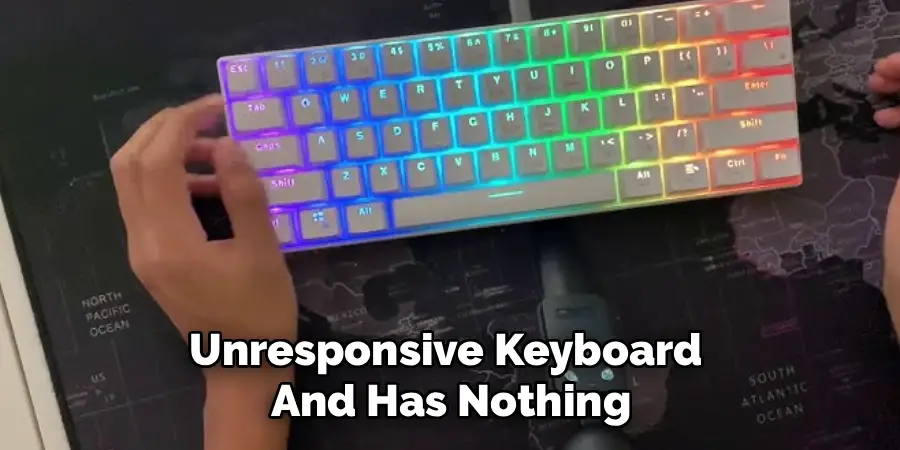
If your model is wireless, check the battery level first. Royal Kludge keyboards will sometimes appear unresponsive when the battery is critically low rather than fully dead. Plug in the charging cable and let it charge for at least 15 minutes before testing again. Attempting a reset on a nearly dead battery can interrupt the process partway through, which may create more problems than it solves.
Step 2: Power Cycle The Keyboard
A power cycle — turning the keyboard fully off and back on — is the simplest form of reset and solves a surprising number of issues. For wireless Royal Kludge keyboards, locate the power switch on the underside or side of the board and slide it to the off position. Wait at least 10 seconds, then switch it back on. This clears any temporary memory state that may be causing erratic behavior without touching your saved settings.
For wired models that don’t have a power switch, unplugging the cable for 15 to 30 seconds achieves the same effect. Once reconnected, wait a few moments for the keyboard to initialize before testing it. If the issue was a temporary software glitch or a stuck input state, a power cycle will often resolve it immediately without needing to go any further.
Step 3: Perform A Factory Reset Using A Key Combination
Royal Kludge keyboards support a hardware-level factory reset that wipes stored settings and returns the keyboard to its out-of-box defaults. On most RK models, this is triggered by holding a specific key combination while the keyboard is powered on. The most commonly used combination across RK keyboards is Fn + R, held for three to five seconds until the keyboard’s backlight flashes or turns off briefly to confirm the reset.
Some models use Fn + Backspace or a different combination depending on the layout. Check the quick-start guide that came with your keyboard or visit Royal Kludge’s official support page to confirm the exact key combination for your specific model. Using the wrong combination won’t harm the keyboard, but it won’t trigger the reset either — model-specific accuracy here matters.
Step 4: Clear Saved Bluetooth Pairings
If your Royal Kludge keyboard connects wirelessly, it stores a list of paired devices across its available Bluetooth channels — usually three, labeled BT1, BT2, and BT3. Clearing these pairings is a separate step from the factory reset and is especially important when switching to a new device or resolving a persistent connection failure. To clear a specific channel, press and hold the corresponding Bluetooth key (Fn + Q for BT1, Fn + W for BT2, Fn + E for BT3 on most models) for three to five seconds until the LED blinks rapidly.
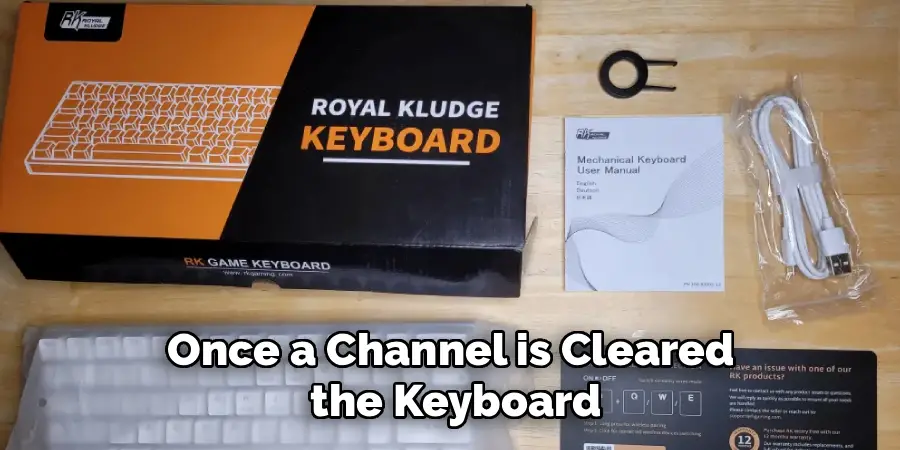
Once a channel is cleared, the keyboard will enter pairing mode on that channel automatically. You can then pair it to a new device as if it were fresh out of the box. If you want to clear all channels at once, repeat the process for each one individually — most RK keyboards don’t offer a single command to wipe all pairings simultaneously.
Step 5: Reconnect To Your Device After The Reset
After completing the factory reset and clearing Bluetooth channels, you’ll need to re-pair the keyboard with your device. On Windows, go to Settings, then Bluetooth and Devices, and remove any existing entry for your Royal Kludge keyboard before adding it again. On macOS, open System Settings, go to Bluetooth, and delete the old device from the list before scanning for it fresh. This ensures there’s no residual pairing data on the computer’s side causing a conflict.
Put the keyboard into pairing mode by pressing the Bluetooth channel key you want to use — the LED should blink rapidly to indicate it’s broadcasting. Select the keyboard from your device’s Bluetooth menu and confirm the connection. On most systems, the keyboard will pair within a few seconds and be ready to use immediately.
Step 6: Test All Keys And Functions After Reconnecting
Once the keyboard is connected again, take a moment to test it thoroughly before assuming everything is back to normal. Open a text editor or the on-screen keyboard viewer on your computer and press every key to confirm each one registers correctly. Test the function row, media keys, and any shortcut combinations you use regularly. This is also a good time to confirm that the lighting modes cycle correctly using the Fn key shortcuts.
If everything tests correctly, the reset worked as expected. If certain keys still don’t respond, it may indicate a hardware issue rather than a software one — in that case, contact Royal Kludge support with the model number and a description of the problem. Most Royal Kludge keyboards come with a warranty, and a key that stops working after a full reset is typically a legitimate hardware claim.

Frequently Asked Questions
Will A Factory Reset Delete My Custom Key Mappings?
Yes, a factory reset will erase any custom key mappings, lighting configurations, and macro settings that are stored directly on the keyboard. This is intentional — the reset returns everything to the manufacturer’s default state. If you’ve invested time in custom layouts or lighting profiles, make note of your settings or export them through the RK software before performing the reset. Rebuilding them afterward is straightforward, but only if you recorded them first.
How Do I Know Which Reset Combination My Model Uses?
The safest way to find the correct key combination is to check the printed quick-start guide included in your keyboard’s box or download the digital manual from Royal Kludge’s official support page. The combination varies between models — what works on an RK61 may not work on an RK84 or RK100. If you no longer have the manual, searching your model number on Royal Kludge’s website will bring up the correct instructions for your specific keyboard.
Can I Reset Only One Bluetooth Channel Without Affecting The Others?
Yes. Clearing a Bluetooth channel on a Royal Kludge keyboard is done per channel — pressing and holding the corresponding Bluetooth shortcut clears only that channel’s pairing data without affecting the others. This is useful when you want to swap one paired device without losing the connections on the remaining channels. After clearing, that channel enters pairing mode automatically so you can connect the new device right away.
Why Does My Keyboard Keep Disconnecting Even After A Reset?
Frequent disconnections after a reset are usually caused by one of three things: a low battery, interference from other nearby Bluetooth devices, or the host computer’s power-saving settings turning off Bluetooth to save energy. Check your computer’s Bluetooth power management settings and disable any option that allows the system to turn off Bluetooth hardware automatically. Also try reducing the distance between the keyboard and the computer during initial use to rule out signal strength as a factor.
Is It Safe To Reset A Royal Kludge Keyboard Frequently?
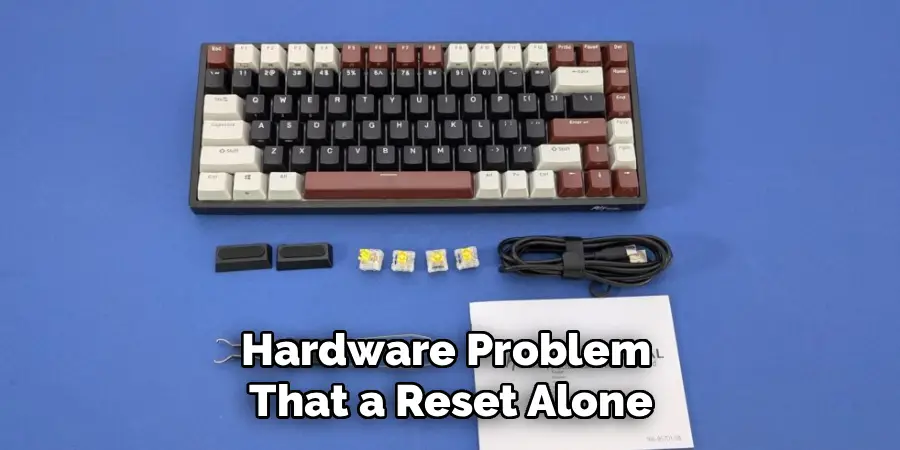
Yes, resetting is a non-destructive process that doesn’t harm the keyboard’s hardware or shorten its lifespan. The reset simply restores default firmware values — it doesn’t overwrite the firmware itself or stress any components. That said, frequent resets are usually a sign of an underlying issue worth diagnosing properly rather than repeatedly clearing. If you find yourself resetting every few days, the cause is more likely a software conflict, driver issue, or hardware problem that a reset alone won’t permanently fix.
Conclusion
Resetting a Royal Kludge keyboard is a practical, low-risk troubleshooting step that resolves most connectivity, responsiveness, and configuration issues quickly. The process covers four key areas: checking the cable or battery, power cycling the device, running a factory reset with the correct key combination, and clearing Bluetooth pairings before reconnecting to your device.
Now that you know exactly how to reset royal kludge keyboard, work through each step in order and give the keyboard a fresh start. A clean reset takes less than five minutes — and for most users, that’s all it takes to get back to typing without interruption.
