
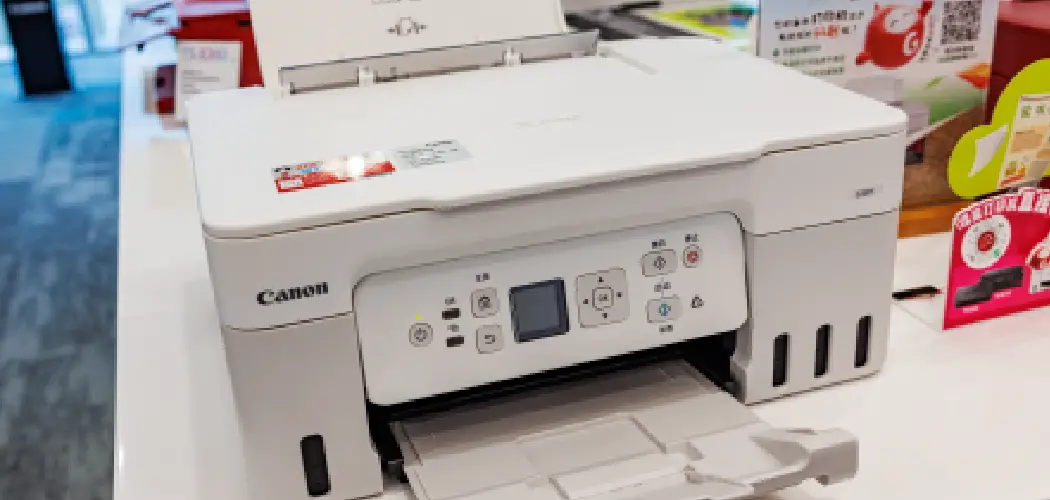
Getting a new Canon printer can feel exciting and a little overwhelming at the same time. You have all these cables, cartridges, and settings, and you just want to print a document without any fuss. The good news is that Canon printers are built to be user-friendly, and once you understand the basics, you’ll be printing photos, school projects, and work files in no time.
This guide on how to use Canon printer walks you through everything you need to know, from unboxing your printer to keeping it running smoothly. Whether you bought an inkjet model like the PIXMA series or a laser printer for heavier work, the steps below will help you feel confident. Let’s get started.
What Are the Benefits?
Learning to use your Canon printer properly comes with real advantages that go beyond just putting ink on paper.
- Save money over time. When you set up your printer correctly and care for it, you avoid wasted ink, jammed pages, and costly repairs. Your cartridges last longer too.
- Better print quality. Canon printers are known for sharp text and vibrant photos. Knowing the right settings helps you get the best results every time.
- Print from almost anywhere. Many Canon models support wireless printing. You can send a document straight from your phone, tablet, or laptop without plugging in a single cable.
- More convenience at home. No more rushing to a print shop for last-minute documents. You handle everything from your own desk.
- Fewer headaches. Understanding how your printer works means you can fix small problems yourself instead of feeling stuck.
In short, a little learning upfront makes the whole experience smoother and far more rewarding.
What Will You Need?
Before you begin, gather a few items so you’re not scrambling halfway through setup. Having everything ready saves time and frustration.
- Your Canon printer and the power cable that came in the box
- Ink cartridges or toner, depending on your model (some printers ship with starter cartridges)
- Paper in the right size, usually standard letter or A4
- A computer, smartphone, or tablet to send your print jobs
- A stable Wi-Fi connection if you plan to print wirelessly
- A USB cable, only if you prefer a wired connection
- The Canon setup software or app, which you can download from the official Canon website
- A clean, flat surface with enough space and a power outlet nearby
Once you have these on hand, you’re ready to move through the steps below.
10 Easy Steps on How to Use Canon Printer
Step 1: Unbox and Position Your Printer
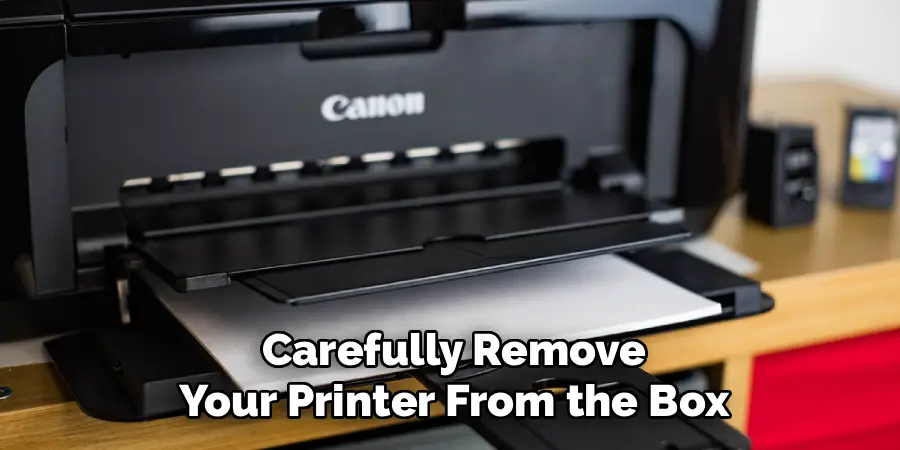
Carefully remove your printer from the box and take off all the protective tape, foam, and plastic film. Canon usually places orange or blue tape on the moving parts to keep them safe during shipping, so check every side. Place the printer on a sturdy, level surface close to a power outlet and within reach of your Wi-Fi router. Make sure there’s enough space behind and in front for paper to feed and exit smoothly.
Step 2: Connect the Power
Plug the power cable into the back of the printer and then into a wall outlet. Press the power button, which is usually marked with a circle and a line. The printer will turn on and may show a welcome screen or blinking lights. Give it a moment to wake up fully. If your model has a touchscreen, you’ll see prompts guiding you through the first steps, such as choosing your language and region.
Step 3: Install the Ink Cartridges or Toner
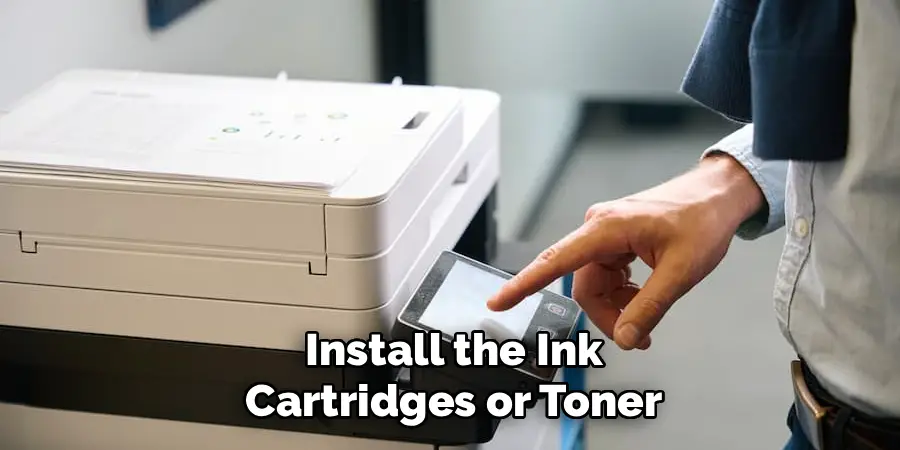
Open the front cover or top lid to reach the cartridge area. On inkjet models, the print head holder slides to the center automatically. Unwrap each cartridge and remove the protective tape, but never touch the metal contacts or the nozzles. Snap each cartridge firmly into its color-matched slot until you hear a click. For laser printers, slide the toner cartridge in gently. Close the cover, and the printer will start a short initialization process.
Step 4: Load the Paper
Pull out the paper tray or open the rear feed, depending on your model. Adjust the paper guides to match the size of your sheets, then load a stack of paper with the print side facing the correct way. Don’t overfill the tray, as too much paper causes jams. Slide the guides snugly against the edges so the paper sits straight. This small step prevents most feeding problems later on.
Step 5: Choose Your Connection Method
Now decide how you want to connect your printer to your devices. You have two main options: wireless or wired. Wireless gives you freedom to print from any room, while a USB cable offers a simple, direct link. If you only print from one computer that sits nearby, USB works fine. If you want flexibility for phones and laptops, go with Wi-Fi. You can always switch later.
Step 6: Connect to Wi-Fi
For wireless setup, use the printer’s screen to find the Wi-Fi or network settings menu. Select your home network from the list and enter your Wi-Fi password using the on-screen keyboard. Once connected, the Wi-Fi icon stays lit. Some Canon models offer a faster method using the WPS button on your router, where you simply press a button on both devices. If you’re using USB instead, just plug the cable into your computer and the printer.
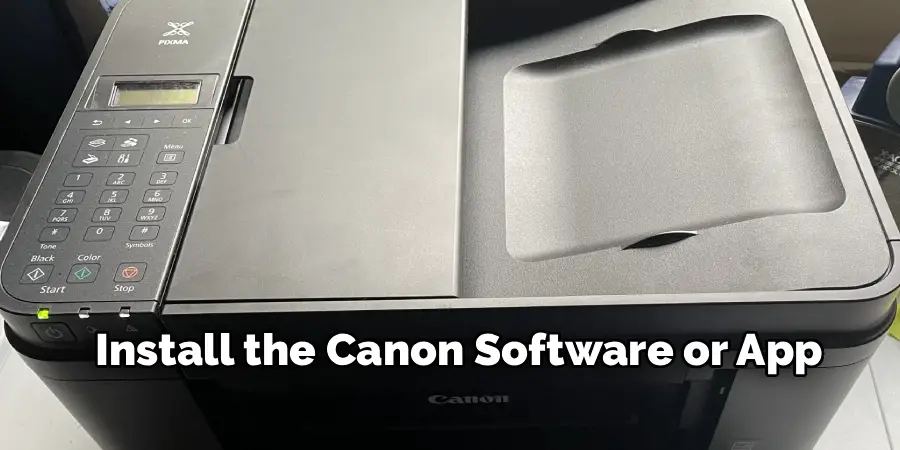
Step 7: Install the Canon Software or App
Head to the official Canon support website and search for your exact printer model. Download the recommended driver and software package, then run the installer. On a phone or tablet, download the Canon PRINT Inkjet/SELPHY app or Canon PRINT app from your app store. The software detects your printer, completes the connection, and adds it to your device. Follow the on-screen instructions until you see a confirmation that setup is complete.
Step 8: Print a Test Page
Before printing anything important, run a test page to make sure everything works. On your computer, open the printer settings and look for the option to print a test or alignment page. This page checks that the colors line up and the ink flows evenly. If the test page looks clear and sharp, you’re ready. If it looks faded or streaky, run a print head cleaning from the maintenance menu.
Step 9: Print Your First Document
Open the file you want to print, whether it’s a document, a web page, or a photo. Press the print command, usually found under the File menu or by pressing Ctrl+P on Windows or Command+P on a Mac. In the print window, select your Canon printer from the list. Choose your settings, such as the number of copies, paper size, and whether you want color or black and white. Then click Print and watch your page come to life.
Step 10: Perform Basic Maintenance
To keep your printer in great shape, do a little upkeep now and then. Run the print head cleaning function if your prints look streaky. Wipe the outside with a soft, dry cloth to remove dust. Check your ink or toner levels through the software so you’re never caught off guard. Print at least once a week to stop the ink from drying out, and always store spare cartridges in a cool, dry place. Regular care keeps your results crisp.
By following these steps, you can ensure that your printer stays in good condition and continues to produce high-quality prints.

5 Things You Should Avoid
Even with a great printer, a few common mistakes can cause trouble. Steer clear of these to save yourself time and money.
- Don’t ignore protective tape. Leaving tape on cartridges or moving parts can block the print head and cause errors. Always remove every piece before use.
- Don’t overload the paper tray. Stuffing too much paper in at once leads to jams and crooked prints. Stick to a reasonable stack and keep the guides snug.
- Don’t touch the cartridge contacts. The metal contacts and nozzles are sensitive. Touching them can smudge them with oil and stop the ink from flowing.
- Don’t use the wrong paper. Cheap or damp paper can jam the machine and lower print quality. Match the paper type to your printer’s recommendations.
- Don’t skip software updates. Outdated drivers cause connection problems and glitches. Keep your printer software current for smooth, reliable performance.
Conclusion
How to use Canon printer doesn’t have to be complicated. Once you’ve unboxed it, loaded the ink and paper, connected to your device, and run a quick test page, you’re set up for smooth printing whenever you need it. The steps in this guide cover the full journey, from that first power-on to keeping your machine healthy for years to come.
Remember that a little care goes a long way. Avoid the common mistakes, run a cleaning cycle when prints look off, and keep your software updated. Print regularly so the ink stays fresh, and store your supplies properly.
With these habits in place, your Canon printer will reward you with sharp documents and beautiful photos every single time. Now that you know the basics, go ahead and print with confidence.
