
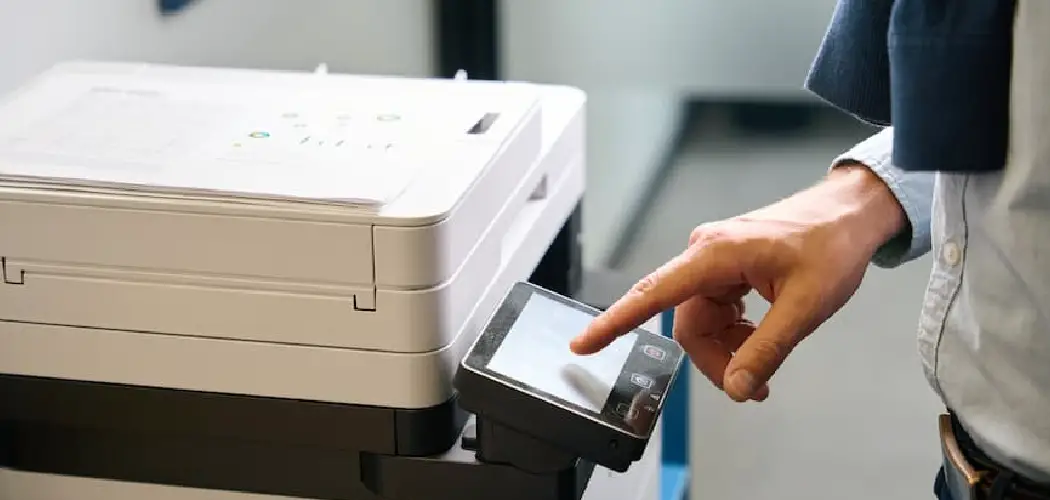
Setting up a wireless printer can feel confusing at first, especially if you are looking at a small printer screen, router details, and device settings all at once. The good news is that Brother printers are designed to connect to a home or office network with a few simple steps.
If you want to learn how to connect brother printer to wifi, this guide will walk you through the process in a clear, beginner-friendly way. You do not need to be a tech expert or understand advanced network terms.
A wireless connection lets you print from your computer, phone, or tablet without plugging in a USB cable every time. It also makes shared printing easier for families, students, home offices, and small teams.
In this guide, you will learn what to check before setup, how to use the printer control panel, how to connect through a computer or mobile app, and what to do if the printer does not connect the first time.
Why Connecting A Brother Printer To WiFi Matters
Connecting your Brother printer to a wireless network makes printing easier, faster, and more flexible. You can place the printer in a convenient spot instead of keeping it next to your computer. This is helpful in homes, shared workspaces, classrooms, and small offices.
A Wi-Fi connection also allows multiple devices to use the same printer. You can print from a laptop, desktop, smartphone, or tablet as long as the device is on the same network or uses a supported print service.
Wireless setup can reduce cable clutter and make daily printing smoother. Once connected, your printer can stay ready for documents, labels, schoolwork, invoices, photos, and other tasks without repeated setup.
Step-by-Step Guide To How To Connect Brother Printer To WiFi
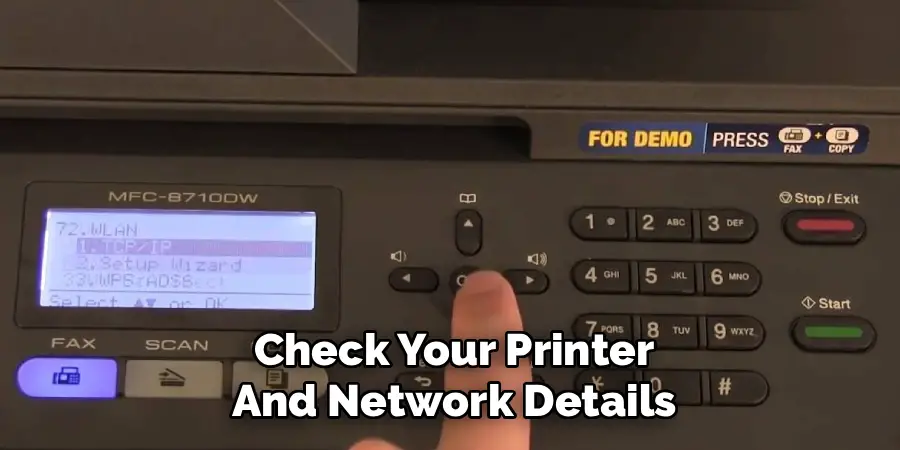
Step 1: Check Your Printer And Network Details
Before you begin, make sure your Brother printer supports wireless networking. Most modern Brother printers do, but some basic or older models may only support USB or wired Ethernet. You can check the printer box, user manual, control panel menu, or model page.
Next, confirm your Wi-Fi network name and password. These details are often printed on your router label unless you changed them. You will need the correct password during setup.
If you are learning how to connect brother printer to wifi for the first time, this early check can prevent most setup problems. A wrong password or unsupported model is a common reason connections fail.
Step 2: Place The Printer Near The Router
Move the printer close to your wireless router during setup. A strong signal helps the printer find the network and connect without dropping the connection halfway through the process.
You do not need to keep the printer beside the router forever. This is mainly for the first setup. After the connection works, you can move the printer to its normal location, as long as the signal stays strong enough.
Avoid placing the printer near thick walls, metal cabinets, microwaves, or other devices that may weaken wireless signals. If your home or office has weak Wi-Fi in some areas, choose a spot with steady coverage.
Step 3: Turn On The Printer And Open The Menu
Plug in the printer and press the power button. Wait until it finishes starting up before you change any settings. If the printer is still warming up, it may not respond to menu selections right away.
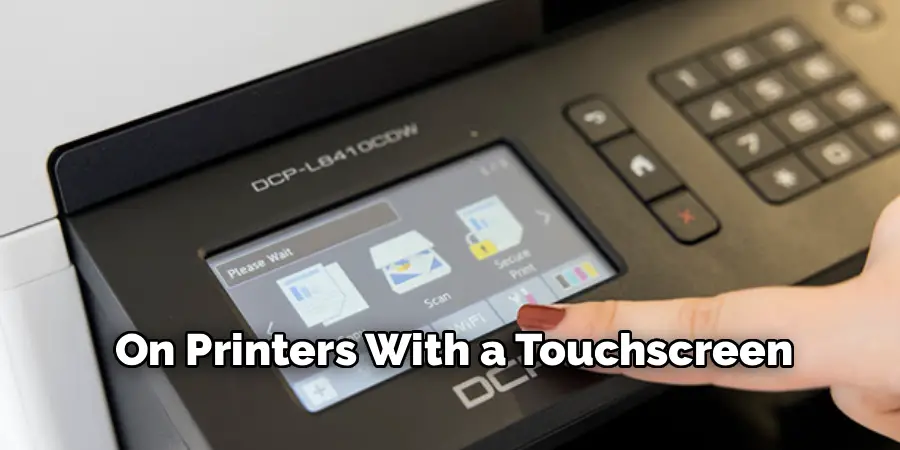
On printers with a touchscreen, tap the settings, network, or Wi-Fi icon. On button-based models, use the arrow keys and ok button to move through the menu. The exact wording may vary by model, but you are usually looking for network settings or wireless setup.
If your printer shows an error message, clear it first. Paper jams, open covers, or low power issues can interrupt setup.
Step 4: Choose The Wireless Setup Option
Inside the network menu, look for an option such as WLAN, Wi-Fi setup wizard, wireless setup, or network setup. Select it and allow the printer to search for nearby networks.
After a short scan, your printer should show a list of available network names. Choose your own Wi-Fi network from the list. Be careful if several networks have similar names, especially in apartment buildings or offices.
If your network does not appear, move the printer closer to the router and scan again. Also make sure the router is working and broadcasting the network name. Some hidden networks may require manual setup.
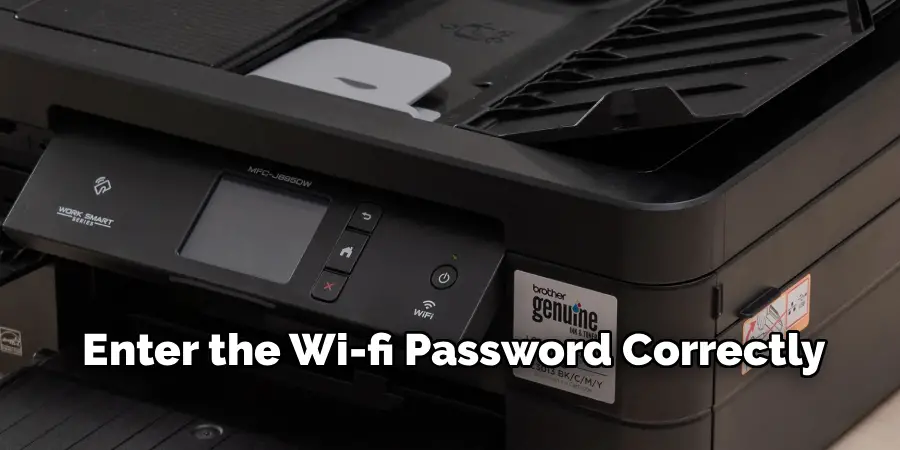
Step 5: Enter The Wi-Fi Password Correctly
When the printer asks for the password, enter it exactly as it appears. Wi-Fi passwords are case-sensitive, so uppercase and lowercase letters matter. Numbers, symbols, and spaces must also be correct.
On a touchscreen model, typing is usually simple. On models with physical buttons, entering letters may take more time. Move slowly and check each character before confirming.
This is one of the most important parts of how to connect brother printer to wifi because even one wrong character can stop the connection. If you are not sure about the password, test it on another device or check your router settings before trying again.
Step 6: Wait For The Connection Confirmation
After you enter the password, the printer will try to connect to the wireless network. This may take a minute or two. Do not turn off the printer or router during this step.
If the connection succeeds, the printer may display a message such as connected, connection ok, or setup complete. Some Brother printers may also print a network report automatically. Keep this report if it appears, since it can help with troubleshooting later.
If the connection fails, do not worry. Recheck the password, confirm the network name, and try again. Many setup issues are solved by repeating the process carefully.
Step 7: Install Or Update The Printer Software
Once the printer connects to Wi-Fi, your computer or mobile device still needs the right software to send print jobs. On a computer, install the Brother printer driver or full software package for your specific model.
During installation, choose the wireless network connection option when asked. The setup program should search for the printer on your network. If it finds the printer, select it and continue.
For phones and tablets, use a supported Brother mobile printing app or the built-in print feature on your device. Make sure your phone or tablet is connected to the same Wi-Fi network as the printer.
Step 8: Print A Test Page And Adjust Settings
After software setup, print a test page to confirm everything works. You can usually do this from your computer’s printer settings, the Brother software, or the printer control panel.
If the test page prints correctly, your wireless setup is complete. If the printer appears offline, restart the printer, computer, and router. Then check that all devices are using the same Wi-Fi network.
You may also want to set the Brother printer as your default printer. This saves time because your device will choose it automatically when you print. If you use different paper sizes or print quality settings, adjust them now for smoother daily use.
Frequently Asked Questions
Why Is My Brother Printer Not Finding My Wi-Fi Network?
Your printer may not find the network if it is too far from the router, the Wi-Fi signal is weak, or the router is not broadcasting the network name. Restart the router and printer, then scan again. Also check whether your printer supports the network band you are using, since some models may only connect to 2.4 GHz networks.
Can I Connect A Brother Printer Without A Computer?
Yes, many Brother printers can connect to Wi-Fi directly from the printer control panel. You can use the wireless setup wizard, choose your network, and enter the password on the printer itself. After that, you can print from a phone or tablet using a compatible app or built-in mobile printing feature, depending on your device.
What Should I Do If My Printer Says Offline?
If your Brother printer says offline, first make sure it is turned on and connected to the same network as your computer or phone. Restart the printer and router, then check your device’s printer settings. Sometimes removing the printer and adding it again fixes the issue. Also confirm that the correct printer driver is installed.
Do Brother Printers Work With 5 GHz Wi-Fi?
Some newer Brother printers support 5 GHz Wi-Fi, but many models only support 2.4 GHz networks. If your printer does not see your network, check your router settings and printer specifications. You may need to connect the printer to the 2.4 GHz network. This band often gives better range, which is useful for printers placed farther away.
How Do I Change The Wi-Fi Network On My Brother Printer?
To change the Wi-Fi network, open the printer’s network or wireless settings and run the setup wizard again. Choose the new network name and enter the new password. If the printer keeps trying to use the old network, reset the network settings and repeat setup. Afterward, your computer or phone may need to find the printer again.
Conclusion
Connecting a Brother printer to a wireless network is easier when you follow the process in order. Start by checking your printer model, network name, and password. Then place the printer close to the router, use the wireless setup menu, enter the password carefully, and confirm the connection.
After that, install the correct software on your computer or mobile device and print a test page. If something does not work the first time, recheck the network details and restart your devices.
Now that you understand how to connect brother printer to wifi, you can set up wireless printing with more confidence and enjoy a cleaner, more convenient printing setup.
