
Want to watch a movie with a friend or share a study playlist without bothering anyone else? Connecting two Bluetooth headphones to one laptop lets two people enjoy the same audio in private. It sounds tricky, but with the right setup, it’s easier than you think.
In this guide on how to connect two Bluetooth headphones to laptop, you’ll learn why dual headphone audio is useful, what tools you need, and exactly how to set it up step by step. You’ll also discover common mistakes to dodge and answers to the questions people ask most.
Let’s get your sound shared.
What Are the Benefits?
Pairing two headphones to a single laptop opens up a lot of handy possibilities. Here’s why it’s worth doing:
- Shared Experiences Without Noise: Watch films, shows, or videos together in quiet spaces like libraries or planes.
- No Extra Hardware Needed (Sometimes): Many laptops can do this with built-in settings.
- Better Focus: Both listeners hear clear, direct audio instead of muffled speaker sound.
- Great for Travel: Perfect for long trips when you want to share entertainment quietly.
- Useful for Work or Learning: Two people can review the same call recording, tutorial, or lesson at once.
The biggest win? You get privacy and togetherness at the same time.
What Will You Need?
Before you start, gather a few simple things:
- A laptop with Bluetooth (Windows or macOS).
- Two Bluetooth headphones that are charged and ready to pair.
- Updated Bluetooth drivers on your laptop for the smoothest connection.
- An audio mixing app (optional, but often required on Windows for true dual output).
- A little patience for the first-time setup.
Once you have these ready, you’re set to begin.
10 Easy Steps on How to Connect Two Bluetooth Headphones to a Laptop
Follow these steps in order. They work for most laptops, with clear notes for both Windows and Mac users along the way.
Step 1: Turn On Your Laptop’s Bluetooth
Start by switching on Bluetooth, so your laptop can find nearby devices. On Windows, open Settings > Bluetooth & devices and flip the toggle to on. On Mac, click the Apple menu, then go to System Settings > Bluetooth. Make sure the status shows as active or green. If you don’t see Bluetooth at all, your laptop may need an external Bluetooth adapter to continue.
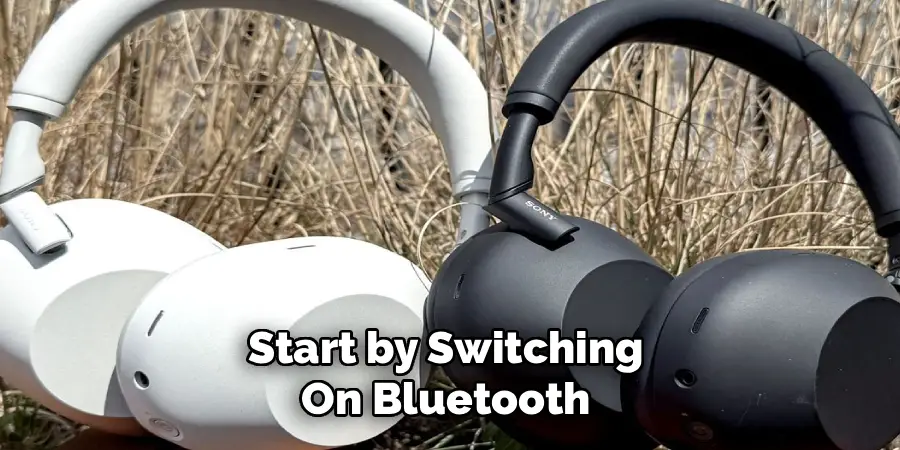
Step 2: Put Your First Headphones in Pairing Mode
Pick up your first pair of headphones and hold the power button down until you see a flashing light or hear a pairing tone. This flashing signal means the headphones are broadcasting and ready to connect. Every model is a little different, so check the manual if you’re unsure how long to hold the button. Keep the headphones within a few feet of your laptop for the strongest signal.
Step 3: Connect the First Headphones
Open your Bluetooth menu and look at the list of available devices. Find your first headphones by name and click to connect them. Wait until the status changes to “Connected” before moving on. Play a quick song or video to confirm the audio comes through clearly. If they don’t appear, refresh the list or turn the headphones off and on again.
Step 4: Put Your Second Headphones in Pairing Mode
Now grab your second pair and repeat the process. Hold the power button until they enter pairing mode, just like the first set. Make sure your first headphones stay connected during this step. Keeping both pairs close to the laptop helps avoid weak signals and dropped connections while you set things up. Use earbuds or smaller headphones for better portability and easier pairing.
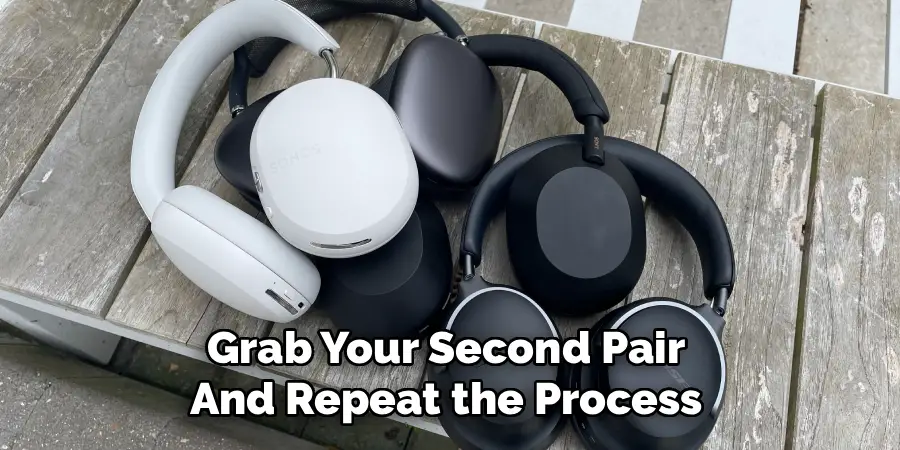
Step 5: Connect Your Second Headphones to the Laptop
Once your second headphones are in pairing mode, navigate to your laptop’s Bluetooth settings. You should see both pairs of headphones listed. Select the second pair (you may need to refresh the list if they don’t appear right away) and click “Connect.” Once connected, your laptop will automatically choose which audio output is active based on which one you selected most recently. This means that if you want to listen through the first pair, simply select them in the Bluetooth settings and your laptop will switch back to them.
Step 6: Check Your Current Audio Settings
This is where laptops behave differently. By default, both Windows and Mac usually send audio to just one device at a time. Open your sound settings to see which device is currently active. Understanding this helps you know what to change. The goal now is to route your audio to both headphones at once, which takes a couple of extra steps.
Step 7: Set Up Dual Audio on Mac
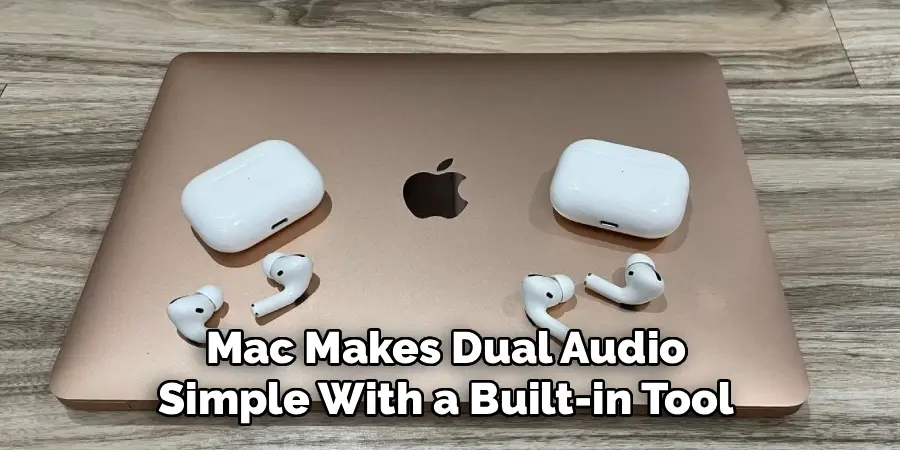
Mac makes dual audio simple with a built-in tool. Open Audio MIDI Setup by searching for it in Spotlight. Click the plus (+) button in the bottom-left corner and choose Create Multi-Output Device. In the list that appears, check the boxes next to both of your headphones. This combines them into a single output you can use for shared listening. If you want to adjust the volume balance between the two headphones, click on Configure Speakers, and use the sliders to make adjustments.
Step 8: Set Up Dual Audio on Windows
Windows doesn’t have a built-in dual-output option, so you’ll need a free audio tool like Voicemeeter. Download and install the app, then open it. Set it to send sound to both Bluetooth devices at the same time by assigning each pair as a separate output. Follow the app’s setup guide closely, since the exact buttons can vary between versions.
Step 9: Select Your Combined Output
Now tell your laptop to use the combined output. On Mac, open Sound settings and choose your new Multi-Output Device as the main output. On Windows, set your mixing app as the default playback device. Once selected, audio will flow to both headphones at once. Double-check that nothing is muted in the process.
Step 10: Test and Adjust the Balance
Finally, play a song or video to test your setup. Both listeners should hear the audio clearly and at the same time. If one side sounds quieter than the other, open your audio settings and adjust the volume balance until they match. Take a moment to fine-tune things—small tweaks now make for a much better shared listening experience.
That’s it. You now have two headphones working from one laptop.
5 Things You Should Avoid
Steer clear of these common slip-ups to keep your setup smooth:
- Don’t Skip Charging Your Headphones: Make sure your headphones are fully charged before connecting them to the laptop. This will ensure a longer battery life and an uninterrupted listening experience.
- Don’t Use Low-Quality Headphones: Using cheap or low-quality headphones can negatively impact your listening experience and the quality of sound shared with the other listener.
- Don’t Forget to Check Compatibility: Before purchasing new headphones, make sure they are compatible with your laptop and its audio settings. It’s always best to double-check before making a purchase.
- Don’t Ignore Regular Maintenance: Just like any electronic device, headphones require regular maintenance for optimal performance. Clean them regularly and store them properly when not in use.
- Don’t Overlook Safety: When using headphones, it’s important to be mindful of your surroundings and not block out all external noise. Be aware of potential dangers such as crossing the street or being in a crowded area.
Frequently Asked Questions
1. Can All Laptops Connect Two Bluetooth Headphones at Once?
Not all laptops support this out of the box. Macs handle it easily with the built-in Audio MIDI Setup tool. Windows laptops usually need a free audio mixing app to send sound to both pairs. Check your laptop’s Bluetooth version, since newer ones manage multiple devices better. If your hardware is older, you may face limits.
2. Will There Be an Audio Delay With Two Headphones?
Sometimes, yes. A small lag can happen when audio splits across two devices. The delay is usually tiny and barely noticeable for music or videos. Low-latency Bluetooth headphones reduce this problem a lot. For gaming or video calls, a wired option may work better if timing matters.
3. Do Both Headphones Need to Be the Same Brand?
No, they don’t. You can mix different brands and models without trouble. As long as each pair supports Bluetooth and your laptop can route audio to both, it works fine. Just remember that sound quality may vary between brands. Adjust the volume balance so both listeners enjoy an even experience.
Conclusion
How to connect two Bluetooth headphones to laptop is simpler than it looks. Once you turn on Bluetooth, pair both sets, and route your audio through the right tool, you’re ready to share sound privately. Mac users have it easiest with the built-in Multi-Output option, while Windows users just need a free mixing app.
If you only do one thing, start by making sure both headphones are charged and your Bluetooth drivers are current. Then follow the 10 steps above, test your audio, and adjust the balance.
Ready to enjoy movies, music, and more together? Grab your headphones and set it up today.
