
A Corsair mouse is built to perform, but even the best hardware runs into problems — unresponsive buttons, erratic cursor movement, DPI profiles that won’t stick, or a connection that keeps dropping. Before you call it broken or dig through hours of forum threads, there’s a simpler fix worth trying first.
Knowing how to reset corsair mouse correctly can clear most of these issues in minutes, restoring your mouse to its factory defaults so you can start fresh. Whether you’re using a wired gaming mouse, a wireless model like the Dark Core, or something in between, a proper reset addresses software conflicts, firmware glitches, and profile corruption without any technical expertise required.
This guide covers everything — the tools you need, the exact steps to follow, and what to do if the reset doesn’t fully solve the problem.
Why Resetting A Corsair Mouse Matters
Over time, a Corsair mouse accumulates stored profiles, lighting configurations, and firmware states that can conflict with each other or with the iCUE software running on your computer. These conflicts show up as stuck DPI settings, buttons that register incorrectly, or a cursor that behaves unpredictably.
A reset clears that accumulated data and returns the mouse to a clean, factory state. This is often faster than reinstalling drivers, updating firmware, or replacing hardware — and it’s always worth trying first.
For wireless Corsair mice, a reset also resolves pairing issues and signal drops that simple reconnection won’t fix. For wired models, it eliminates software-side conflicts that persist even after unplugging. Understanding when and how to reset your mouse saves time, protects your hardware, and extends the working life of a device you’ve likely invested in.
Step-By-Step Guide To How To Reset Corsair Mouse
Step 1: Identify Your Mouse Model And Connection Type
Before doing anything else, confirm whether your Corsair mouse is wired or wireless. The reset process differs slightly between the two, and using the wrong method can leave the issue unresolved. Check the bottom of your mouse for the model name — common examples include the Corsair M65, Harpoon, Scimitar, or the wireless Dark Core and Ironclaw RGB Wireless.
If your mouse is wired, all resets happen through a combination of button inputs while the cable is connected. If it’s wireless, you’ll also need to confirm whether it’s connected via USB dongle or Bluetooth before you begin. Knowing this upfront prevents confusion later in the process.
Step 2: Close iCUE And Any Related Software
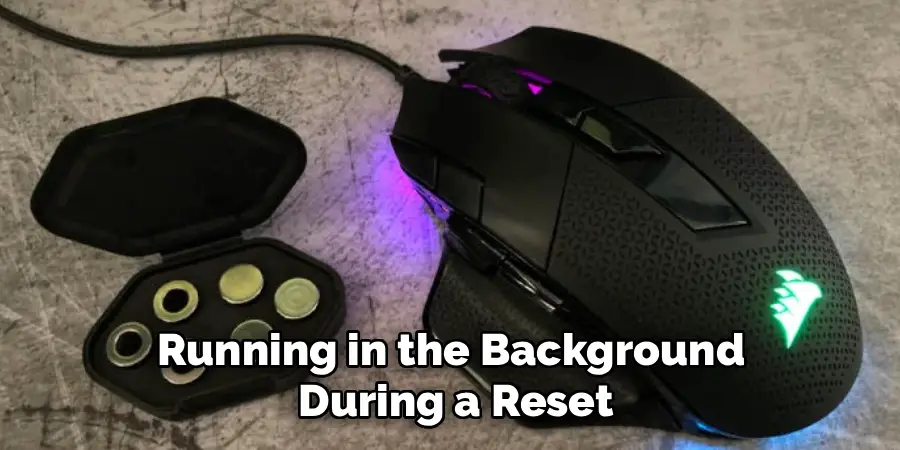
Corsair’s iCUE software manages lighting, DPI profiles, and macro settings. If it’s running in the background during a reset attempt, it can immediately push saved settings back onto the mouse and undo the reset before you’ve even noticed it worked.
Close iCUE completely — not just minimized, but fully exited from the system tray. On Windows, right-click the iCUE icon in the bottom-right corner of the taskbar and choose “Exit.” On macOS, right-click the dock icon and select “Quit.” Once iCUE is closed, wait about 10 seconds before moving to the next step.
Step 3: Unplug Or Power Off The Mouse
For a wired mouse, disconnect it from the USB port. For a wireless mouse, use the physical power switch on the underside to turn it off. This step clears the active connection between the mouse and your computer, which is necessary before the reset input registers correctly.
Don’t just switch ports on a wired mouse — fully remove it and wait five to ten seconds. This gives the operating system time to deregister the device. For wireless models with both dongle and Bluetooth options, also remove the USB dongle from the port if one is in use. Both the mouse and receiver should be completely disconnected before you continue.
Step 4: Perform The Hardware Reset
This is the core step, and it varies slightly by model. For most Corsair mice, the hardware reset is triggered by holding one or more buttons while reconnecting. A common method is to hold the left mouse button plus the DPI button simultaneously, then plug the mouse back in while still holding both. Keep holding for five to seven seconds until the LED lighting cycles or flashes, which confirms the reset has triggered.
On some models, particularly older wired mice, the reset button is a small pinhole on the underside that requires a paperclip or SIM ejector tool to press. Check your specific model’s manual or the Corsair support page if the button combination doesn’t produce a response. The LED cycle is your confirmation — if nothing flashes, the reset hasn’t registered.
Step 5: Reconnect And Check Default Behavior
Once the LED cycle confirms the reset, release the buttons and allow the mouse to fully reconnect. On a wireless mouse, turn the power switch back on and wait for the connection to re-establish. On a wired mouse, the operating system will recognize it within a few seconds of plugging in.
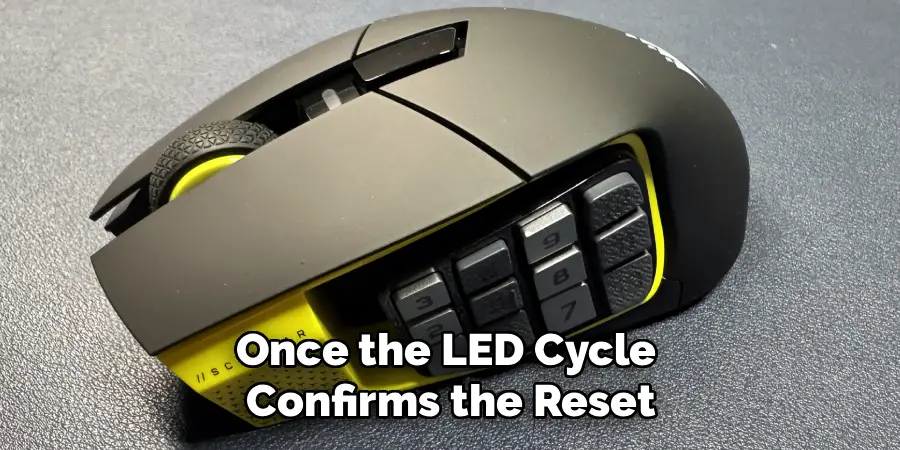
Test the mouse before reopening iCUE. Move the cursor, test all the buttons, and check the scroll wheel. At this stage, the mouse should be operating on its factory default DPI setting — typically 800 or 1000 DPI — with no custom profiles active. If the cursor moves smoothly and all buttons respond correctly, the reset was successful.
Step 6: Reopen iCUE And Reconfigure Your Settings
Once you’ve confirmed the mouse is working correctly at default settings, reopen iCUE. The software will detect the mouse and may prompt you to update firmware or restore a previously saved profile. Unless you had a specific profile you want to recover, it’s best to start fresh — create a new profile from scratch rather than loading the old one that may have caused the issue.
Understanding how to reset corsair mouse properly also means knowing when not to restore old settings. If a corrupted profile caused the original problem, reloading it will simply recreate the same issue. Set your DPI, button assignments, and lighting manually rather than importing previous data.
Step 7: Troubleshoot If The Reset Does Not Resolve The Issue
If the mouse still behaves incorrectly after a hardware reset, the problem may be firmware-related rather than profile-based. Open iCUE, navigate to your device settings, and check whether a firmware update is available. Firmware updates fix known bugs and are separate from profile resets — running one after a hardware reset addresses a different layer of the problem.
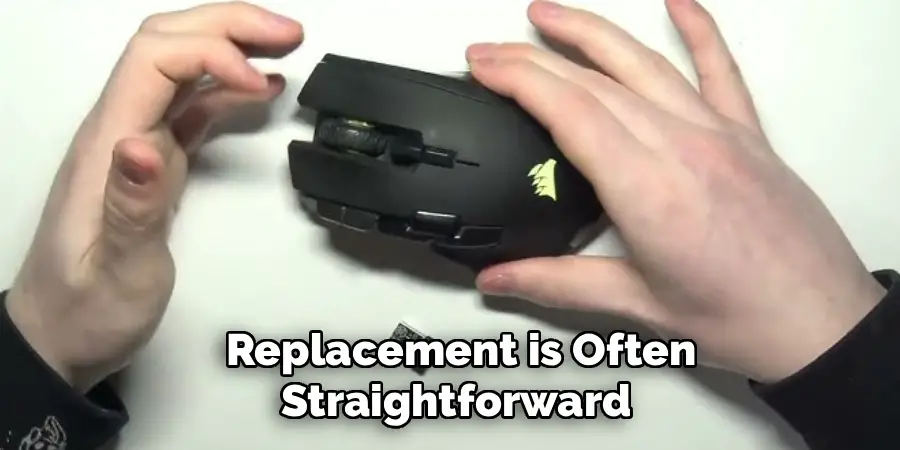
If the issue persists after updating firmware, try the reset process on a different computer to rule out a driver conflict specific to your machine. A mouse that misbehaves on multiple computers after a full reset likely has a hardware fault. At that point, contacting Corsair support with your model number and purchase details is the most productive next step. For mice still under warranty, a replacement is often straightforward.
Frequently Asked Questions (FAQ)
Will Resetting My Mouse Delete All My Custom Profiles?
Yes, a hardware reset clears all onboard profiles stored in the mouse’s memory. Any DPI settings, macro assignments, or lighting configurations saved directly to the mouse will be lost. Profiles stored within iCUE on your computer are not deleted — they remain in the software and can be reapplied after the reset. Always check whether your profiles are saved in iCUE before performing a reset.
How Do I Know If My Corsair Mouse Has Onboard Memory?
Most Corsair gaming mice feature onboard memory that stores one to three profiles directly on the device. Models in the M65, Scimitar, and Dark Core series typically include this feature. You can confirm it by checking the product page on Corsair’s website or looking inside iCUE under your device’s profile settings. If an “onboard profiles” tab appears in iCUE, your mouse has onboard storage.
Can I Reset My Corsair Mouse Without iCUE Installed?
Yes. The hardware reset is a physical button input that doesn’t require iCUE to be installed or running. Holding the correct button combination during reconnection triggers the reset at the firmware level, independent of any software. iCUE is only needed to reconfigure settings after the reset is complete. If you don’t use iCUE, the mouse will simply operate on factory defaults after the reset.
Why Is My Corsair Mouse Still Not Working After A Reset?
If the mouse remains unresponsive after a hardware reset, the next step is a firmware update through iCUE. Firmware issues are separate from profile corruption and require a different fix. If firmware updates don’t resolve the problem, test the mouse on another computer to rule out a driver conflict. Persistent issues across multiple systems typically indicate a hardware fault worth reporting to Corsair support.
How Often Should I Reset My Corsair Mouse?
There’s no set schedule — a reset is a troubleshooting tool, not a maintenance routine. Use it when you notice specific problems like DPI inconsistency, unresponsive buttons, or software conflicts that persist after restarting your computer. Resetting too frequently isn’t harmful, but it’s unnecessary if the mouse is working normally. For general maintenance, keeping iCUE updated and avoiding profile clutter is usually enough.

Conclusion
A Corsair mouse reset is one of the most effective first-response fixes for performance problems that seem complicated but are usually straightforward to resolve. The process comes down to closing iCUE, disconnecting the mouse, applying the correct button combination during reconnection, and confirming the reset through the LED cycle.
If the reset works, reconfigure your settings from scratch rather than restoring old profiles. If it doesn’t, a firmware update or a test on a separate computer will point you toward the real cause.
Now that you know exactly how to reset corsair mouse, work through each step at your own pace. Most issues clear up within the first few minutes — and when they do, you’ll have a mouse that feels as responsive and reliable as it did on day one.
