
If you want your Sceptre monitor to deliver the crispest, smoothest visuals possible, understanding and optimizing its refresh rate is a must. The refresh rate—measured in hertz (Hz)—determines how many times per second your screen redraws an image. Too often, users miss out on their monitor’s full potential by leaving it set to a default or sub-optimal value. Whether you’re a gamer seeking lightning-fast reactions or just want a more fluid web browsing experience, learning how to change Hz on Sceptre monitor can enhance every moment you spend at your computer. This guide will walk you step by step through the entire process, ensuring you get the best performance your hardware can deliver.
What is Refresh Rate (Hz) and Why Does It Matter?
Understanding Refresh Rate Basics
At its core, the refresh rate of a monitor refers to how many times per second the image on your screen updates. So, a 60Hz display refreshes 60 times every second, while a 144Hz display does so 144 times per second. These numbers are more than just specs—they have a direct impact on your viewing experience.
The Difference Between Lower and Higher Hz
With a lower refresh rate (like 60Hz), you might notice a slight blur or trailing effect when objects move quickly across the screen. This doesn’t just affect gaming; even fast-scrolling websites or dragging windows can look less fluid. A higher refresh rate (such as 120Hz or 144Hz) makes everything look smoother and more natural, reducing eyestrain and improving responsiveness.
When Refresh Rate Really Matters
For gamers, higher refresh rates provide a distinct competitive advantage by showcasing action with minimal motion blur. But even if you’re not a gamer, a smooth refresh rate can make everyday computing—from watching videos to moving your mouse—feel more enjoyable.
Confirm Your Monitor’s Maximum Refresh Rate
Why Knowing Your Monitor’s Capabilities Is Essential
Before attempting to adjust your refresh rate, it’s important to know the highest setting your specific Sceptre monitor supports. Attempting to set a refresh rate beyond your monitor’s maximum can result in no image or prompt the system to revert the settings automatically.
Where to Find This Information
Start by inspecting the original packaging or user manual that came with your Sceptre monitor. The maximum refresh rate, such as 75Hz, 120Hz, 144Hz, or even 165Hz, is typically listed in the technical specifications. If you no longer have those materials available, visit the official Sceptre website and search for your model.
How This Step Helps
Understanding your monitor’s capabilities prevents frustration and ensures you’re not chasing settings your hardware can’t support. If your monitor maxes out at 75Hz, trying to select a higher frequency will not be possible.
The Right Connection: Why Your Cable and Port Matter
Cable Quality and Monitor Input Selection
After confirming your monitor’s top refresh rate, the next factor is how the monitor is connected to your computer. Not all ports and cables support higher refresh rates, and a wrong choice here can limit your monitor’s performance.
DisplayPort vs. HDMI: What’s the Best Choice?
DisplayPort cables generally provide the highest bandwidth and are a preferred method for achieving maximum refresh rates at higher resolutions. If your monitor and graphics card support DisplayPort, use this option whenever possible for a hassle-free high-Hz experience.
Understanding HDMI Versions
While HDMI can also support high refresh rates, not all HDMI versions are created equal. Older HDMI 1.4 cables may only allow 60Hz at 1080p or even lower at higher resolutions. In contrast, HDMI 2.0 or HDMI 2.1 cables can deliver 120Hz or more at higher resolutions. Always check both your cable and the HDMI port’s version on your computer and monitor.
Why This Matters for Your Setup
Using the wrong cable may limit your Sceptre monitor to 60Hz, even if it can handle 144Hz or more. Making the proper connection is an essential step before proceeding to change the settings in your operating system.
How to Change Hz on Sceptre Monitor: Windows 10 and 11
Navigating Windows Display Settings
To get the most out of your Sceptre monitor, you’ll need to manually adjust your refresh rate within Windows. This process is user-friendly and lets you instantly see the difference a higher Hz makes.
Step 1: Open the Display Settings
Right-click anywhere on your desktop and select “Display settings.” This opens a control panel where you can adjust screen resolution, scale, and, crucially, refresh rate.
Step 2: Advanced Display Settings
Scroll to the bottom of the window and click on “Advanced display settings.” Here, you can view key information about your monitor’s connection and refresh rate capabilities.
Step 3: Choosing the Refresh Rate
You’ll see a section labeled “Refresh rate (Hz).” Click the dropdown menu and select the highest option available. This menu only shows rates supported by your monitor and connection. Choose your desired setting—such as 75Hz, 120Hz, or 144Hz—then confirm your choice.
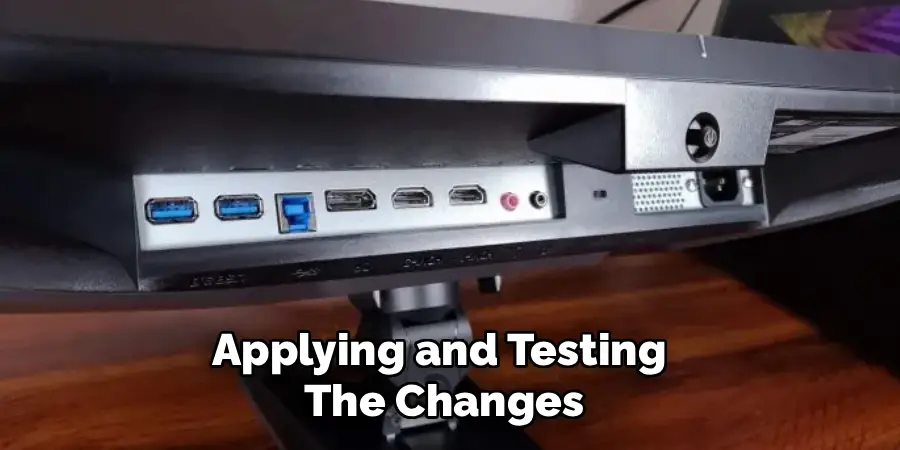
Step 4: Applying and Testing the Changes
When you select a new refresh rate, your screen may briefly turn black as the change takes effect. Windows will then prompt you to keep or revert the new settings. If the screen displays correctly, confirm to keep the change.
Tips for a Smooth Experience
Sometimes, a setting may not apply right away. Be patient and make sure your cable and connection meet the requirements for your preferred refresh rate.
Adjusting Refresh Rate on macOS
Accessing Mac Display Preferences
If you connect your Sceptre monitor to a Mac, the process differs slightly from Windows. Modern macOS versions make it straightforward to modify your display settings—if your hardware allows.
Step 1: Go to System Settings
Open the Apple menu and select “System Settings.” Click the “Displays” option from the sidebar.
Step 2: Locate Refresh Rate Options
With your Sceptre monitor connected, you’ll see an entry for your external display. Highlight this display, and any supported refresh rates will appear under advanced options.
Step 3: Selecting and Saving Your New Refresh Rate
Choose the refresh rate that matches your monitor’s capability and your cable’s bandwidth. The screen may flicker to apply the setting. If you see no issues, the change will be saved automatically.
Factors Affecting macOS Options
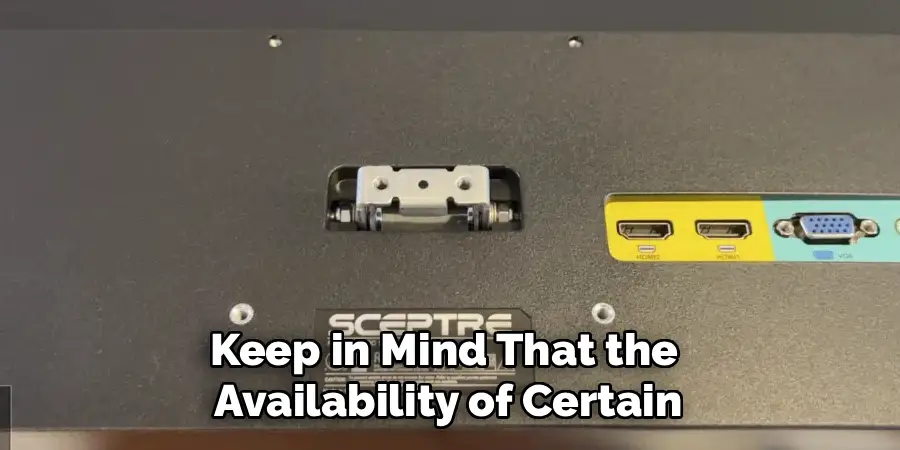
Keep in mind that the availability of certain refresh rates depends not just on your Sceptre monitor, but also on your Mac model and the adapters used. Not all Apple computers support high refresh rates at high resolutions, so consult your Mac’s technical specs if you don’t see your desired option.
Maximizing Gaming: In-Game Settings and Adaptive Sync Features
Why In-Game Settings Matter
Adjusting the refresh rate at the operating system level is only part of the equation—especially if you’re a gamer. Most modern games include their own graphics or display settings that need to be aligned with your monitor’s capabilities.
How to Sync Game Settings to Your Monitor
Open your game’s settings menu and locate the display or graphics settings. Set the refresh rate to match that of your Sceptre monitor—ensure it matches the value you set in your operating system’s settings. This guarantees you actually experience the performance your hardware supports.
Unlocking Adaptive Sync (FreeSync/ G-Sync) for Sceptre Monitors
If your Sceptre monitor features AMD FreeSync or NVIDIA G-Sync compatibility, you can reduce screen tearing and enjoy exceptionally smooth gameplay.
Enabling Adaptive Sync on the Monitor’s OSD
Navigate the on-screen display (OSD) of your monitor using the panel buttons. Look for a section referencing “Adaptive Sync” or “FreeSync,” and enable it.
Activating FreeSync or G-Sync in Your Graphics Card Control Panel
For AMD cards, open the Radeon Software and enable FreeSync under display settings. For NVIDIA cards, use the NVIDIA Control Panel and turn on G-Sync for your Sceptre monitor specifically.
The Payoff
These settings ensure that both your hardware and software work together, delivering the most fluid visuals with minimized stutter or tearing—a huge step forward for gaming and fast-action media.
Troubleshooting: Why Can’t I Select a Higher Refresh Rate?
Common Problems and Their Solutions
Even when you follow the instructions closely, sometimes the option for your preferred refresh rate doesn’t appear. This section will address the most frequent causes and how to fix them.
Why Am I “Stuck” at 60Hz?
- Connection Issues: Double-check that your monitor is using a DisplayPort or a high-quality, up-to-date HDMI cable (HDMI 2.0 or above). Switching to the proper cable often immediately unlocks higher refresh rates.
- Resolution Limitations: At certain high resolutions, some cables or graphics cards can’t output higher refresh rates. Try lowering your screen’s resolution as a temporary test.

When the Option Is Missing Altogether
- Update Your GPU Drivers: Outdated drivers can prevent Windows or macOS from “seeing” your monitor’s full capabilities. Go to the manufacturer’s website—NVIDIA, AMD, or Intel—and download the latest drivers for your graphics card.
- Check Monitor Input Source: Sometimes, monitors have multiple identical ports (e.g., HDMI 1 and HDMI 2), but not all are equal. Refer to your Sceptre manual to confirm which ports support high refresh rates.
Special Case: Mirrored or Duplicated Screens
When using more than one display in mirrored mode, Windows and macOS will only enable settings that are available on all screens. If one monitor is limited to 60Hz, the other will be capped accordingly. Try extending your screens rather than mirroring to unlock higher refresh rates.
When to Seek Further Help
If you have followed all these steps and still can’t select your desired refresh rate, contact Sceptre support or visit tech forums with details about your monitor model, PC specs, and cables in use.
Fine-Tuning with Sceptre’s On-Screen Display (OSD)
Navigating the OSD for Performance Enhancements
Your Sceptre’s on-screen display contains advanced settings that allow further customization beyond refresh rate adjustment. Access the OSD by pressing the corresponding button on your monitor.
Features to Explore
Look for settings such as “Overdrive,” which enhances pixel response times for fast-moving images by lowering motion blur. Some Sceptre monitors include a “Motion Blur Reduction” or “MPRT” setting, which can further refine image clarity during rapid movements.
Cautions and Best Practices
While maximizing these features can enhance your experience, using them at their highest settings may introduce artifacts like “ghosting” or color inversion. Test each option and choose the balance that feels right for your eyes and activities.
Verifying Your New Refresh Rate
Ensuring Your Settings Are Active
After all adjustments, it’s important to verify your refresh rate is running at the selected value.
Online Tools for Verification
Visit websites such as TestUFO.com with your browser. This site offers easy-to-read animations and clearly displays the refresh rate detected on your monitor. If your Sceptre monitor is set to your target rate, the number should match.
Double-Checking Within the Operating System
On Windows, revisit Advanced Display Settings and confirm the value under “Refresh Rate (Hz).” On macOS, check the Displays panel. If the numbers do not match your intended setting, review previous troubleshooting steps.
Conclusion
Optimizing your Sceptre monitor’s refresh rate blends the right hardware, proper cables, and well-chosen software settings. By carefully following the guidance in this article on how to change Hz on Sceptre monitor, you unlock a smoother, more responsive, and more enjoyable display experience—whether you’re gaming, working, or simply browsing the web. Regularly review your settings after hardware or software changes, and don’t hesitate to explore your monitor’s advanced features for even more fine-tuned performance. With this knowledge, you’re well equipped to get the best visuals your Sceptre display can offer.
