
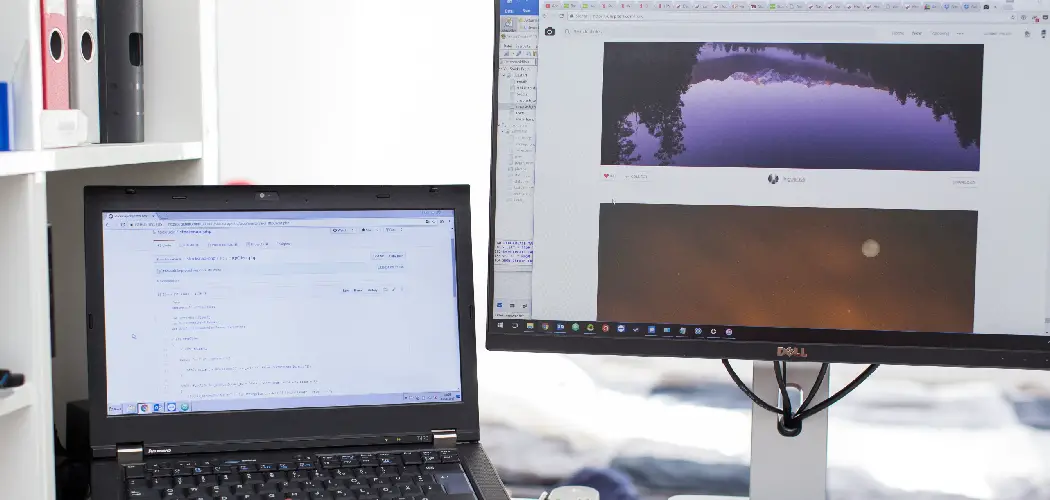
Connecting an external monitor to your laptop is one of the most effective ways to boost productivity, enhance your comfort, and open new possibilities for work, study, or entertainment. Sceptre monitors stand out as a cost-effective and reliable option, offering vibrant displays and easy usability. This comprehensive guide will show you exactly how to connect Sceptre monitor to laptop with minimal hassle and maximum results. Whether you’re setting up a dual monitor workspace for the first time or looking to upgrade your viewing experience, you’ll find clear, step-by-step instructions here.
Understanding Your Laptop and Monitor Ports
Before you begin, it’s important to understand the available connection ports on both your laptop and your Sceptre monitor. Pay close attention to shapes, symbols, and labels next to each port.
Common Types of Video Ports
Laptops and monitors today may include several types of ports. HDMI is now standard on most recent devices, allowing for straightforward transmission of both video and audio. DisplayPort, often found on higher-end laptops and monitors, supports high resolutions and refresh rates, making it a favorite among designers and gamers. USB-C ports have surged in popularity, especially on modern ultrabooks and MacBooks, supporting data, power, and video through a single reversible connector. Some laptops and monitors may still include classic connectors such as VGA or DVI, which are now considered legacy options with lower video quality.
How to Identify the Ports on Your Devices
Begin by examining your laptop’s side or back panels. Search for clearly labeled ports. Compare these to the back of your Sceptre monitor. For the best display quality, choose the newest, highest-bandwidth connection they share. If your laptop and monitor only have mismatched ports, don’t worry—a compatible adapter can bridge the gap.
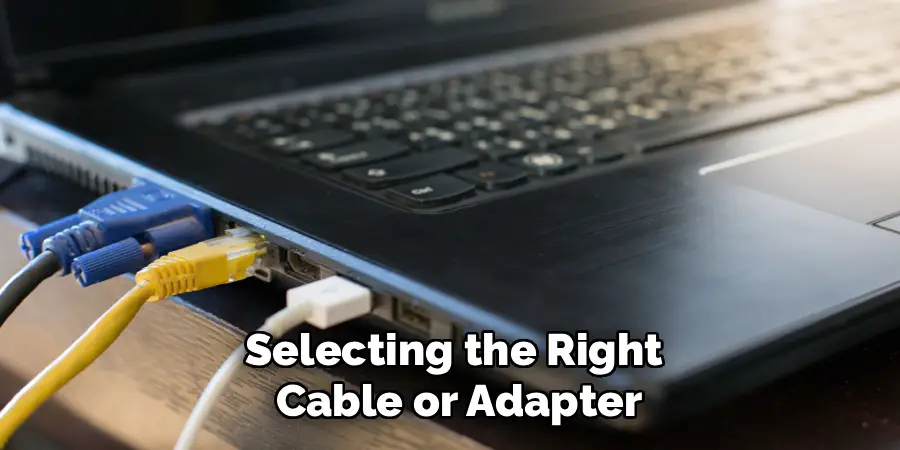
Selecting the Right Cable or Adapter
After identifying your available ports, selecting the right cable or adapter is crucial for a smooth connection.
Direct Connections vs. Adapters
Whenever possible, opt for a direct cable—such as HDMI to HDMI or USB-C to USB-C—because fewer links mean fewer compatibility issues and the clearest signals. If you notice that your laptop has only USB-C and your monitor only HDMI, a USB-C to HDMI adapter offers a simple and effective solution. Spend a little extra on well-reviewed cables and adapters to avoid problems like flickering, poor resolutions, or dropped connections.
Ensuring Cable and Adapter Quality
Cables are not all created equal. Lower-quality options may occasionally drop the video signal or offer distorted video. Test your cable before setting up your workspace, and look for visible certifications, such as “HDMI High Speed” or “DisplayPort Certified,” for peace of mind.
How to Connect Sceptre Monitor to Laptop: Connecting Process
Once you have your ports identified and your cables ready, you can proceed to the physical connection setup.
Preparing Your Devices for Connection
Begin by placing your Sceptre monitor in its intended location, ideally on a flat, sturdy desk with adequate room for your laptop. Plug both the monitor and laptop into a power source. Turn on the monitor using its dedicated power button.
Making the Physical Connection
Connect one end of the display cable to your laptop’s video-out port, then securely attach the other end to the corresponding port on your Sceptre monitor. Double-check that both ends are firmly seated for a reliable signal.
Powering Up and Input Selection
Once connected, the monitor should automatically detect the signal from your laptop. If the screen remains blank or reads “No Signal,” use the buttons on your monitor (usually on the bottom edge or back) to access the On-Screen Display (OSD) menu and choose the correct input (HDMI, DP, etc.).
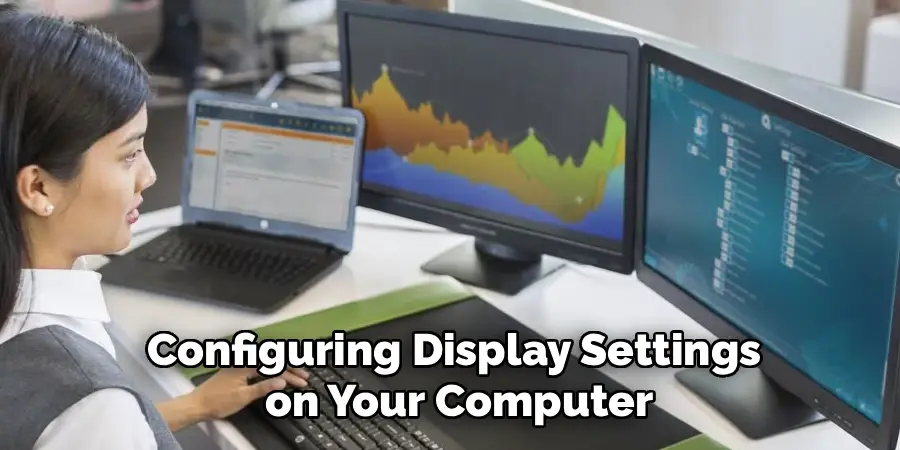
Configuring Display Settings on Your Computer
The next step—adjusting your display settings—ensures the monitors work together in the way you prefer.
Display Settings in Windows
On Windows, right-click your desktop and select “Display Settings.” Here, you’ll find several key configuration options:
- Display Modes: Choose between “Duplicate” (shows the same image on both screens), “Extend” (adds extra screen real estate, so you can drag windows between displays), or “Second screen only” (disables your laptop screen to use only the monitor).
- Resolution and Orientation: Verify the Sceptre monitor is set as the correct output and adjust the resolution so it matches the monitor’s native capabilities (for crisp text and graphics). Arrange the displays to reflect their physical layout for intuitive mouse movement.
Display Settings in macOS
On a Mac, open “System Settings” and click on “Displays.” Use the drag-and-drop interface to set how your monitors relate spatially and toggle between mirroring (same view) and “Extend” (greater workspace). Adjust resolutions and screen arrangements for seamless use.
Fine-Tuning the Setup
Pay special attention to the refresh rate and scaling options, as these can make a huge difference in eye comfort and visual fluidity. Be sure to save your changes before exiting the settings.
Routing Audio Through Your Sceptre Monitor
Some Sceptre models feature built-in speakers and can take the place of your laptop’s sound output when connected via HDMI or DisplayPort.
Adjusting Audio Output Settings
In Windows, right-click the speaker icon and select “Playback devices” or “Sound settings,” then choose your Sceptre monitor as the default audio device. On a Mac, navigate to Sound settings and select the new monitor under the “Output” list. If the monitor lacks built-in speakers, your laptop will continue to handle all audio.
Troubleshooting Connection Problems
Although the connection process is typically smooth, challenges may arise. Stay calm—most issues are easily fixed with a few targeted adjustments.
Addressing a “No Signal” or Black Screen
Start by verifying both devices are powered on and all cables are fully inserted. Access the monitor’s input menu and confirm the correct port is selected. If your laptop shows signs of sleep mode, try waking it up. Restarting both devices may resolve temporary software glitches.
Fixing Resolution or Display Quality Issues
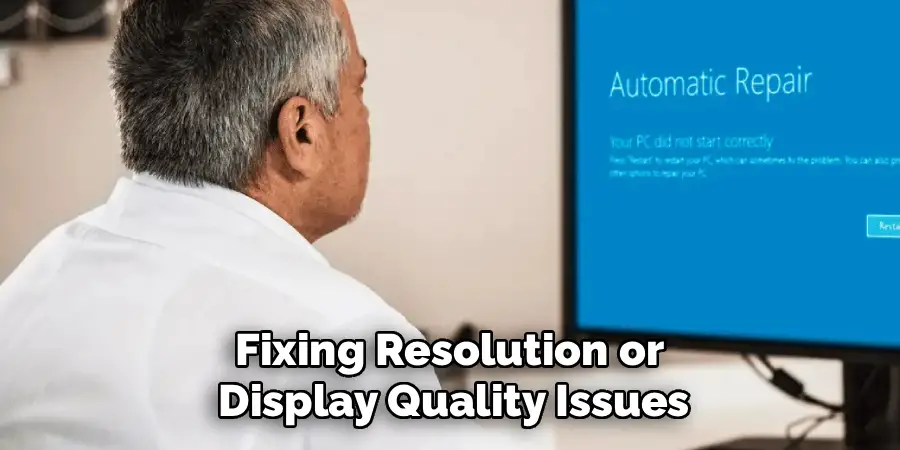
If your monitor image appears blurry, off-center, or distorted, adjust the resolution in your computer’s display settings menu to the monitor’s preferred (native) resolution. Should images still look wrong, update your graphics driver software by visiting your laptop manufacturer’s support page. Software updates often resolve compatibility and display issues.
Dealing with HDCP and Adapter Problems
For streaming content or Blu-ray playback, you may see High-bandwidth Digital Content Protection (HDCP) error messages. Try swapping to a different, certified cable, or update drivers for better compatibility. Adapters should be tested with other devices if you run into repeated difficulties.
Managing Power and Sleep Settings for a Smoother Experience
Dual-screen users sometimes encounter frustrating interruptions if their laptop enters sleep or standby mode unexpectedly.
Configuring Lid and Sleep Behaviors
In your laptop’s power settings (Windows “Power & Sleep” menu or macOS “Battery” section), customize actions such as what happens when the lid is closed. Most users select “Do nothing” to keep external monitors running even with the laptop closed.
Optimizing for Productivity and Energy Efficiency
Strike a balance between performance and energy savings by setting reasonable sleep timers for both displays and the laptop. This approach limits power consumption without compromising workflow.
Performing Basic Color Calibration and Ergonomic Adjustment
With your Sceptre monitor connected and configured, take a few minutes to fine-tune visual comfort and workstation ergonomics.
Adjusting Color, Brightness, and Contrast
Use your monitor’s internal menu (often accessed via onboard buttons) to tweak brightness, contrast, and color temperature. Many monitors come factory-calibrated but may look different depending on your room’s lighting. Consider running your operating system’s built-in calibration tool for even more precise results.
Setting Up an Ergonomic Workspace
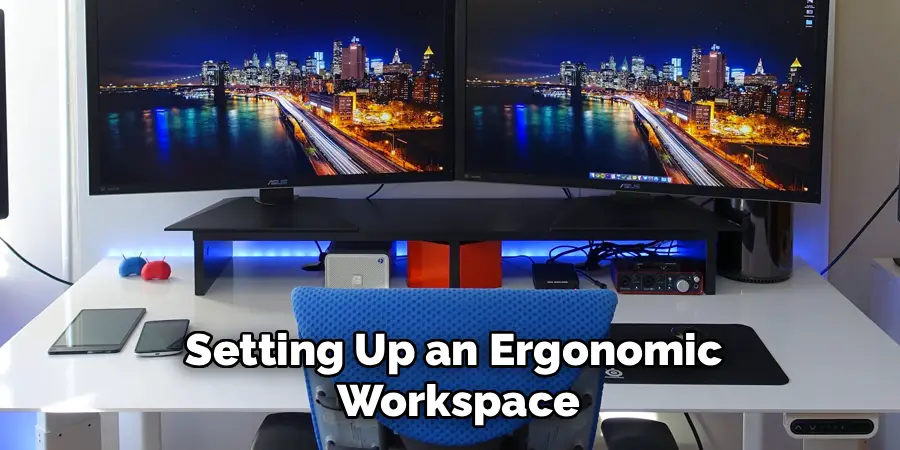
Monitor placement dramatically affects your comfort over long hours. Position the monitor at eye level and about an arm’s length away. The top of the display should sit roughly at or just below eye height. Arrange your keyboard and mouse so your wrists and shoulders remain relaxed.
Avoiding Common Mistakes During Setup
A few frequent issues cause unnecessary frustration for first-time users.
Selecting the Wrong Port or Cable
Always double-check which ports and cables you’re using. Confusing HDMI with DisplayPort, or using a poor-quality adapter, can result in no signal or degraded imagery. Refer to your user manuals for clarification.
Overlooking Input Selection on the Monitor
Many users forget this simple step—use your Sceptre monitor’s OSD menu to activate the correct input, especially if the monitor doesn’t automatically switch.
Forgetting Driver Updates
Outdated graphics drivers can cause monitors to be unrecognized, limit supported resolutions, or even crash your computer’s display settings menu. Schedule driver updates periodically.
When to Seek Additional Support
Sometimes, despite your best efforts, technical issues persist. In those cases, consult your Sceptre monitor’s user manual or check the manufacturer’s support website for FAQs and troubleshooting guides. Peer support forums and your laptop’s support channels can also be invaluable resources for unusual problems.
Conclusion
Successfully connecting a Sceptre monitor to your laptop isn’t just a technical task; it’s an important step toward more efficient work, enjoyable media experiences, and a better overall computing environment. By following the methodical approach outlined here—identifying ports, choosing the right cable or adapter, making the physical connection, and tuning display settings—you eliminate guesswork and reduce frustration.
Remember to address audio routing if your monitor has speakers, and don’t overlook the finer points of color adjustment and ergonomics to create a truly comfortable space. With consistent attention to details like driver updates and power settings, you’ll keep your setup running smoothly.
Armed with this guide on how to connect Sceptre monitor to laptop, you’re ready to enjoy the benefits of a seamless dual-screen system. Whether you’re working, learning, or relaxing, a well-connected monitor can make all the difference.
