
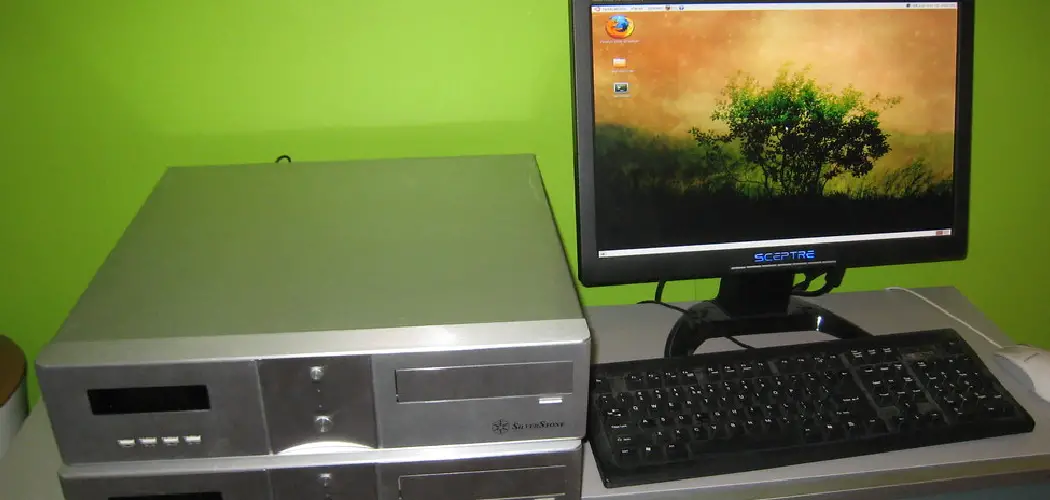
When your computer display starts acting up, it can quickly disrupt your daily workflow. Modern monitors, including Sceptre models, offer crisp visuals and a range of customizable features, but can still experience occasional glitches—strange colors, blinking screens, or even going undetected by your computer. In these situations, knowing how to reset Sceptre monitor models is a valuable troubleshooting skill. Below, we’ll walk through the full process of identifying common triggers, understanding the available reset options, performing each step, and fine-tuning your monitor for the best results.
Why Is a Sceptre Monitor Reset Important?
If your monitor starts to show problems such as flickering, distorted colors, persistent “No Signal” messages, or unresponsive menus, a reset can often restore it to normal operation. Resetting is a straightforward process that solves many frequent display issues quickly and without the need for extra tools or support.
Common Problems That Call for a Reset
Most Sceptre monitor owners will notice issues that can range from color inaccuracy and poor contrast, to image stuttering or a lack of response from buttons. Software updates, changing connected devices, or simple wear-and-tear can all lead to miscommunication between your monitor and your computer. Resetting is often the first and most effective step to restore normal function and image quality.
Understanding the Different Reset Options
Sceptre monitors offer several reset options—each designed for different situations and levels of troubleshooting.
Power Cycle Reset
A “power cycle” is the quickest way to clear minor glitches. For most users, this acts as a soft reset and can resolve many temporary issues. If your monitor becomes unresponsive or you experience minor image errors immediately after powering up or adjusting settings, a power cycle often refreshes the device, letting you start anew.
On-Screen Display (OSD) Factory Reset
The OSD factory reset is the more comprehensive reset option. It restores every adjustable setting on your monitor—including color, brightness, sharpness, contrast, and more—to the state they were in when the monitor first left the factory. If persistent color distortions, resolution problems, or odd menu behaviors arise, this type of reset is especially helpful.
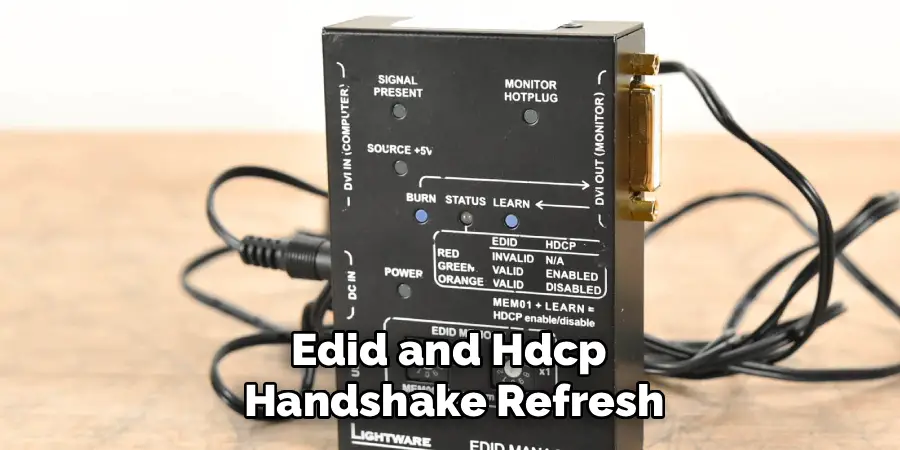
EDID and HDCP Handshake Refresh
This advanced reset type is useful when the monitor and the computer are not communicating correctly. If you see recurring “No Signal” messages despite correct cable connections, or if your computer detects the wrong monitor resolution, refreshing the EDID (Extended Display Identification Data) and HDCP (High-bandwidth Digital Content Protection) handshake can resolve these mismatches.
When You Should Reset Your Sceptre Monitor
Knowing when to reset your monitor is as important as knowing how. The following scenarios typically indicate that a reset is needed:
- There are clear image issues, such as lines, flickering, or off-colors.
- On-screen menus lag, freeze, or do not respond at all.
- You swap cables or computers and the monitor stops being recognized.
- Software or driver updates create new problems or unexpected results.
- You notice a drop in display quality after making changes to monitor settings.
Relying on the reset process the moment recurring issues arise helps you avoid unnecessary troubleshooting and gets your screen performing properly again.
Preparing Your Workspace for a Monitor Reset
Before diving into the reset process, prepare your workspace to avoid mishaps or confusion.
Ensuring Safe Conditions
Start by shutting down your computer and the monitor, then unplug the power cables from the outlet. Give yourself plenty of space to access the back and sides of the monitor, as you may need to press physical buttons or inspect cable connections. Make sure your work area is clean, dry, and free of obstructions.
Reviewing Connections
Take this opportunity to inspect all cables for signs of wear and damage. Loose, frayed, or pinched cables can mimic the symptoms of a monitor failure, so checking these can prevent unnecessary resets. Additionally, try to use the cables and ports that shipped with your monitor, as off-brand or older connections can sometimes cause unique issues.

How to Reset Sceptre Monitor: Step-by-Step Procedures
Resetting a Sceptre monitor is a structured process, with a few key methods you can use depending on what symptoms you see. Let’s break down each method.
Step 1: Performing a Power Cycle Reset
The power cycle method is often the quickest and easiest fix. Here’s how to perform a power cycle correctly:
Shutting Down and Unplugging
Begin by turning off the monitor using the power button, if available. Next, unplug the monitor from the wall socket or power strip, ensuring it is completely disconnected from any power source.
Disconnecting Video Cables
Remove all video cables from the back of the monitor as well as from your computer. This should include HDMI, DisplayPort, DVI, or VGA cables, depending on your setup. These steps ensure all remaining power drains from the circuits.
Waiting for Discharge
Allow at least 60 seconds for the monitor to fully discharge any retained power. This step helps clear out the memory and reset temporary faults that occurred during previous use.
Powering Up Again
Once the time has elapsed, reconnect the video cables and then the power cord to the monitor. Power on both your monitor and computer. If the problem was due to a minor glitch, your Sceptre monitor should now function normally.
Step 2: Factory Reset via On-Screen Display (OSD) Menu
For persistent issues that the power cycle didn’t solve, a factory reset through the on-screen menu is recommended. The steps apply to most Sceptre monitors:
Accessing the Menu
Locate the menu/navigation buttons on the bottom or side of your device. Press the “Menu” button, which should bring up an on-screen menu overlay. Using the arrow or navigation buttons, scroll through the menu options until you locate a section labeled “Setup,” “System,” or occasionally “Other.” The precise name will vary depending on the Sceptre model, but you are looking for a submenu that contains system-level operations.
Navigating to the Factory Reset Option
Inside the menu, use the up and down arrows to highlight “Factory Reset,” “Reset All,” or a similar label. Some models may show “Restore Defaults” instead. Once highlighted, press the “Select” or “Enter” button; this is often the same as the “Menu” button, but consult your product manual if you are unsure.
Confirming the Reset Command
When you select the factory reset command, you will usually be prompted to confirm your choice. Use the navigation buttons to move to “Yes” or “Confirm,” then press “Enter.” The display may flicker or temporarily go dark—this is normal as the settings return to their original factory defaults. In a few seconds, your monitor will reload with the default configuration: brightness, contrast, color presets, and all user-defined settings will revert. At this stage, assess whether the image clarity and menu performance have improved.
Re-applying Personal Settings
After a factory reset, take a few moments to go back into the OSD menu and readjust settings for brightness, contrast, color saturation, and sharpness to your personal preference. This step ensures you maintain your desired viewing comfort while preserving the benefits of the reset.
Step 3: Refreshing the EDID and HDCP Handshake
If you continue to experience communication problems between your computer and Sceptre monitor—like persistent “No Signal” warnings, incorrect resolutions, or issues with specific content playback (such as streaming high-definition video)—the source may be a corrupted EDID or failed HDCP handshake. Understanding and refreshing these settings can resolve lingering conflicts.
What Are EDID and HDCP?
EDID (Extended Display Identification Data) is information sent from your monitor to your computer, letting the computer know the screen’s capabilities: resolutions, refresh rates, color support, and more. Occasionally, this data becomes inaccurate, especially after firmware updates or cable changes.
HDCP (High-bandwidth Digital Content Protection) is technology used by content providers (like streaming services or Blu-ray players) to prevent unauthorized recording. A failed HDCP handshake can block protected content from being displayed.
After the Reset: Testing and Recalibrating Your Display
Once you have followed one or more of the reset steps, it’s essential to test your monitor thoroughly.
Checking Basic Visual Performance
Restart your computer and observe the monitor during the system’s startup. Look for improvements in color reproduction, brightness, and menu responsiveness. Open a variety of programs and documents to see if all areas of the display are functioning as expected.
Adjusting Image and Color Settings
It’s typical for some settings to revert to defaults after a reset. Return to the OSD menu and review your preferred adjustments: brightness, contrast, sharpness, and color temperature. If you work in graphics or design, consider running a monitor calibration using built-in system tools or third-party software to ensure accurate color representation.
Verifying Connectivity and Compatibility
Reconnect all routine external devices, including laptops, docking stations, game consoles, or streaming sticks, to ensure your monitor is responsive across multiple sources.
Advanced Troubleshooting and Maintenance Tips
Resetting solves most basic problems, but a well-maintained monitor is least likely to develop recurring issues. Consider these tips for ongoing care and optimal performance:
Use High-Quality Cables
Cheap or damaged cables cause most connectivity errors and sometimes even display artifacts. Invest in certified HDMI or DisplayPort cables—especially those rated for the resolution and refresh rate you use.
Keep Firmware and Drivers Updated
Visit both the Sceptre and computer manufacturer websites periodically for updates. Out-of-date software can lead to compatibility glitches that are easily fixed with a firmware or driver update.
Ensure Proper Ventilation
Monitors generate and retain heat, especially at high brightness. Make certain the vents are unobstructed and dust-free to prevent overheating and performance degradation.
Use a Power Surge Protector
Monitor circuits are sensitive to electrical fluctuations; a quality surge protector or uninterruptible power supply prolongs the device’s lifespan and guards against abrupt failures.
When a Reset May Not Solve the Problem
Despite all troubleshooting, certain hardware issues cannot be fixed through resets. Persistent dead pixels, severe backlight bleed, or internal power failures may require professional repair or monitor replacement. In these cases, reference your product warranty or extended protection plan.
Conclusion
Learning how to reset Sceptre monitor models is a practical, time-saving skill that can restore your display’s visual clarity and responsiveness. Whether you rely on a simple power cycle, a complete factory reset, or advanced EDID and HDCP handshake interventions, following systematic steps minimizes downtime and stress.
Take time after each reset to recalibrate picture quality and double-check all settings so that you can enjoy the best visuals your Sceptre monitor has to offer. Keep your workspace tidy, cables updated, and firmware current to further minimize the need for troubleshooting in the future. With these habits, even persistent glitches become manageable, keeping your technology running as smoothly and efficiently as possible.
