
Networking a printer sounds straightforward until something goes wrong. Whether you’re trying to reconnect a printer that dropped off your network, configure it manually, or troubleshoot a connection issue, one piece of information becomes essential: the printer’s IP address. Knowing how to find my printer’s IP address puts you in control of the situation instead of waiting on an IT technician or struggling through menus without direction.
An IP address is a unique numerical label assigned to every device on a network, and your printer is no exception. Without it, you can’t manually add the printer to a computer, set up a static connection, or access its web-based settings panel. This guide walks you through every method available — from the printer’s own display panel to your router and Windows settings — so you can locate that address quickly, no matter what setup you’re working with.
Why Finding Your Printer’s IP Address Matters
Most people never think about their printer’s IP address until they desperately need it. But this small string of numbers plays a big role in keeping your printing setup reliable and flexible. It allows you to connect directly to the printer from any device on the network, bypass unreliable automatic discovery, and access the printer’s built-in configuration page through a web browser.
It also becomes critical when you’re setting up a static IP to prevent the printer from changing addresses after a router restart, which is a common cause of “printer not found” errors. For home offices and small businesses especially, knowing where to look for this information saves time and prevents unnecessary frustration. Once you’ve found the IP address and know how to use it, managing your printer becomes a much smoother experience overall.
Step-By-Step Guide To How To Find My Printer’s IP Address
Step 1: Check The Printer’s Control Panel Display
The fastest and most direct method is to look at the printer itself. Most modern printers — whether inkjet or laser — have a small LCD screen or touchscreen display built into the front panel. Navigate to the network or wireless settings section, which is usually accessible through a “Settings,” “Setup,” or “Menu” button. From there, look for an option labeled “Network Information,” “Wireless Status,” or something similar.
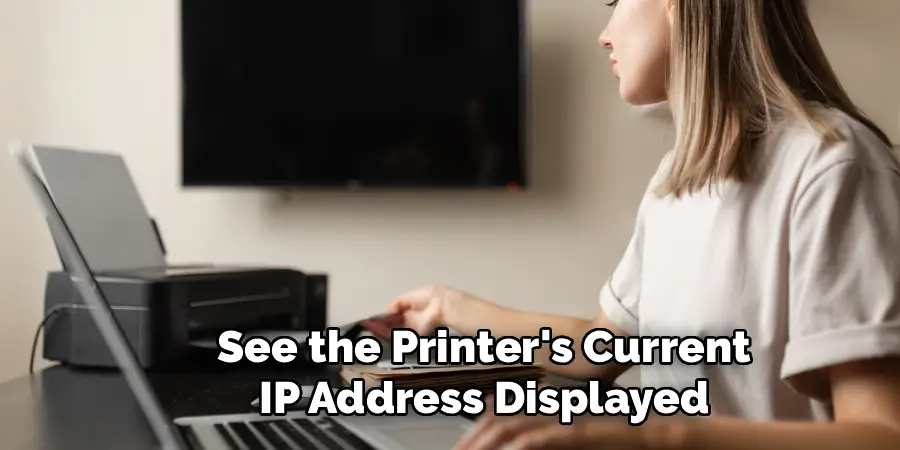
Once you open the network information screen, you should see the printer’s current IP address displayed alongside other details like subnet mask and gateway. This method requires no computer access and works whether the printer is connected via Wi-Fi or ethernet. If your printer doesn’t have a display panel, don’t worry — the other methods covered in this guide work just as well and are equally beginner-friendly.
Step 2: Print A Network Configuration Page
If your printer doesn’t have a clear display menu, or you simply prefer a physical record, printing a network configuration page is one of the most reliable options available. Nearly every printer model includes this feature. The way you trigger it varies by brand — on many HP, Canon, and Epson printers, you hold down the wireless button for a few seconds, or navigate to a “Reports” or “Print Information” option in the settings menu.
The printed page will show a detailed summary of the printer’s network settings, including its IP address, MAC address, network name, and connection status. Keep this page somewhere accessible because it contains everything you might need for future setup or troubleshooting. If you’re unsure how to trigger the configuration print on your specific model, a quick search for your printer’s model number plus “print network configuration page” will give you the exact steps.
Step 3: Use The Windows Settings App
If you’re working from a Windows PC that’s already connected to the same network as the printer, the operating system itself can tell you the IP address without any extra effort. Open the Settings app by pressing the Windows key and clicking the gear icon, then go to “Bluetooth & devices” followed by “Printers & scanners.” Click on the printer whose IP address you need, then select “Printer properties.”
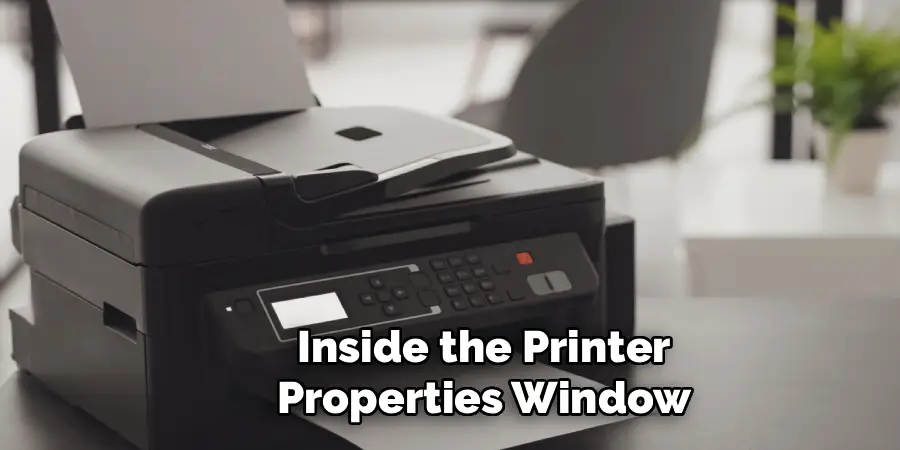
Inside the printer properties window, navigate to the “Ports” tab. You’ll see a list of ports, and the one that’s currently active — usually indicated by a checkmark — will display the IP address either directly in the port name or in the description. This method is particularly useful when the printer is in another room or you simply don’t want to walk over to it. It works for any printer that’s been added to your Windows system over a network connection.
Step 4: Check The Printer Software On Your Computer
Most printer manufacturers provide dedicated software that installs alongside the printer driver. Programs like HP Smart, Canon IJ Network Tool, Epson iPrint, and Brother’s iPrint&Scan all include network management features that display the printer’s current IP address clearly within the app’s interface. Open the software, select your printer from the device list, and look for a “Network Settings,” “Printer Information,” or “Device Details” section.
This approach is especially helpful because the manufacturer’s software often presents network information in a clean, easy-to-read format. It also tends to stay current, updating automatically when the printer’s IP address changes. If you don’t already have the software installed, you can download it for free from the manufacturer’s official website using your printer’s model number as the search term.
Step 5: Use Your Router’s Admin Panel
Your router keeps a record of every device connected to your network, including your printer. To access this information, open a web browser and type your router’s default gateway address into the address bar — this is typically something like 192.168.1.1 or 192.168.0.1. Log in using your router’s admin credentials, which are often printed on a label on the router itself if you’ve never changed them.
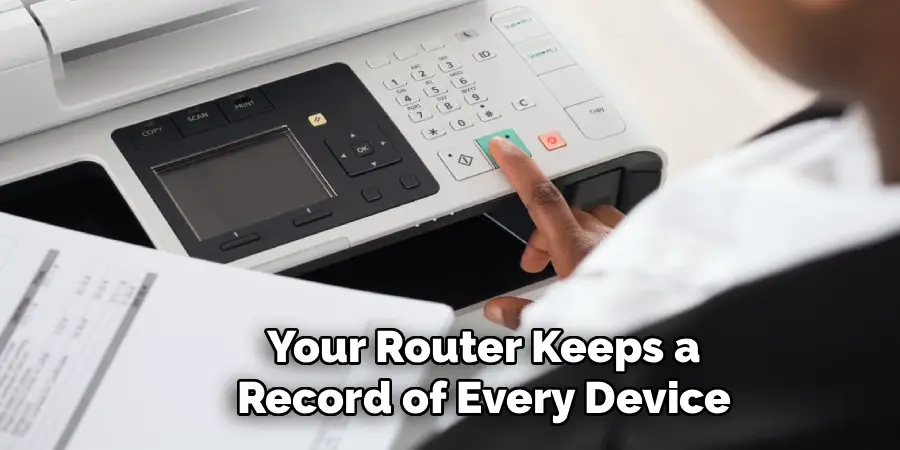
Once you’re inside the router’s admin panel, look for a section labeled “Connected Devices,” “DHCP Client List,” or “Device List.” Your printer should appear there, identified either by its model name or its MAC address. The IP address assigned to it will be listed right alongside. This method works regardless of printer brand and gives you a clear view of all devices on your network at the same time, which is useful for broader troubleshooting.
Step 6: Use The Command Prompt On Windows
For users comfortable with a slightly more technical approach, the Windows Command Prompt offers a quick way to scan for connected devices and locate your printer’s IP address. Press the Windows key, type “cmd,” and open the Command Prompt app. Type the command arp -a and press Enter. This displays a list of all devices currently recognized on your local network, along with their IP addresses and MAC addresses.
To identify which entry belongs to your printer, cross-reference the MAC address shown in the Command Prompt results with the MAC address on the printer’s network configuration page. If you already printed that page in Step 2, this becomes a straightforward comparison. This method is particularly useful when you need to verify an address that was displayed elsewhere, or when you’re trying to figure out how to find my printer’s IP address on a network with many connected devices.
Frequently Asked Questions
Why Does My Printer’s IP Address Keep Changing?
Your printer’s IP address changes because most routers assign addresses dynamically through a system called DHCP, which reassigns addresses each time a device reconnects. To prevent this from happening, you can assign your printer a static IP address through your router’s admin panel or through the printer’s own network settings. A static IP stays the same permanently, which eliminates repeated reconnection issues.
Can I Find My Printer’s IP Address Without A Computer?
Yes, you can. If your printer has a display screen, you can navigate directly to the network settings on the printer itself and view the IP address there. You can also print a network configuration page directly from the printer without any computer involvement. Additionally, a smartphone with a free network scanning app like Fing can detect and display the printer’s IP address from the same Wi-Fi network.
What Does A Printer’s IP Address Look Like?
A printer’s IP address follows the standard IPv4 format, which consists of four groups of numbers separated by periods — for example, 192.168.1.45 or 10.0.0.23. The first three groups typically reflect the network you’re on, while the last number identifies the specific device. If you see a string in this format listed under your printer’s network settings, that is the IP address you’re looking for.
Is It Safe To Access My Printer Through Its IP Address?
Yes, accessing your printer through its IP address is safe as long as you’re doing so from within your own local network. Typing the printer’s IP address into a browser opens its built-in web interface, where you can adjust settings, check ink or toner levels, and manage network configuration. You should never share your printer’s IP address with people outside your network, as that could expose its settings to unauthorized access.
What Should I Do If My Printer Doesn’t Appear On The Network?
If your printer doesn’t appear in any network scan or device list, start by confirming it’s powered on and connected to the correct Wi-Fi network or plugged into the router via ethernet. Restart both the printer and the router, then wait about a minute before scanning again. If the problem continues, check whether the printer’s wireless feature is enabled in its settings menu, as it may have been accidentally turned off.
Conclusion
Finding your printer’s IP address doesn’t have to be a confusing or time-consuming task. You now have seven reliable methods at your disposal — from checking the printer’s display and printing a configuration page to using your router’s admin panel, Windows settings, and network scanning apps. Each method works in slightly different situations, so having all of them in your toolkit means you’re prepared for any setup or troubleshooting scenario you might face.
The next time a printer connection issue comes up, you won’t need to guess or call for help. You know exactly how to find my printer’s IP address, and more importantly, you know how to use that information to take real action. Start with the simplest method that fits your situation, confirm the address, and move forward with confidence.
