
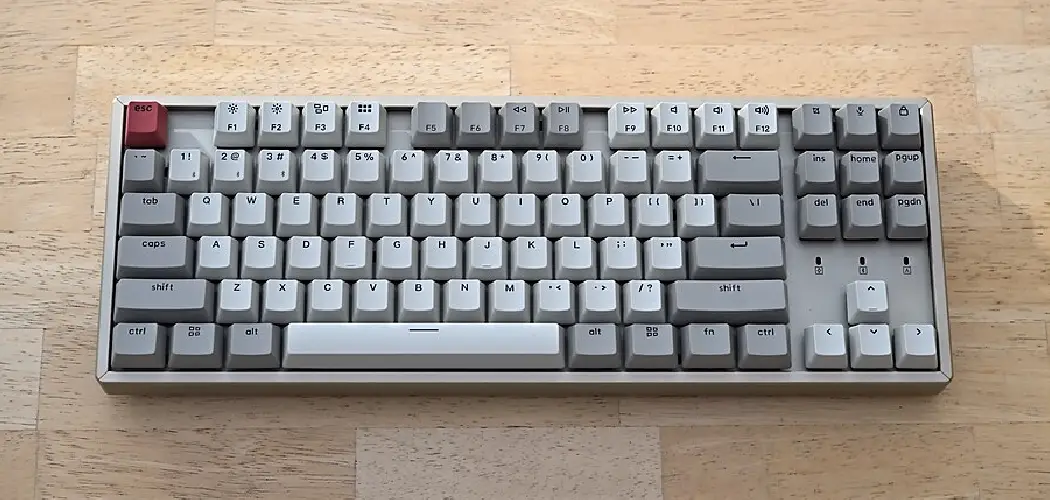
Keychron keyboards are beloved for their build quality, versatility, and smooth typing experience — but like any tech device, they can run into issues. Keys might stop responding, Bluetooth connections can become unstable, or custom settings might behave unexpectedly after a firmware update. When these problems show up, a reset is often the quickest and most effective fix. Knowing how to reset Keychron keyboard is a skill every owner should have in their back pocket, whether you’re a first-time user or someone who’s been typing on one for years.
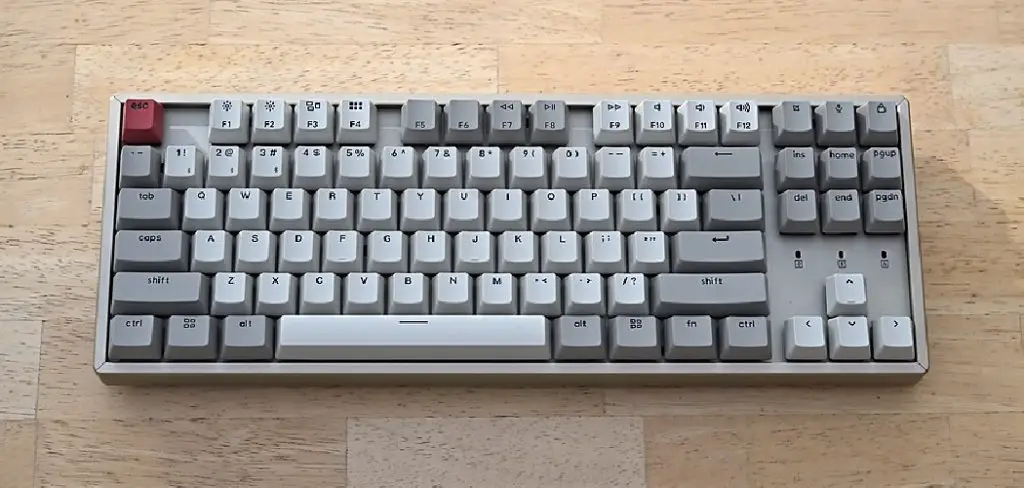
A reset clears out glitches, restores factory defaults, and gives you a clean slate to work from. This guide walks you through every step of the process clearly and simply, so you don’t have to dig through forums or guess your way through menus. Let’s get your keyboard working the way it should.
Why Resetting A Keychron Keyboard Matters
A Keychron keyboard reset isn’t just for when things go seriously wrong. Sometimes small, frustrating issues build up over time — a key that registers twice, a Bluetooth device that won’t pair correctly, or RGB lighting that stops responding to changes. These are all signs that something in the keyboard’s memory or configuration has gotten out of sync.
Resetting clears those inconsistencies and restores the keyboard to a reliable baseline. It’s also an essential step before selling or passing on the keyboard to someone else, since it wipes any paired device history and custom settings. For people who use their Keychron across multiple devices or switch between wired and wireless modes frequently, knowing when and how to reset can save significant time and prevent unnecessary frustration. It’s a simple process that delivers real results.
Step-By-Step Guide To How To Reset Keychron Keyboard
Step 1: Identify Your Keychron Model
Before doing anything else, it’s important to know exactly which Keychron model you’re working with. Keychron produces a wide range of keyboards — from the compact K2 and K6 to the full-sized K8 and the wireless-only Q and V series. The reset method can vary slightly between models, particularly when it comes to which key combinations trigger the reset and whether the keyboard supports both Bluetooth and USB-C wired connections.
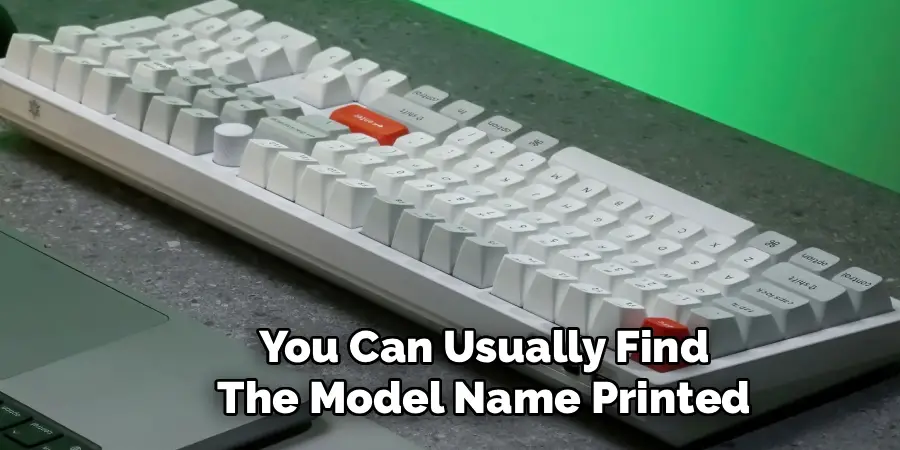
You can usually find the model name printed on a label on the underside of the keyboard. Once you know your model, you can also check Keychron’s official support page to confirm whether there are any model-specific steps you should be aware of. Getting this right from the start means you won’t waste time performing the wrong reset procedure.
Step 2: Switch The Keyboard To The Correct Mode
Keychron keyboards with wireless capability have a physical mode switch on the side or back of the device — typically a three-position switch that lets you toggle between off, Bluetooth, and cable modes. Before performing any reset, make sure the keyboard is in the correct mode for the type of reset you want to do. If you’re clearing a Bluetooth pairing, the keyboard must be in Bluetooth mode. If you’re performing a full factory reset, cable mode connected to a computer is often more reliable.
Switching to the wrong mode before you begin can result in the reset command not registering at all, which can be confusing if you’re not expecting it. Take a moment to check the switch position and confirm the keyboard is powered on and active. A brief indicator light or the status of any RGB lighting can confirm the keyboard is responsive before you move forward.
Step 3: Clear Existing Bluetooth Pairings
If your main issue involves Bluetooth connectivity — such as the keyboard refusing to pair, dropping connection frequently, or showing up as an unrecognized device — clearing the stored Bluetooth pairings is the most targeted fix. On most Keychron keyboards, you can do this by holding Fn + Z for about five seconds while the keyboard is in Bluetooth mode. The pairing indicator light will typically flash rapidly to confirm the stored connection has been cleared.
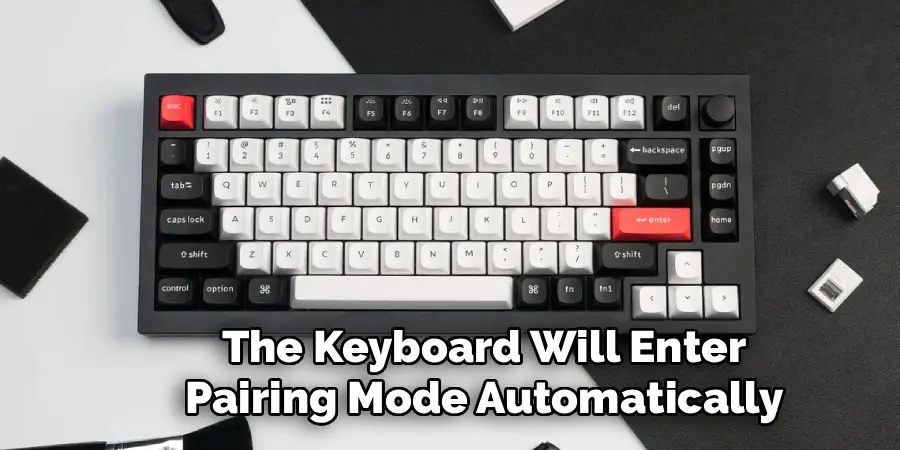
After the pairing data is wiped, the keyboard will enter pairing mode automatically, ready to connect to a new device. If you’re connecting to a Windows PC, Mac, iPad, or phone, your device’s Bluetooth settings should now detect the keyboard as a new device. Repeat this process for each Bluetooth channel your Keychron supports — most models allow up to three separate device pairings, each triggered by pressing Fn + Q, Fn + W, or Fn + E respectively.
Step 4: Perform A Factory Reset Using The Key Combination
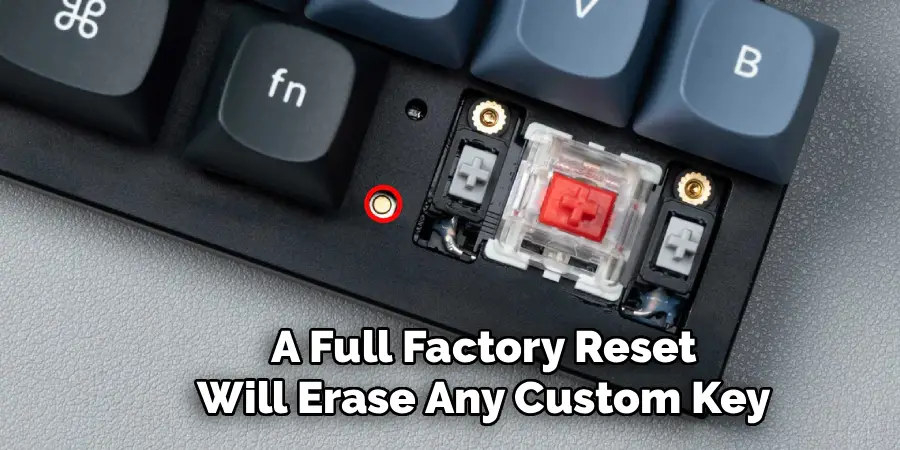
A full factory reset goes further than clearing Bluetooth pairings — it restores all default settings, including any key remapping or lighting configurations that may have been applied. This is where knowing how to reset Keychron keyboard properly becomes especially important. On most Keychron models, the factory reset is triggered by holding Fn + J + Z simultaneously for about four to five seconds. Keep all three keys held down until you see the keyboard’s lights flash, which signals the reset has been initiated.
Release the keys after the flash and wait a few seconds for the process to complete. The keyboard will typically restart automatically, and all custom settings will be cleared. This step effectively returns the keyboard to the exact state it was in when it first came out of the box, which is often all that’s needed to resolve persistent performance issues or conflicts caused by incomplete firmware updates.
Step 5: Reconnect The Keyboard After Resetting
Once the factory reset is complete, you’ll need to reconnect your keyboard to your computer or device. If you’re using a wired USB-C connection, simply plug the cable back in — your operating system should detect the keyboard immediately without requiring any additional configuration. If you’re connecting via Bluetooth, navigate to the Bluetooth settings on your computer or mobile device and search for new devices while the keyboard is in pairing mode.
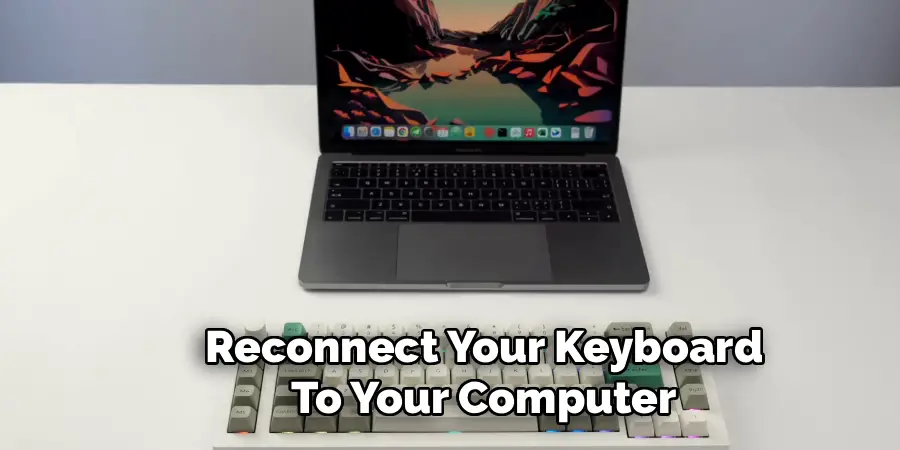
Select the Keychron keyboard from the device list and complete the pairing process. On some systems, you may be asked to type a confirmation code on the keyboard to verify the connection — just type the numbers shown on screen and press Enter. Once paired, test a few keys to confirm everything is responding correctly. If the keyboard was previously connected to multiple devices, remember that you’ll need to re-pair each one individually.
Step 6: Update The Firmware If Issues Persist
If your keyboard is still behaving unexpectedly after a reset, outdated firmware could be the underlying cause. Keychron releases firmware updates through its official website and, for programmable models, through the QMK or VIA configurator platforms. Download the appropriate firmware file for your specific model and follow the flashing instructions provided on Keychron’s support page. The process typically involves putting the keyboard into bootloader mode and running a firmware flashing tool on your computer.
Firmware updates can fix bugs related to key registration, RGB control, and Bluetooth stability that a simple reset won’t address. This step is particularly worthwhile if you’ve recently updated your operating system and noticed the issues started around the same time. Keeping the firmware current ensures your keyboard performs at its best and takes advantage of any improvements or fixes Keychron has released since your unit was manufactured.
Frequently Asked Questions
Will Resetting My Keychron Delete My Custom Key Mappings?
Yes, a full factory reset will erase any custom key mappings you’ve configured, whether through QMK, VIA, or Keychron’s own software. All settings return to their factory defaults after the reset is complete. If you’ve spent time customizing your layout, it’s a good idea to export or document your configuration before performing the reset so you can restore it afterward.
How Do I Know If My Keychron Reset Was Successful?
Most Keychron keyboards signal a successful reset with a brief flash of the indicator lights or RGB backlight. After the flash, the keyboard typically restarts on its own. You can also confirm the reset worked by checking that previously paired Bluetooth devices no longer connect automatically, or by verifying that any custom lighting effects have returned to the default pattern.
Can I Reset A Keychron Keyboard Without A Computer?
Yes, most Keychron reset procedures can be performed directly on the keyboard itself without needing a connected computer. The key combinations for clearing Bluetooth pairings and triggering a factory reset work independently of any computer connection. You only need a computer if you’re also planning to update the firmware, which requires downloading files and using a flashing tool.
Why Is My Keychron Not Responding To The Reset Key Combination?
If the reset combination isn’t working, first check that the keyboard is powered on and in the correct mode — Bluetooth resets require Bluetooth mode, and some key combinations only work in specific modes. Also confirm you’re holding all required keys simultaneously for the full duration. If the keyboard’s battery is critically low, it may not respond to input reliably until it has been charged.
How Often Should I Reset My Keychron Keyboard?
There’s no set schedule for resetting your keyboard. A reset is only necessary when you’re experiencing a specific problem, such as connection instability, unresponsive keys, or corrupted settings. Resetting more frequently than needed won’t cause damage, but it will erase any custom configurations you’ve applied. Think of it as a tool to use when something goes wrong, not part of regular maintenance.
Conclusion
Resetting a Keychron keyboard is a straightforward process once you know the right steps and key combinations for your specific model. From clearing Bluetooth pairings to performing a full factory reset and updating firmware, each method targets a different layer of the problem and gives you a clear path back to reliable performance. You now have everything you need to work through the most common issues that come up with these keyboards.
The next time something feels off with your setup, don’t let it slow you down. Walk through these steps, starting with the simplest fix and working your way up as needed. Knowing how to reset Keychron keyboard means you’re never far from a solution — and you can get back to typing with confidence in just a few minutes.
