
Keychron keyboards are some of the most popular mechanical keyboards on the market, and a big part of their appeal is the ability to connect wirelessly to multiple devices. Whether you’re switching between a Mac, a Windows PC, or a tablet, getting that connection set up correctly makes a real difference to your daily workflow.
But if you’ve never done it before, the process can feel a little unclear — especially with the switches, modes, and channel options involved. Knowing how to pair Keychron keyboard correctly means you can move between devices quickly and reliably, without dropped connections or frustrating setup failures. This guide breaks the entire process down into plain, practical steps that work for beginners and experienced users alike, covering Bluetooth pairing, device switching, and everything in between. Let’s get your keyboard connected.
Why Pairing A Keychron Keyboard Matters
Getting your Keychron keyboard paired correctly isn’t just a one-time setup task — it’s the foundation of a clean, cable-free workspace. A properly paired connection gives you stable, low-latency input that keeps up with fast typing without interference or dropout. It also lets you take full advantage of Keychron’s multi-device support, which allows you to store up to three separate Bluetooth connections and switch between them instantly.
If the pairing is done incorrectly, you can end up with an unstable connection, a keyboard that keeps reconnecting to the wrong device, or one that refuses to pair at all. Understanding the right way to establish and manage these connections means less time troubleshooting and more time focused on what you’re actually doing. For anyone working across multiple devices, a well-configured Keychron is a genuine productivity upgrade.
Step-By-Step Guide To How To Pair Keychron Keyboard
Step 1: Check Your Keychron Model And Its Bluetooth Capability
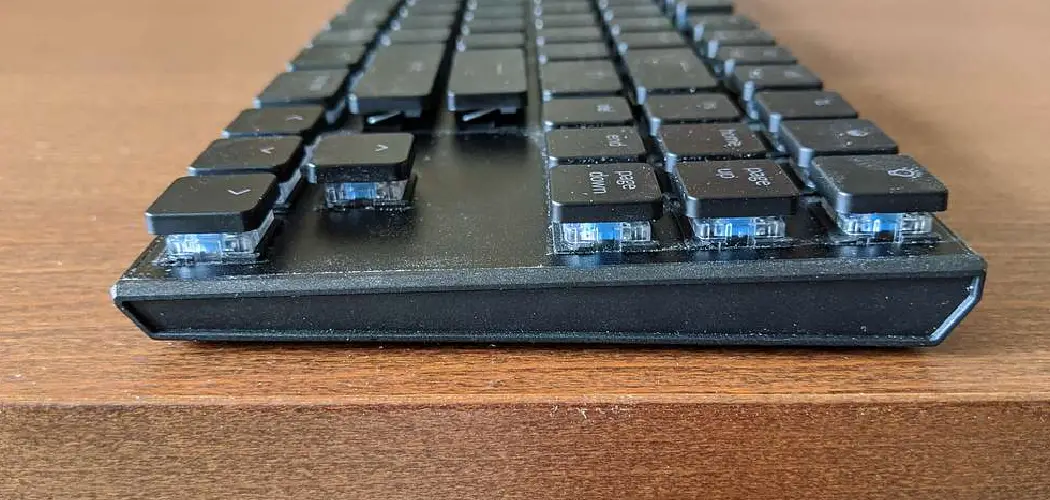
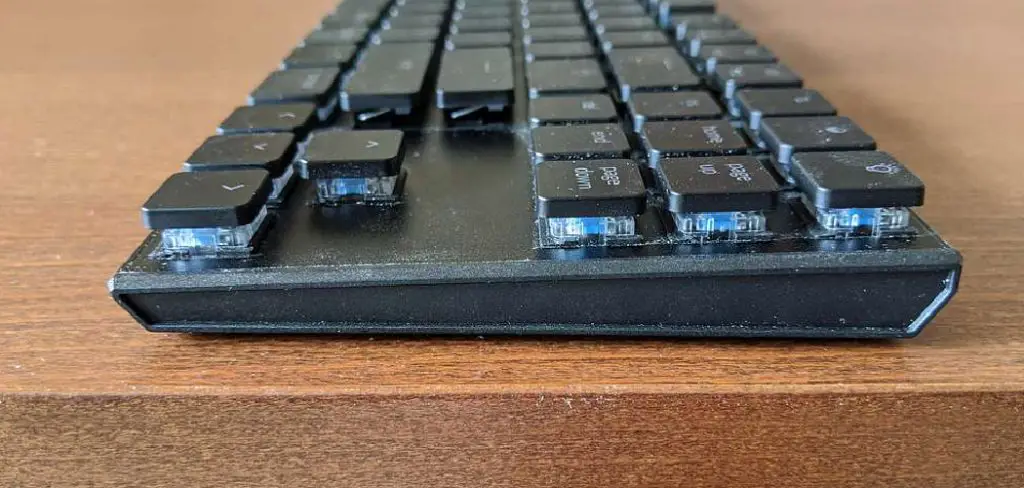
Before you start the pairing process, it helps to confirm which Keychron model you own and whether it supports Bluetooth. Most Keychron keyboards — including the K2, K6, K8, and K10 — come in both Bluetooth and wired-only versions. The wireless versions include a physical mode switch on the side or back of the unit. If your keyboard doesn’t have this switch, it’s likely a wired-only model, and Bluetooth pairing won’t be possible on that unit.
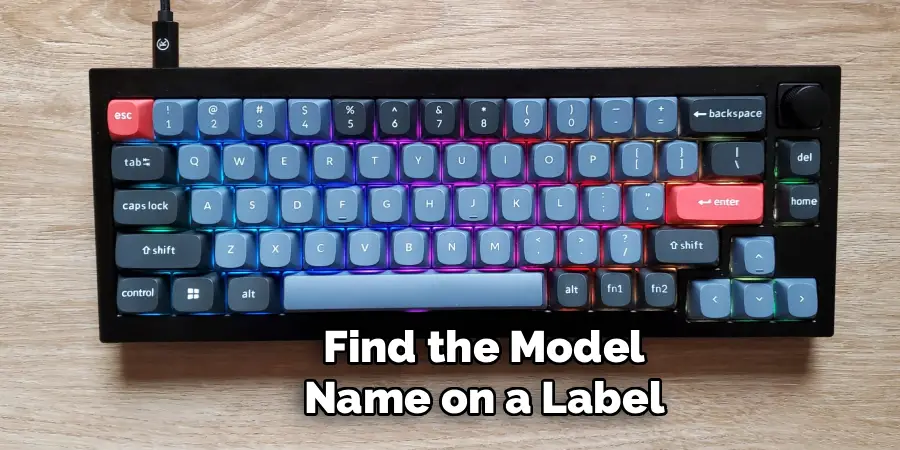
You can find the model name on a label on the underside of the keyboard. Once confirmed, check Keychron’s product page or the quick start guide that came in the box to verify Bluetooth support. Getting this step right upfront saves you from going through the pairing steps only to realize wireless connectivity isn’t supported on your specific unit. It takes just a minute and removes any guesswork.
Step 2: Charge The Keyboard Before Pairing
A low battery can cause Bluetooth pairing to fail or produce an unstable connection right from the start. Before attempting to pair your keyboard to any device, plug it in using the included USB-C cable and let it charge for at least 30 to 60 minutes. Most Keychron keyboards charge fairly quickly and include an LED indicator that changes color once the battery is full.
This step matters more than many users realize. When a keyboard has very little charge, it may power on and appear ready but struggle to maintain the Bluetooth signal needed to complete the handshake with your device. Starting the pairing process with a well-charged keyboard ensures the connection is stable from the beginning and reduces the chances of needing to redo the setup later. Once charged, you’re ready to move on.
Step 3: Set The Mode Switch To Bluetooth
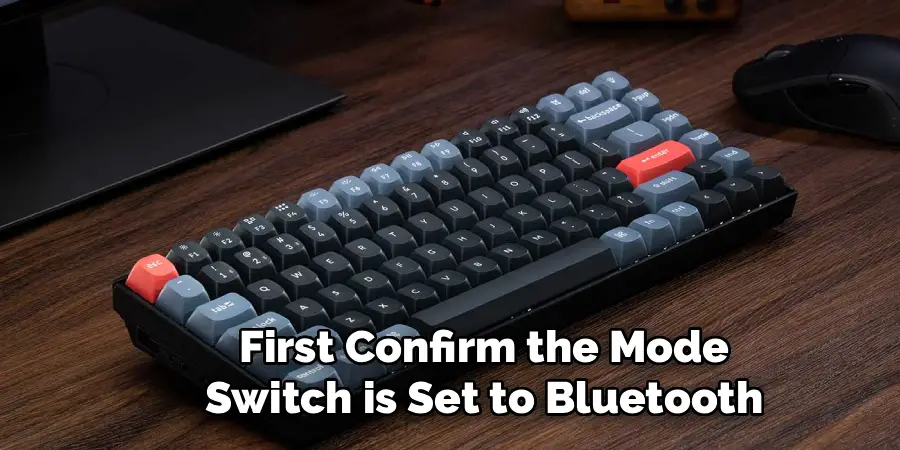
Keychron keyboards with wireless capability feature a three-position switch — typically labeled as off, Bluetooth, and cable. Slide this switch to the Bluetooth position before attempting to pair. This activates the keyboard’s wireless radio and prepares it to communicate with other devices. If the switch is left in cable mode, the keyboard will behave as a wired device only and won’t respond to Bluetooth pairing commands regardless of what you do next.
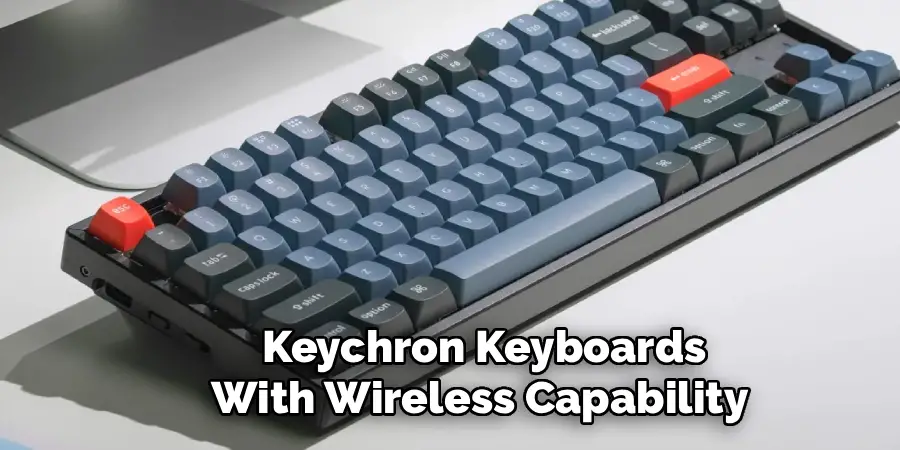
The switch is usually located on the left side or the back edge of the keyboard, depending on the model. It’s a small but important detail that’s easy to overlook, especially for first-time users who may assume the keyboard handles both wired and wireless signals simultaneously. Once the switch is in the correct Bluetooth position, you should see the indicator light activate briefly, signaling that the keyboard is now operating in wireless mode.
Step 4: Select A Bluetooth Channel To Pair
Keychron keyboards support up to three individual Bluetooth connections, each stored on a dedicated channel. These channels are accessed using the key combinations Fn + Q, Fn + W, and Fn + E — corresponding to channels one, two, and three respectively. To begin pairing on a specific channel, hold the appropriate combination for about three to four seconds. The pairing indicator light will start blinking rapidly, which means the keyboard is now in pairing mode and actively broadcasting its signal.
Choose a channel that isn’t already assigned to a device you want to keep, or pick one you’re comfortable overwriting. Understanding how to pair Keychron keyboard across multiple channels is what makes multi-device use so practical — you can dedicate channel one to your laptop, channel two to your desktop, and channel three to a tablet, then switch between them instantly without re-pairing each time. This is one of the most useful features the keyboard offers.
Step 5: Open Bluetooth Settings On Your Device
With the keyboard in pairing mode, go to the Bluetooth settings on the device you want to connect to. On a Mac, open System Settings and select Bluetooth. On a Windows PC, go to Settings, then Devices, then Bluetooth. On an iPad or iPhone, go to Settings and tap Bluetooth. Make sure Bluetooth is turned on, and your device will begin scanning for nearby devices automatically.
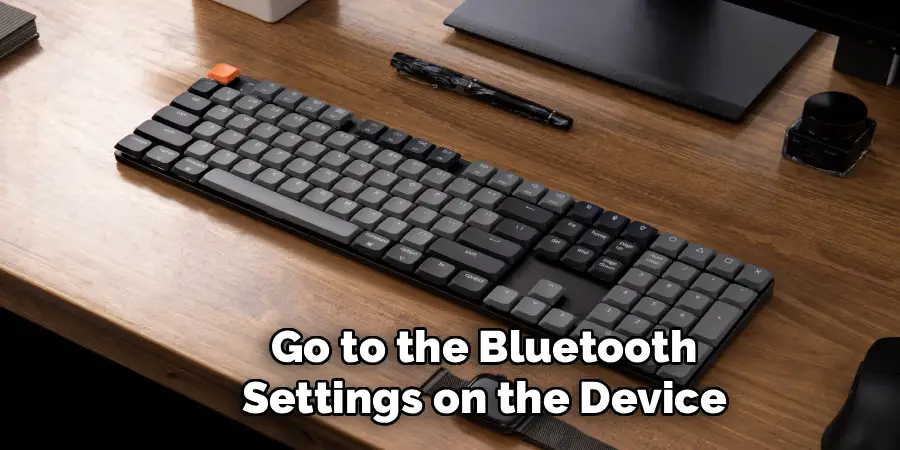
You should see the Keychron keyboard appear in the list of available devices within a few seconds. If it doesn’t show up immediately, wait a moment and refresh the scan — pairing mode on the keyboard typically lasts around 60 seconds before timing out. If the keyboard disappears from your device’s list before you finish pairing, simply repeat the channel hold combination to re-enter pairing mode and try again. The process is quick once both sides are ready.
Step 6: Complete The Pairing On Your Device
Once the Keychron keyboard appears in your device’s Bluetooth list, click or tap on it to initiate the connection. Some devices — particularly Windows PCs — may display a pairing code on screen and ask you to type it on the keyboard, then press Enter to confirm the connection. This is a standard Bluetooth security step and only takes a few seconds. On macOS and iOS, the pairing usually completes automatically without requiring a code.
After the connection is confirmed, the blinking pairing light on the keyboard will stop, indicating that a stable link has been established. Test a few keys in a text field to verify everything is working. This is also the right moment to apply what you know about how to pair Keychron keyboard to additional channels — if you have other devices to connect, simply repeat steps four through six on a different channel without disturbing the connection you just created.
Frequently Asked Questions
Why Won’t My Keychron Show Up In My Device’s Bluetooth List?
If the keyboard isn’t appearing, first confirm the mode switch is set to Bluetooth and not cable. Then make sure you’ve activated pairing mode by holding Fn plus Q, W, or E for several seconds until the light blinks. Also check that the keyboard has enough battery charge, since a critically low battery can prevent the Bluetooth signal from broadcasting effectively enough for nearby devices to detect it.
Can I Pair My Keychron Keyboard To More Than One Device At A Time?
Most Keychron keyboards support up to three stored Bluetooth connections, but they can only actively connect to one device at a time. Switching between stored devices is done using the Fn key combinations for each channel. Each channel remembers its paired device, so once all three are set up, switching takes only a second or two and doesn’t require going through the full pairing process again.
How Do I Know Which Bluetooth Channel My Keyboard Is Currently On?
Many Keychron keyboards display a brief color-coded light when you press a channel shortcut to indicate which channel is active. Check your model’s manual or Keychron’s support page for the specific color coding, as it varies across models. If you’re unsure, pressing Fn plus the channel key briefly — without holding — will often show the indicator without triggering a full pairing reset.
Does Pairing Work The Same Way On Mac And Windows?
The keyboard-side process is identical on both platforms. The difference is in how each operating system handles the Bluetooth settings menu. Mac users will find the option in System Settings under Bluetooth, while Windows users navigate to Settings, then Devices. Windows may also prompt you to confirm a code on the keyboard during pairing, while macOS typically completes the connection without that extra step.
What Should I Do If The Bluetooth Connection Keeps Dropping After Pairing?
First, try moving the keyboard closer to the device to rule out signal range as the cause. If that doesn’t help, check for wireless interference from other devices nearby and make sure the keyboard’s battery is adequately charged. As a next step, clear the stored pairing on that channel by holding Fn plus Z for five seconds, then repeat the pairing process from scratch to establish a fresh, stable connection.
Conclusion
With up to three stored connections available, you can set up your full multi-device workflow once and switch between everything effortlessly going forward.
If you run into any issues along the way, go back to basics: check the mode switch, confirm the battery level, and make sure you’re holding the channel key long enough to trigger pairing mode. Knowing how to pair Keychron keyboard properly puts you in control of your setup and keeps your workspace running exactly the way you want it to.
