
Printers can be wonderful when they work and frustrating when they don’t. If your Brother printer keeps showing error messages, refuses to connect to your network, or simply behaves in strange ways, a reset is often the quickest fix. Resetting clears out small glitches, wipes faulty settings, and gives your machine a fresh start.
The good news is that you don’t need to be a tech expert to do this. Brother printers offer several reset options, from a simple soft reset that fixes minor hiccups to a full factory reset that returns everything to its original state. There’s also a network reset, which helps when Wi-Fi or wired connection problems get in the way.
In this guide on how to reset Brother printer, we’ll walk you through everything you need to know.

What Are the Benefits?
Resetting your Brother printer offers more advantages than you might expect. It’s not just a last resort. In many cases, it’s the smartest first move when something goes wrong. Here are the main benefits you can look forward to.
- Fixes stubborn errors. Printers store temporary data that can become corrupted over time. A reset clears this data and often removes error codes, jammed-print warnings, or frozen screens without any deeper repair.
- Improves connectivity. If your printer struggles to join your Wi-Fi or keeps dropping the connection, a network reset wipes the old settings. You can then reconnect with fresh, correct details and enjoy a stable link.
- Restores default settings. Over time, settings can be changed by accident or by multiple users. A factory reset brings everything back to the original configuration, which makes troubleshooting much easier.
- Prepares the printer for a new owner. Planning to sell, donate, or recycle your machine? A factory reset removes saved network passwords and personal preferences, protecting your private information.
- Saves time and money. Instead of calling a technician or buying a new device, a quick reset can solve the problem in minutes. It’s a free, simple step that often does the trick.
- Boosts overall performance. Clearing clutter and refreshing the system can make your printer respond faster and run more smoothly day to day.
In short, a reset is a low-risk, high-reward action that keeps your Brother printer healthy.
What Will You Need?
Before you begin, gather a few things to make the process smooth and stress-free. Being prepared helps you avoid pauses in the middle of the reset.
- Your Brother printer, powered on and within reach of the control panel.
- The power cable and access to a working outlet, in case you need to restart the device.
- Your Wi-Fi network name and password, especially if you plan a network reset and want to reconnect afterward.
- The user manual for your specific model. Steps vary slightly between models, so the manual is a handy backup.
- A computer, smartphone, or tablet if you’ll reconnect the printer to your network or reinstall drivers later.
- A few minutes of uninterrupted time. Most resets are quick, but it’s best not to rush.
- Patience and attention. Read each menu option carefully, so you choose the right reset type.
That’s it. You don’t need any special tools or technical skills. With these basics ready, you can move forward with confidence.
10 Easy Steps on How to Reset Brother Printer
Follow these ten steps in order. They cover the most common reset methods so you can pick the one that fits your situation. Take your time and read each step fully before acting.
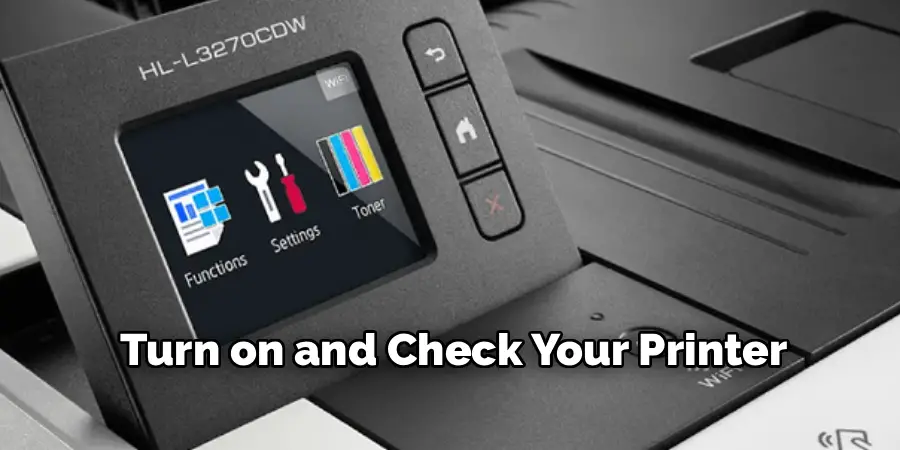
Step 1: Turn On and Check Your Printer
Start by making sure your printer is powered on and idle. Look at the control panel and note any error messages on the screen. If a print job is stuck, cancel it first. A printer that is busy or in error mode may not accept reset commands correctly. Once the display is calm and ready, you can move ahead. This simple check prevents confusion later and helps you confirm whether the reset actually fixes the issue you’re facing.
Step 2: Decide Which Reset You Need
Brother printers offer a few reset types, and choosing the right one matters. A soft reset simply restarts the machine and clears minor glitches. A network reset wipes only your Wi-Fi and connection settings. A factory reset returns every setting to its original state. If you have a small bug, start with a soft reset. For connection trouble, choose a network reset. For deeper problems or before selling the printer, go with a full factory reset.
Step 3: Try a Soft Reset First
A soft reset is the gentlest option, so it’s smart to try it before anything more drastic. Turn off the printer using the power button, then unplug it from the wall outlet. Wait about 30 to 60 seconds to let any stored charge clear. Plug it back in and turn it on again. This quick power cycle often resolves frozen screens, slow responses, and small errors. If your problem disappears here, you may not need any further steps.
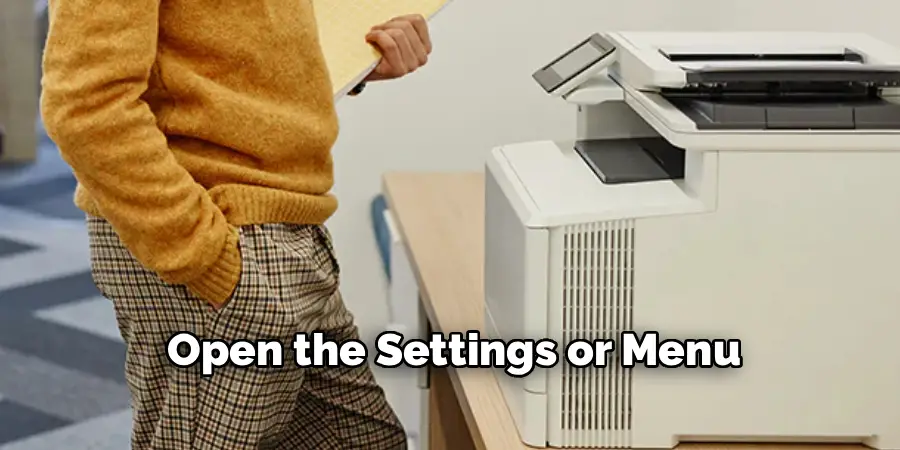
Step 4: Open the Settings or Menu
If the soft reset didn’t help, head to the control panel. Press the Menu or Settings button, depending on your model. On touchscreen printers, tap the gear or settings icon. On models with buttons, use the arrow keys to move through the options. This menu is where all reset functions live. Take a moment to look around so you feel comfortable navigating. Finding the right path now makes the next steps faster and clearer.
Step 5: Find the Reset Option
Within the menu, scroll until you see a section labeled Initial Setup, Reset, or All Settings. The exact name depends on your model. Select it to view the available reset choices. You’ll usually see options such as Machine Reset, Network, and Factory Reset. If you can’t locate it, check your manual for the correct menu path. Don’t select anything yet. First, confirm you’re in the right place so you don’t trigger an action you didn’t intend.
Step 6: Choose a Network Reset
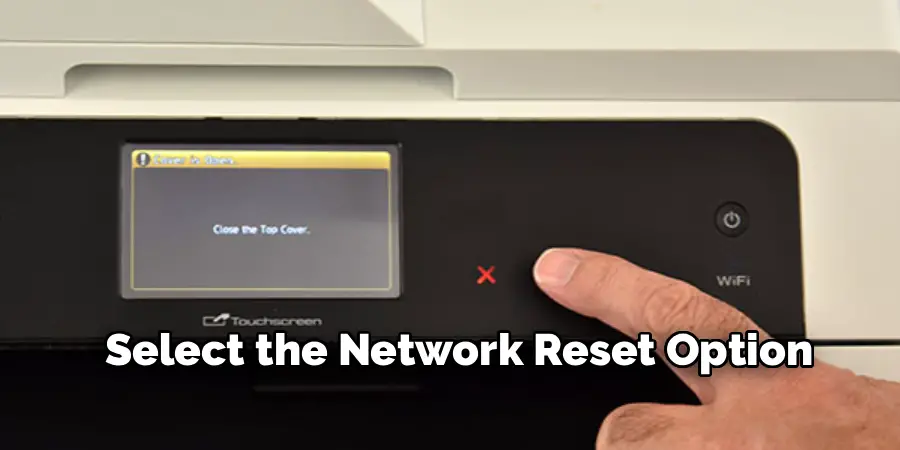
If your trouble is Wi-Fi related, select the Network reset option. This clears saved network names, passwords, and IP settings. Confirm your choice when the printer asks. After this, your printer forgets all connection details, which is exactly what you want for a clean reconnect. Keep your Wi-Fi name and password nearby, because you’ll need them shortly. A network reset is ideal when the printer won’t connect or keeps dropping off your home or office network.
Step 7: Choose a Factory Reset
For a full reset, select Factory Reset or All Settings. This wipes everything, including network details, custom preferences, and stored settings. The printer will ask you to confirm, since this action can’t be undone. Press Yes or OK to proceed. Use this option when smaller resets fail, when many settings have changed, or when you’re passing the printer to someone else. It’s the most thorough choice and gives you a true clean slate.
Step 8: Confirm and Wait
After you select your reset type, the printer asks for confirmation. Read the message, then confirm by pressing Yes, OK, or Start. The printer may restart on its own and could take a minute or two. Don’t unplug it or press buttons during this time. Let it finish. Interrupting the process can cause new problems. When the home screen reappears, the reset is done, and your printer is ready for the next step.
Step 9: Reconnect to Your Network
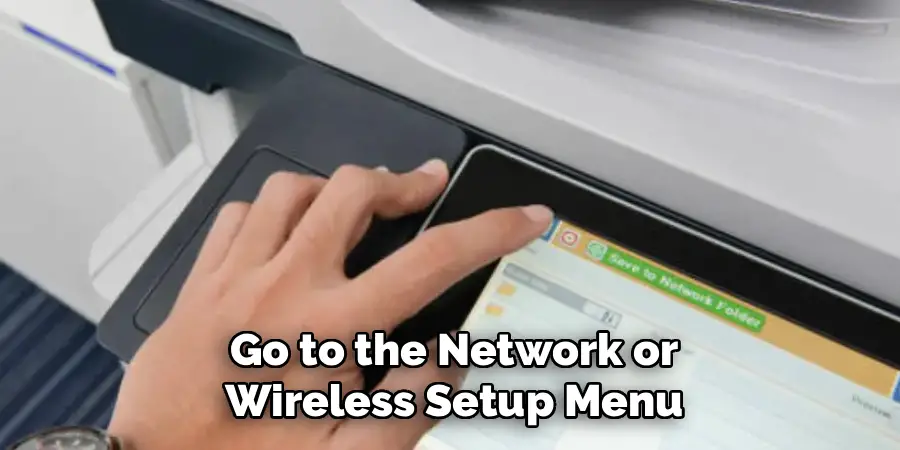
If you performed a network or factory reset, you’ll need to reconnect to Wi-Fi. Go to the network or wireless setup menu, choose your network from the list, and enter your password carefully. Wait for the printer to confirm a successful connection. If you use a wired setup, simply plug in the cable again. Once connected, your printer can talk to your devices once more, letting you print and scan without trouble.
Step 10: Test and Reinstall If Needed
Finally, run a test print to confirm everything works. On your computer or phone, send a simple document or use the printer’s built-in test page function. If printing works smoothly, you’re done. If your computer no longer recognizes the printer after a factory reset, reinstall the printer driver or app. Once installed, repeat the test. A clean test print means your Brother printer is fully reset and ready for everyday use.
5 Things You Should Avoid
A reset is simple, but a few common mistakes can cause extra trouble. Keep these warnings in mind.
1. Don’t unplug during a reset. Pulling the power while the printer is processing can corrupt its memory. Always let the reset finish before touching the cable or buttons.
2. Don’t skip the reset type decision. Jumping straight to a factory reset when a soft reset would do means losing all your settings for no reason. Choose the gentlest option that fits.
3. Don’t lose your Wi-Fi details. A network or factory reset erases saved passwords. If you don’t have your network name and password handy, you’ll struggle to reconnect.
4. Don’t ignore the manual. Menu names and steps vary between models. Guessing can lead you to the wrong setting. Check your manual when something looks different.
5. Don’t rush the process. Hurrying often leads to missed confirmations or wrong selections. Give yourself a few calm minutes so everything goes smoothly the first time.
Conclusion
How to reset brother printer is one of the easiest and most effective ways to fix common problems. Whether you’re dealing with a frozen screen, a stubborn error code, or a Wi-Fi connection that just won’t cooperate, a reset can often solve the issue in minutes.
The key is choosing the right type. A soft reset handles minor glitches, a network reset clears connection troubles, and a factory reset gives you a complete fresh start.
By following the ten steps in this guide, you can reset your printer with confidence. Remember to prepare first by gathering your Wi-Fi details and user manual, and always let the process finish without interruption. Avoid the common mistakes we covered, and you’ll save yourself extra frustration.
