
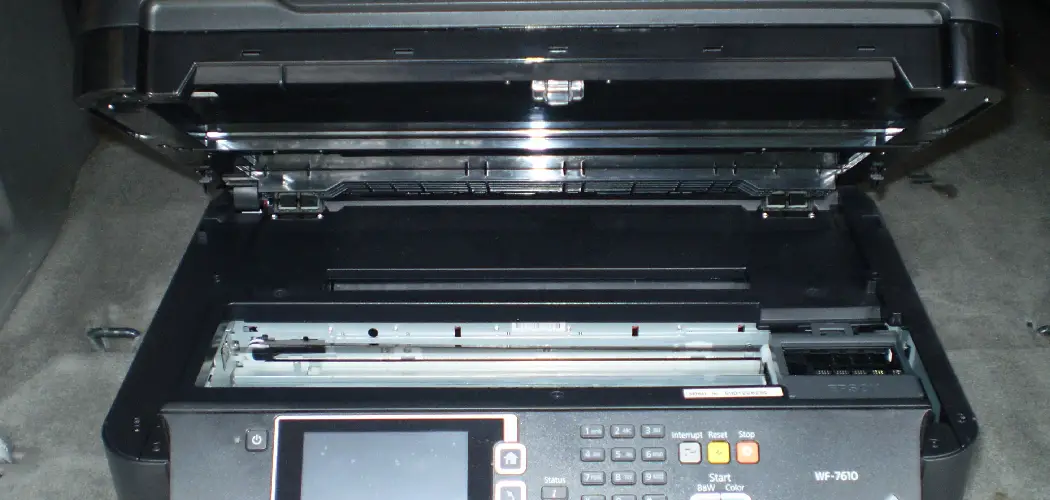
Your Epson EcoTank printer is a reliable workhorse, but even the best machines run into hiccups now and then. Maybe it’s showing stubborn error messages, refusing to print, or acting sluggish after months of heavy use. When that happens, a simple reset can often save the day.
Resetting your EcoTank printer clears out glitches, refreshes its memory, and brings it back to a stable, working state. The good news? You don’t need to be a tech wizard to do it. With a little guidance, anyone can reset their printer safely and get back to printing in minutes.
This guide on how to reset Epson EcoTank printer walks you through everything step by step. We’ll cover why a reset helps, what you’ll need before you start, and the exact actions to take.
What Are the Benefits?
Before you reset your printer, it helps to know exactly what you gain from doing it. A reset isn’t just a quick fix—it offers real, lasting perks. Here are the main reasons people choose to reset their Epson EcoTank.
- Clears stubborn errors. Many printers freeze up because of small software bugs. A reset wipes those glitches and gives your machine a fresh start.
- Improves print quality. Over time, settings can drift, or files can corrupt. Resetting restores default settings, which often brings back crisp, clean prints.
- Fixes connection problems. If your printer keeps dropping its Wi-Fi or won’t connect to your computer, a reset clears the old network data and lets you set it up cleanly.
- Speeds up performance. A printer that’s slow to respond often improves after a reset. It’s like clearing the clutter from a crowded desk.
- Solves paper jam and ink errors. Sometimes the printer thinks there’s a jam or low ink even after you fix the issue. A reset clears these false alerts.
- Prepares the printer for resale or gifting. A factory reset removes your personal settings and saved networks, so the next owner starts fresh.
In short, a reset is a quick, low-cost way to revive your printer without calling a technician or spending money on repairs.
What Will You Need?
Resetting your EcoTank printer takes very little gear. Still, having these items ready makes the process smoother and stress-free.
- Your Epson EcoTank printer, plugged in and powered on.
- A stable power source. Avoid resetting during a storm or when power may flicker.
- The printer’s control panel or touchscreen. Most resets happen right here.
- A computer or smartphone (optional). Some models let you reset through the Epson app or printer software.
- Your Wi-Fi details. Keep your network name and password handy, since a reset often wipes saved connections.
- A few sheets of plain paper. You’ll need these to run a test print afterward.
- The user manual (optional). It’s helpful if your model’s menu layout differs slightly.
- A little patience. The process is simple, but rushing can lead to mistakes.
Once you’ve gathered these, you’re ready to begin. Set aside about 10 to 15 minutes so you don’t feel pressed for time.
10 Easy Steps on How to Reset Epson EcoTank Printer
Follow these steps in order. Take your time with each one, and don’t skip ahead. Each step builds on the last to ensure a clean, successful reset.
Step 1: Check Your Printer’s Current Status
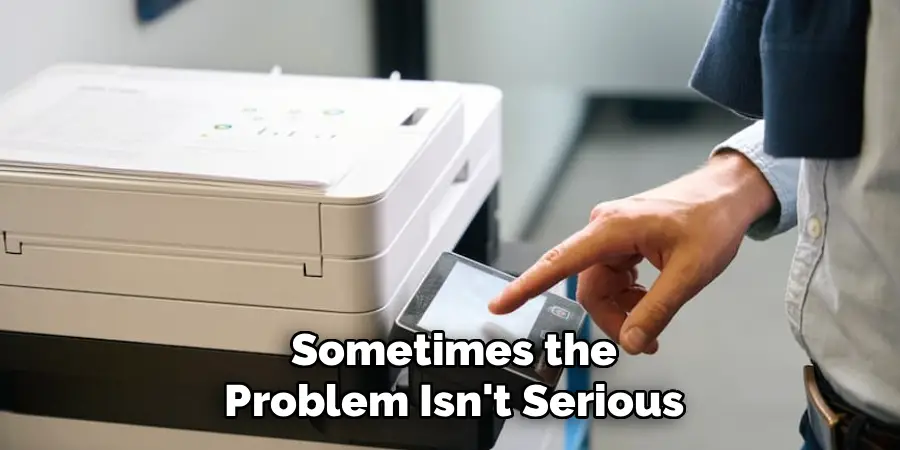
Before you touch any settings, take a quick look at your printer. Is it powered on? Are there any blinking lights or error codes on the display? Make a note of what you see.
Sometimes the problem isn’t serious and may not need a full reset. Check for paper jams, low ink, or a loose cable first. If everything looks fine but the printer still misbehaves, a reset is your next move. Knowing the starting condition also helps you confirm whether the reset actually worked later on.
Step 2: Back Up Your Settings If Needed
If you’ve customized your printer with specific settings—like preferred paper sizes, network profiles, or print quality presets—it’s smart to write them down first. A reset erases these and returns everything to factory defaults.
Grab a pen and paper, or take photos of your settings menu with your phone. Pay special attention to your Wi-Fi network name and password. This small step saves you frustration later, because you won’t have to guess your settings when setting the printer back up.
Step 3: Turn the Printer On and Let It Settle
Make sure your printer is fully powered on and idle. Wait until it finishes any active jobs or warm-up routines. You’ll know it’s ready when the lights stop blinking, and the display shows the home screen.
Never start a reset while the printer is mid-task. Doing so can interrupt important processes and cause new problems. Give it a moment to settle into a calm, ready state before you move on to the next step.
Step 4: Access the Control Panel
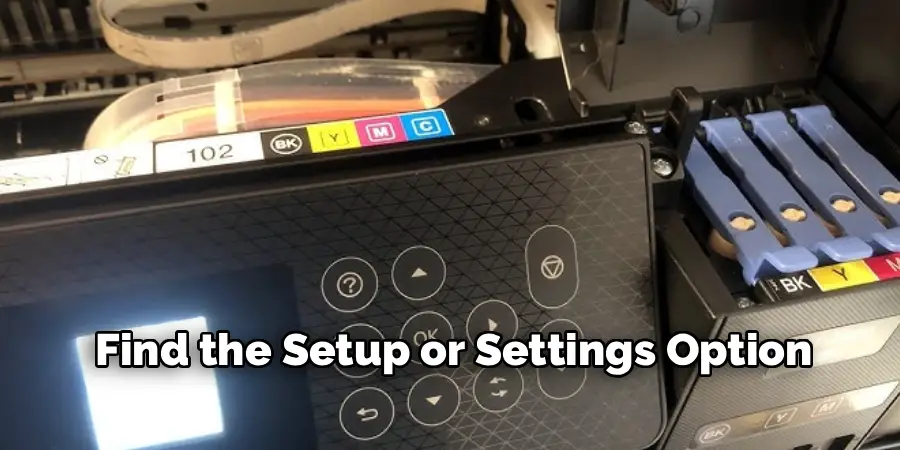
Now it’s time to use the control panel. On models with a touchscreen, tap the screen to wake it. On models with buttons, look for arrow keys and an “OK” button to move through menus.
The control panel is your gateway to the reset options. Familiarize yourself with how to scroll up and down and how to select an item. If your model lacks a screen, you may need to use button combinations instead, which we’ll cover in a later step.
Step 5: Navigate to the Setup or Settings Menu
From the home screen, find the Setup or Settings option. It often appears as a gear or wrench icon. Select it to open the main menu where all your printer options live.
Scroll through the list carefully. You’ll see entries like Network Settings, Maintenance, and Device Information. Don’t rush—take a second to read each option so you land in the right place. The setting we want lives a little deeper in this menu.
Step 6: Open the Maintenance or Restore Options
Inside the Setup menu, look for Restore Default Settings, Maintenance, or System Administration. The exact name depends on your model. This is where the reset functions are stored.
Select this option to reveal a list of reset choices. You might see selections like “Network Settings,” “Clear All Data,” or “Restore Factory Default.” Each one resets a different part of the printer. Choosing the right one matters, so read your options before picking.
Step 7: Choose the Type of Reset You Want
You’ll usually have a few reset choices. A network reset only clears Wi-Fi and connection data. A full factory reset wipes everything and returns the printer to its out-of-the-box state.
Pick the option that fits your problem. If you only have connection trouble, choose the network reset. If the printer is glitchy across the board, go with the full reset. When in doubt, a full factory reset solves the widest range of issues; just remember you’ll need to set everything up again afterward.
Step 8: Confirm the Reset Action
After you select your reset type, the printer will ask you to confirm. This safety step prevents accidental resets. Read the on-screen message to be sure you picked the right option.
Select Yes, OK, or Confirm to proceed. The printer will then begin clearing data and restoring defaults. Avoid pressing other buttons during this moment. Let the machine work on its own. You may see a progress bar or a brief message while it completes the task.
Step 9: Restart the Printer
Once the reset finishes, turn the printer off completely. Wait about 30 seconds, then turn it back on. This full power cycle clears any leftover temporary data and lets the printer start fresh.
When it powers up, the printer may run a short setup routine. If you did a full reset, it might ask for your language, region, and network details. Enter these using the notes you saved in Step 2. The printer is now refreshed and ready for use.
Step 10: Test Print Quality and Connection
The final step is to make sure everything works. Load a few sheets of plain paper and run a test print. Most EcoTank models offer a built-in nozzle check or test page in the Maintenance menu.
Check the printout for clear text and even colors. Then try printing from your computer or phone to confirm the connection is solid. If the test print looks good and your device connects without trouble, congratulations—your reset is complete, and your printer is back in action.
5 Things You Should Avoid
Even a simple reset can go wrong if you’re not careful. Steer clear of these common mistakes to keep your printer safe.
1. Don’t unplug the printer mid-reset. Pulling the power during a reset can corrupt the printer’s software. Always let the process finish before cutting power.
2. Don’t skip backing up your settings. Forgetting this step means you’ll scramble to remember your Wi-Fi password and preferences later. A quick note saves a big headache.
3. Don’t choose the wrong reset type. A full factory reset wipes everything, including your network setup. If you only need to fix Wi-Fi, pick the network reset instead.
4. Don’t ignore error codes. If a specific error appears, look it up before resetting. Some issues, like hardware faults, won’t be fixed by a reset and need other solutions.
5. Don’t rush the restart. Powering the printer back on too quickly can leave old data behind. Wait the full 30 seconds for a clean start.
Conclusion
How to reset Epson EcoTank printer is one of the easiest ways to fix common problems and keep your machine running smoothly. From clearing stubborn errors to refreshing a sluggish connection, a reset gives your printer a clean slate without the cost of a repair shop.
By following the 10 steps in this guide, you can reset your printer with confidence—even if you’ve never done it before. Remember to check your printer’s status first, back up your settings, and choose the right reset type for your needs.
Take your time at each step, confirm your actions, and always let the process finish before restarting.
