
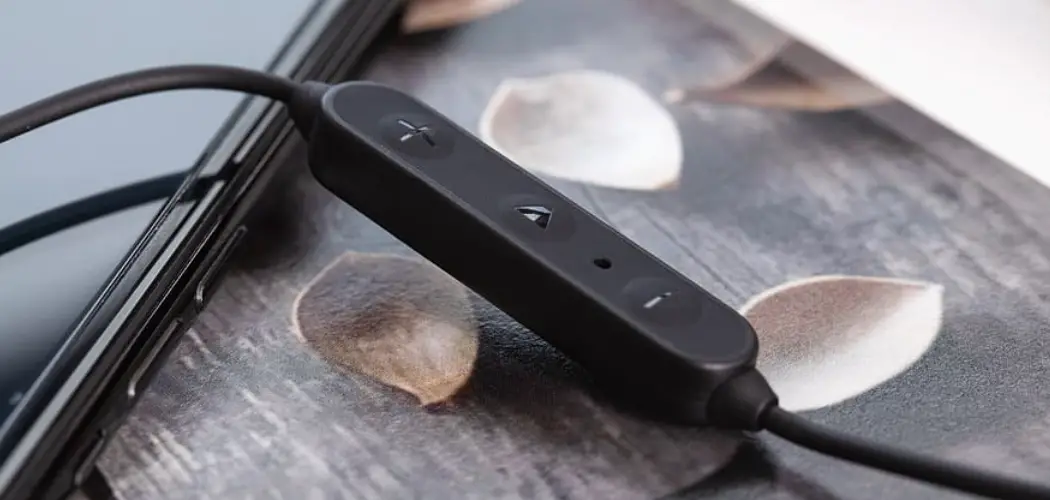
Your JBL headphones sound great—until they don’t. Maybe they won’t connect to your phone, the audio cuts out, or the controls stop responding. Before you panic or assume your headphones are broken, there’s a simple fix worth trying first: a reset.
Resetting your JBL headphones clears out software glitches, wipes stale Bluetooth connections, and restores your device to its original settings. It’s one of the easiest troubleshooting steps you can take, and it solves a surprising number of common problems. The best part? You don’t need any technical skills or special tools. In this guide, you’ll learn exactly how to reset JBL headphones the right way.

What are the Benefits?
Resetting your JBL headphones does more than just fix a single annoying issue. It can breathe new life into a device that feels sluggish or unreliable. Here’s why it’s worth doing.
- It fixes connection problems. If your headphones won’t pair with your phone, tablet, or laptop, a reset clears the saved Bluetooth memory. This gives your device a clean slate to connect again, which often solves stubborn pairing failures.
- It resolves audio glitches. Crackling sound, one earbud not working, or audio that keeps dropping are frustrating. A reset often clears the software hiccups behind these problems without any repair needed.
- It restores responsive controls. When buttons stop working or touch controls misfire, a reset reloads the firmware behavior. This usually brings back smooth, reliable control over your music and calls.
- It prepares your headphones for a new owner. Selling or gifting your JBL headphones? A reset removes your paired devices and personal settings, so the next person starts fresh.
- It saves you money and time. Instead of paying for repairs or buying a replacement, a free two-minute reset often does the trick. It’s the smart first step before assuming anything is seriously wrong.
What Will You Need?
The good news is you barely need anything to reset your JBL headphones. Most resets happen right on the device itself. Still, having these few things ready makes the process smoother.
- Your JBL headphones or earbuds – fully charged or at least with enough battery to power on.
- The charging case – required for many JBL earbud models like the Live and Tune series.
- A charged power source – a USB cable and charger or power bank, in case your battery is low.
- Your smartphone or tablet – useful for removing the old Bluetooth pairing and reconnecting afterward.
- The JBL Headphones app (optional) – some models let you reset directly through the app.
- A few quiet minutes – the whole process is quick, but it helps to follow each step without rushing.
Once you’ve gathered these, you’re ready to begin. Keep your specific model name handy too, since steps can vary slightly between products.
10 Easy Steps on How to Reset JBL Headphones
Follow these steps in order. They work for most JBL models, including over-ear headphones and wireless earbuds. If your model behaves a little differently, the general approach still applies.
Step 1: Charge Your Headphones First
Before doing anything, make sure your headphones have enough battery. A low battery can interrupt the reset and cause it to fail halfway through. Plug your headphones or charging case into a power source and let them charge for at least 15 to 20 minutes. If you’re working with earbuds, place them inside the case and confirm the charging lights turn on. A solid charge gives you a clean, uninterrupted reset and prevents you from repeating the process later.
Step 2: Identify Your JBL Model
JBL makes many products, and the reset method can differ slightly between them. Check the model name printed on the headphones, the box, or in your phone’s Bluetooth list. Common families include the JBL Tune, Live, Reflect, Endurance, and Club series. Knowing your exact model helps you find the right button combination and avoid confusion. If you’re unsure, search the model name online or look at the user manual. This small step saves you frustration during the actual reset.
Step 3: Disconnect From All Devices
Your headphones may be paired with several devices at once, like your phone, laptop, and tablet. Turn off Bluetooth on each of these, or move them out of range. This stops your headphones from trying to reconnect mid-reset. A device that keeps grabbing the connection can interfere with the process. By disconnecting everything first, you make sure the reset works cleanly, and the headphones don’t pull in old, problematic settings during the procedure.
Step 4: Forget the Headphones on Your Phone
Now, go into your phone’s Bluetooth settings. Find your JBL headphones in the list of paired devices and select “Forget” or “Unpair.” This clears the saved connection on your phone’s side. Doing this matters because old, corrupted pairing data is a common cause of connection trouble. Removing it ensures that when you reconnect later, both devices start fresh. On most phones, you’ll tap the small gear or info icon next to the device name to find the forget option.
Step 5: Power On Your Headphones
Turn your headphones on so they’re ready for the reset command. For most earbuds, simply take them out of the case or press the power button. For over-ear models, slide or hold the power switch until you see the LED light up. The headphones need to be powered on for the button combinations in the next steps to register. If your headphones won’t power on at all, return to Step 1 and charge them longer before continuing.
Step 6: Locate the Reset Buttons
Every JBL model uses specific buttons for resetting. For many over-ear headphones, you’ll use the volume up and volume down buttons together. For earbuds, you’ll often use the touch panels or the buttons on each bud. Take a moment to find these controls and understand where they are. If you have a charging case with a button, note its location too. Knowing exactly which buttons to press makes the next step quick and prevents accidental mistakes.
Step 7: Press and Hold the Reset Combination
This is the key step. For many JBL over-ear headphones, press and hold the volume up and volume down buttons at the same time for about 5 to 10 seconds. Keep holding until the LED light blinks or the headphones power off and on. For earbuds, place both buds in the case, then press and hold the touch areas or buttons for around 10 seconds. The lights flashing or changing color confirms the reset command was received. Don’t release too early.
Step 8: Watch for the Confirmation Signal
After holding the buttons, your headphones will give you a sign that the reset worked. This is usually a flashing LED, a color change, or a voice prompt saying “powering off” or “reset.” Some earbuds blink white or blue to confirm. If you see or hear nothing, the combination may have been wrong or held too briefly. In that case, repeat Step 7 carefully. Always wait for this confirmation before moving on, so you know the reset actually happened.
Step 9: Reconnect to Your Device
With the reset complete, your headphones should now appear as a new, unpaired device. Turn Bluetooth back on for the device you want to use. Put your headphones into pairing mode if they don’t enter it automatically—usually by holding the power button until the light flashes. Select your JBL headphones from the Bluetooth list on your phone and tap to connect. Since you forgot the old pairing earlier, this fresh connection should be stable and free of the previous problems.
Step 10: Test and Confirm Everything Works
Finally, check that everything functions properly. Play some music to confirm clear, balanced audio in both sides. Test the controls—volume, play, pause, and call buttons—to make sure they respond. Make a quick call to check the microphone if your model has one. If everything works, your reset was a success. If a problem remains, repeat the process or consult your model’s manual. Testing now saves you from discovering issues later when you really need your headphones.
5 Things You Should Avoid
Even though resetting is simple, a few mistakes can trip you up. Steer clear of these to get the best results.
- Don’t reset with a low battery. A dying battery can interrupt the process and leave your headphones in a confused state. Always charge first, as covered in Step 1.
- Don’t skip forgetting the device on your phone. Many people reset the headphones but leave the old, broken pairing on their phone. This often brings the same problem right back. Always remove the old connection.
- Don’t release the buttons too early. Resets require holding the combination for several seconds. Letting go too soon means the command won’t register, and you’ll think the reset failed when it never started.
- Don’t use the wrong button combination. Pressing random buttons can change settings without resetting anything. Confirm your model’s correct method before pressing and holding.
- Don’t ignore the user manual. JBL models vary, and the manual has the exact steps for your device. Skipping it can lead to unnecessary guesswork and repeated failed attempts.
Conclusion
How to reset JBL headphones is one of the fastest, cheapest ways to fix frustrating problems. Whether you’re dealing with dropped connections, glitchy audio, or controls that won’t cooperate, a quick reset often brings everything back to normal. You don’t need tools or technical know-how—just a charged device, a few minutes, and the right button combination.
Remember the key points: charge first, forget the old pairing on your phone, hold the reset buttons long enough, and wait for the confirmation signal before reconnecting. Avoiding the common mistakes we covered will help your reset succeed on the first try.
Go ahead and try the reset now—your favorite headphones could be working perfectly again in just a couple of minutes.
