
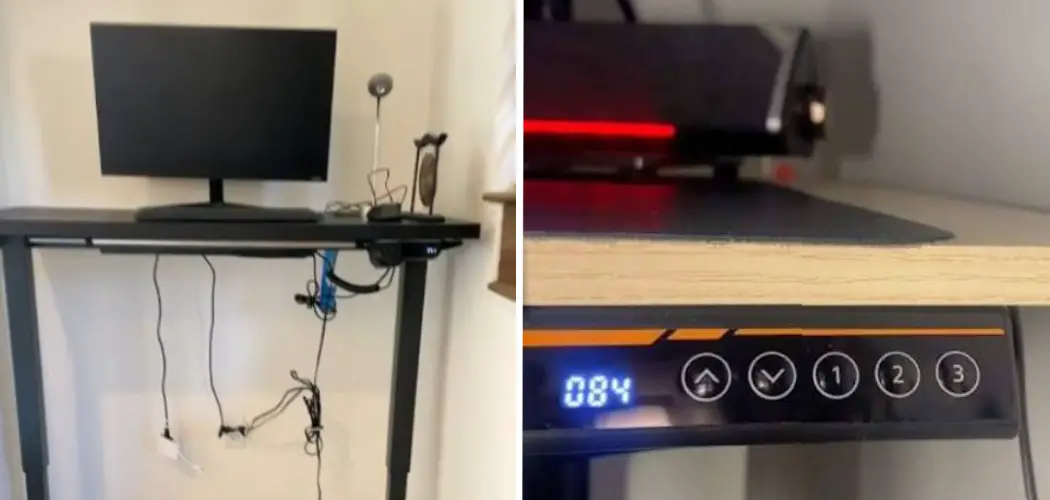
Electric standing desks are built to last, but even the best models run into trouble. Your desk might stop moving, get stuck at one height, or show an error code on the control panel that wasn’t there yesterday. These issues are frustrating — especially when you’re in the middle of a workday.
The good news is that most of these problems have one reliable fix. Knowing how to reset standing desks correctly can clear motor sync errors, disable overload protection, and restore your height presets — all without calling a technician or reading through a dense product manual. Whether you own a Flexispot, Uplift, Autonomous, or another electric desk brand, the core reset process is largely the same.
Why Resetting A Standing Desk Matters
Electric standing desks rely on motors and control boards that can fall out of sync over time. When that happens, the desk may refuse to move, behave erratically, or trigger its built-in overload protection — which is a safety feature that locks the motors when the system detects too much resistance or an uneven load.
A reset clears these error states and forces the desk to recalibrate from scratch. This restores normal function without requiring hardware repairs or replacement parts.
It’s also one of the fastest troubleshooting steps you can take. Most resets take under five minutes and resolve problems that seem far more serious than they actually are. For a piece of equipment you use multiple times each day, getting that resolution quickly — and confidently — saves real time and keeps your workspace running the way it should.
Step-By-Step Guide To How To Reset Standing Desks
Step 1: Clear Everything Off The Desk Surface
Before touching any buttons or cables, remove everything from the desk surface. That means your monitors, laptop, keyboard, desk lamp, and anything else sitting on top. Electric standing desks have weight limits, and any extra load during a reset can trigger overload protection again or prevent the desk from completing its full range of motion.

Clearing the surface takes an extra minute but makes a real difference in how smoothly the reset works. A desk carrying weight may stop partway through the process or produce an error that sends you back to step one. Starting with a clean, empty surface gives the motors the best chance of moving freely from the highest position all the way down.
Step 2: Unplug The Desk From The Power Outlet
Locate the power cable running from the desk’s control box to the wall outlet and unplug it completely. Don’t just switch the desk off at the control panel — a full power disconnection is what clears the desk’s internal memory and resets the controller. Leave it unplugged for at least 30 seconds to allow any residual charge to drain from the system.
This step is often skipped, but it’s one of the most important. The control board stores the desk’s current height data, motor sync status, and any active error codes. Cutting power erases that stored state and gives the system a clean baseline to work from when you plug it back in. Thirty seconds is the minimum — a full minute is better if the desk has been acting up for a while.
Step 3: Plug The Desk Back In And Watch For Indicators
Plug the power cable back into the wall outlet and watch the control panel display. Most electric standing desks will show a default height reading, a blinking indicator, or a brief startup sequence when power is restored. This confirms the control board is responding and the desk is ready for the next step.
If the display shows an error code at startup — such as “E01,” “E07,” or a similar code — note it down before continuing. These codes appear in your desk’s manual or the manufacturer’s support page and can point to a specific motor or sensor issue. That said, many of these codes clear on their own once you complete the full reset sequence, so continue through the remaining steps before assuming the worst.
Step 4: Hold The Down Button Until The Desk Stops Moving
Press and hold the down button on your control panel. Keep it held as the desk descends toward its lowest possible position. Don’t release the button when the desk appears to stop — keep holding it for an additional three to five seconds even after movement has ceased. This extended hold signals to the controller that you want it to register the lowest point as the new baseline.
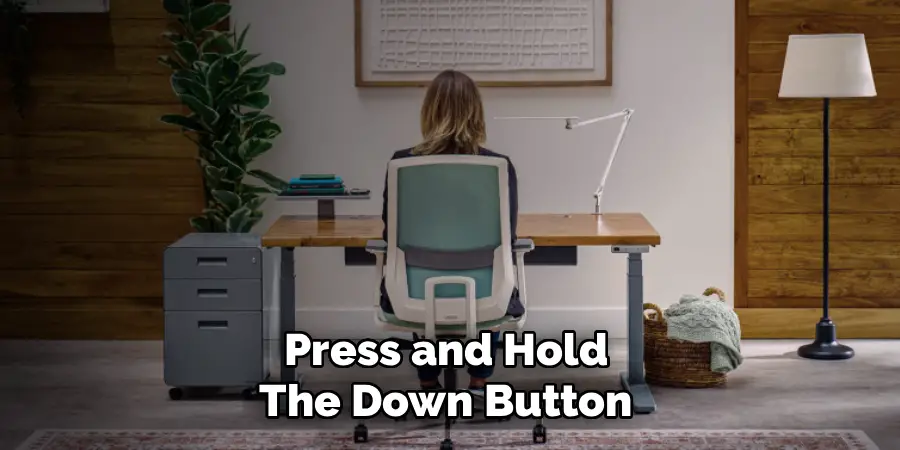
You may feel or hear a slight mechanical click or resistance when the desk hits its physical lower limit. That’s normal and expected. The controller uses this lowest position as its reference point for all other heights in the system. If you release the button too early, the desk may not complete the calibration and you’ll need to repeat this step. Patience here pays off in a clean, accurate reset.
Step 5: Release And Confirm The Reset Position
Once the desk has reached its lowest point and you’ve held the button for the extra few seconds, release the down button. On many models, the control panel will display a confirmation — the height readout may flash, reset to “0.0,” or briefly show dashes before settling on a number. This is the desk confirming that calibration is complete and the new baseline has been saved.
If the display doesn’t show any confirmation but the desk completed its full descent, the reset has likely still worked. Different brands handle the confirmation sequence differently. Some show a clear signal, others simply return to a standard display. Either way, the desk’s internal calibration should now be updated, and you can move forward to testing it.
Step 6: Test The Full Range Of Motion
Press the up button and let the desk rise to its maximum height, then press the down button and let it return to the lowest position. Watch for smooth, uninterrupted movement throughout the full range. This test confirms that both motors are in sync and that the reset resolved whatever issue was causing the desk to stop, skip, or display errors.
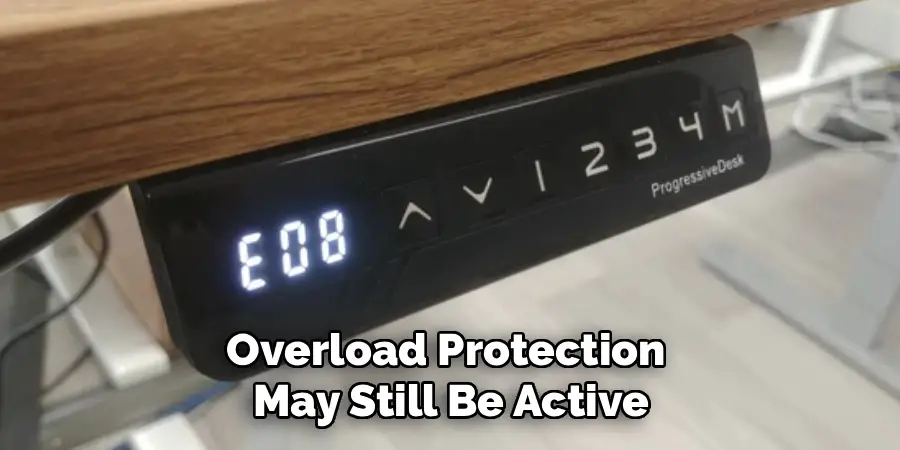
If the desk moves smoothly in both directions, the reset was successful. This is also where understanding how to reset standing desks correctly pays off — a full range test catches any remaining sync issues before you reload the surface with equipment. If the desk still hesitates or stops mid-travel, the overload protection may still be active. In that case, double-check that the surface is empty and repeat steps four and five once more.
Step 7: Restore And Test Your Memory Presets
With the reset confirmed, you can now reload the desk surface and set your memory presets. Most electric standing desks allow you to save two to four preferred heights — your seated position, standing position, and any positions in between. To save a new preset, adjust the desk to the desired height and hold the corresponding memory button until the display flashes or beeps.
Test each saved preset by pressing it and confirming the desk travels to the correct position. Learning how to reset standing desks properly means this final step should feel effortless — all the presets you set now are working from a clean, calibrated baseline. If any preset sends the desk to the wrong height, simply readjust and resave that position following the same hold-to-save method.
Frequently Asked Questions (FAQ)
Why Did My Standing Desk Stop Moving All Of A Sudden?
The most common reason is overload protection, which activates when the desk’s motors detect too much resistance or an unbalanced load. Remove everything from the desk surface, unplug the unit for 30 seconds, and then complete a full reset by holding the down button to the lowest position. Most sudden stops are caused by this safety feature rather than a hardware fault, and the reset resolves it quickly.
How Often Should I Reset My Standing Desk?
You don’t need to reset your desk on a regular schedule. A reset is a troubleshooting step, not routine maintenance. Most people only need to do it when the desk stops moving, shows an error code, or behaves erratically after a power interruption or overload event. If you find yourself resetting frequently, it may indicate a persistent load issue or a hardware problem worth reporting to the manufacturer.
Will A Reset Delete My Saved Height Presets?
Yes, in most cases a full reset will clear your saved height presets along with the desk’s stored calibration data. This is expected — the reset needs to erase the previous baseline in order to set a new one. Once the reset is complete and you’ve confirmed the desk moves smoothly, you can reprogram your preferred heights using the memory buttons on the control panel.
What Does An Error Code On My Control Panel Mean?
Error codes vary by brand, but they generally point to one of a few issues: motor overload, a lost connection between the control panel and the motor, or an out-of-sync leg. Many codes clear after a proper reset. Check your desk’s manual or the manufacturer’s website for a specific code explanation. If the code reappears after two full reset attempts, contact the manufacturer’s support team directly.
Can I Reset A Standing Desk That Won’t Move At All?
Yes. If the desk is completely unresponsive, start by checking that the power cable is fully seated at both the wall outlet and the control box. Try a different outlet to rule out a power supply issue. Once you’ve confirmed power is reaching the desk, unplug it for a full minute before plugging it back in. If the desk still won’t respond after a complete power cycle, the control box or motor may need professional service.
Conclusion
Resetting an electric standing desk is a simple process that solves most common movement issues, error codes, and motor sync problems. The key steps are clearing the surface, fully unplugging the desk, holding the down button to the lowest position, confirming the calibration, and testing the full range of motion before reprogramming your presets.
Now that you know exactly how to reset standing desks, go ahead and work through the process at your own pace. A fully functional, responsive desk is a few minutes away — and once the reset is done, you’re unlikely to need it again for a long time.
