
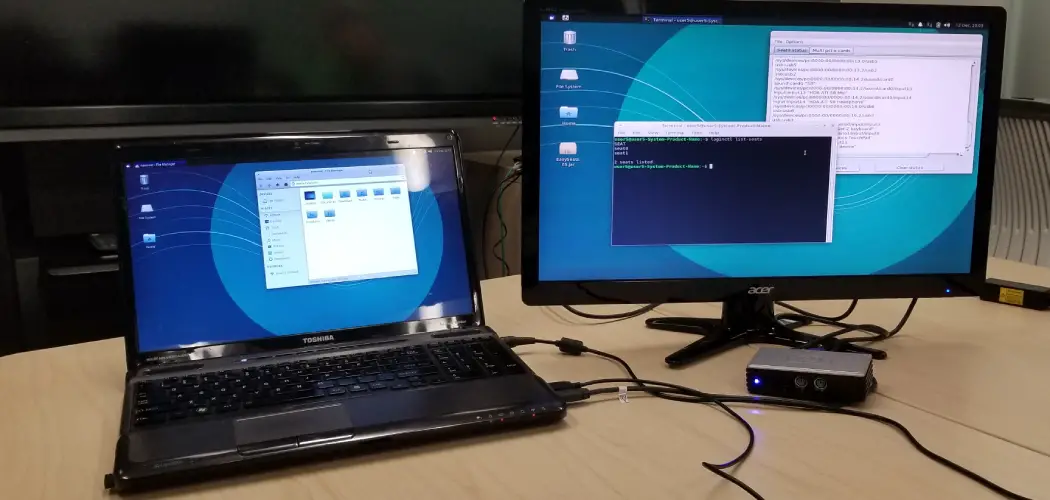
Working from a single laptop screen often means constant window-switching, lost productivity, and a cramped view of everything you’re trying to accomplish. Whether you’re a student, a remote worker, or someone who edits photos and videos, more screen space changes everything.
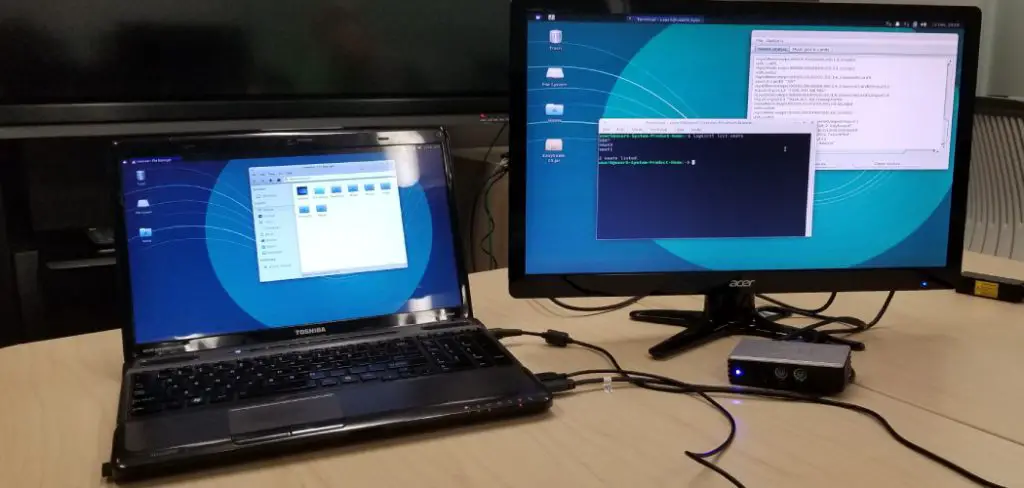
Learning how to set up multiple monitors on laptop is easier than most people expect — and you don’t need expensive equipment to get started. With the right cables, a compatible port, and a few minutes in your display settings, you can have a multi-screen workspace running the same day.
This guide walks you through the entire process, from checking what your laptop can actually support to arranging your screens exactly the way you want them. You’ll also find fixes for the most common problems people run into along the way.
Why Setting Up Multiple Monitors On A Laptop Matters
A single laptop screen averages around 13 to 15 inches — enough for basic tasks, but limiting the moment you need more than one window open at a time. Research from the University of Utah found that workers using dual monitors completed tasks up to 44 percent faster than those on a single screen.
For remote workers, multi-monitor setups also signal a more professional environment during video calls. The investment in an extra display pays back quickly in time saved — and the strain you avoid by not squinting at a crowded screen all day is worth it on its own.
Step-By-Step Guide To How To Set Up Multiple Monitors On Laptop
Step 1: Check Your Laptop’s Graphics And Display Output Capacity
Before buying anything, confirm how many external displays your laptop’s graphics card can actually drive. Most modern laptops support at least one external monitor, but two or more depends on your GPU and the ports available. Open your device manager on Windows or the System Information app on macOS and look up your graphics card model, then check the manufacturer’s spec page for maximum display output.
Some laptops support two external monitors natively through their built-in ports, while others need a docking station or USB-C hub with DisplayLink technology to go beyond one. Knowing your limit upfront saves you from buying equipment that won’t work with your specific machine.
Step 2: Identify The Available Ports On Your Laptop
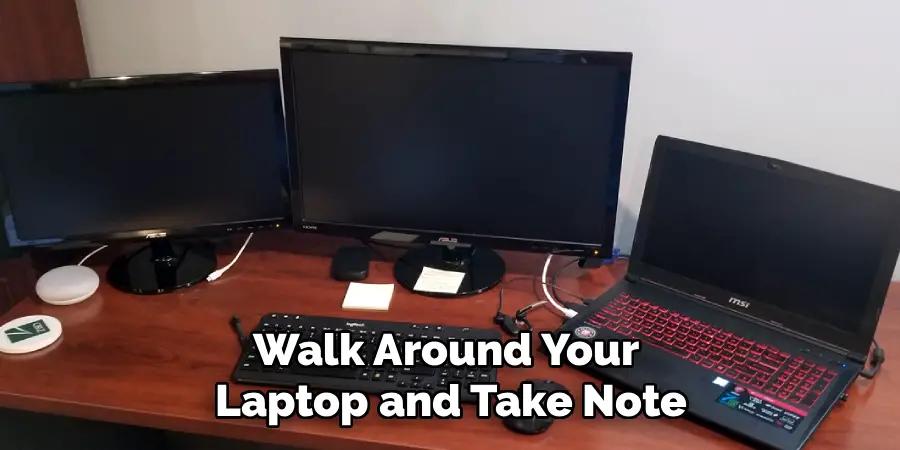
Walk around your laptop and take note of every video-output port you have. Common options include HDMI, USB-C with DisplayPort Alt Mode, Mini DisplayPort, and Thunderbolt 3 or 4. Each of these can carry a video signal to an external display, though some ports look similar — a USB-C port, for example, may or may not support video output depending on whether it has DisplayPort Alt Mode.
Check your laptop’s user manual or manufacturer website to confirm which USB-C ports support display output. An HDMI port almost always carries video, but a standard USB-A port never does. Understanding what you’re working with lets you choose the right cables and adapters without guesswork.
Step 3: Choose Your Connection Method And Buy The Right Cables
Once you know your ports, match them to your monitors. If your laptop has an HDMI port and your monitor has HDMI input, a single cable is all you need. For USB-C to HDMI, you’ll need a USB-C to HDMI adapter or cable. If you’re connecting two monitors and only have one HDMI port plus one USB-C port, you can use one cable per port — running each monitor from a different output.
For connecting more monitors than you have ports for, a USB-C docking station or a Thunderbolt hub is the most reliable solution. These devices connect to one port on your laptop and offer multiple HDMI or DisplayPort outputs. Avoid cheap passive splitters — they duplicate the same image on both screens rather than extending your desktop.
Step 4: Connect Your External Monitors To The Laptop
With your cables and adapters ready, plug the monitors in one at a time. Connect the first monitor’s cable to the appropriate port on your laptop, then power on the monitor. Wait 10 to 15 seconds — most laptops detect a new display automatically and either mirror or extend the screen without any manual input. Repeat the process for the second monitor.
If a monitor doesn’t show an image immediately, try pressing the input selector button on the monitor itself to confirm it’s set to the correct source — HDMI 1 vs. HDMI 2, for example. On some laptops, you may also need to press a keyboard shortcut like Fn + F4 or Fn + F7 to activate external display output.
Step 5: Configure Display Settings On Windows Or macOS
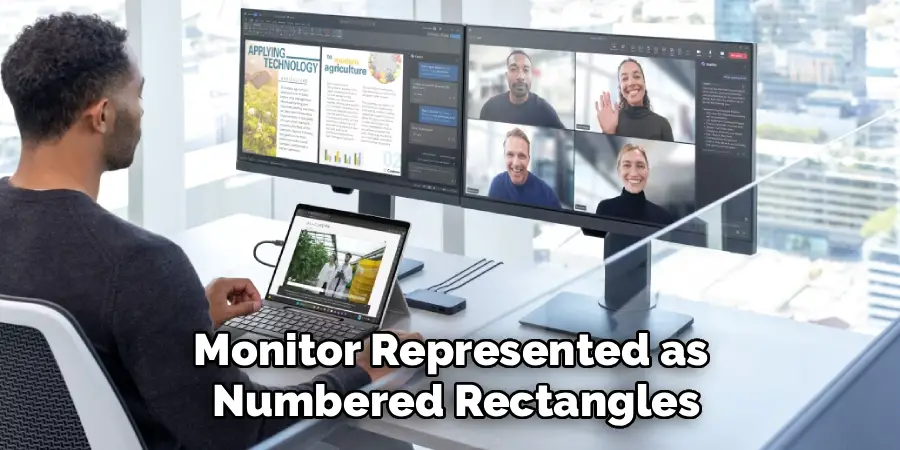
On Windows 10 or 11, right-click the desktop and select “Display settings.” You’ll see your laptop screen and each connected monitor represented as numbered rectangles. From here, choose “Extend these displays” in the Multiple Displays dropdown to turn each screen into independent workspace rather than a mirror copy. On macOS, go to System Settings, click Displays, and use the Arrangement tab to configure how the screens relate to each other.
This is the core step in understanding how to set up multiple monitors on laptop in a way that actually improves your workflow. Take a moment to arrange the on-screen monitor icons to match the physical layout of your displays — so when you move your cursor to the right edge of one screen, it continues naturally onto the next.
Step 6: Adjust Resolution And Refresh Rate Per Monitor
Each monitor may have a different native resolution and refresh rate. Running a monitor at the wrong resolution makes text look blurry or oversized. In Windows Display Settings, click on each monitor icon individually and confirm the resolution matches the panel’s native spec — typically listed in the monitor’s documentation or on the box. Set the refresh rate to the highest stable option your laptop’s GPU supports for that connection type.
USB-C and Thunderbolt connections can typically carry 4K at 60Hz, while HDMI 1.4 is capped at 1080p at 60Hz or 4K at 30Hz. If you notice choppy movement or a slightly washed-out image, the refresh rate or cable standard may be the bottleneck. Switching to a higher-bandwidth connection often resolves this without any other changes.
Frequently Asked Questions (FAQ)

Can Any Laptop Support Two External Monitors?
Not all laptops support two external monitors without additional hardware. Integrated graphics on older or budget laptops often limit output to one external display. Thunderbolt 3 and 4 ports, however, can power multiple monitors through a single connected dock. Check your laptop’s GPU specifications and port capabilities before purchasing equipment — it takes five minutes and prevents unnecessary returns.
Do I Need A Docking Station To Add More Monitors?
A docking station is the easiest way to connect multiple monitors when your laptop has limited ports, but it’s not always required. If your laptop has both an HDMI port and a USB-C port that supports DisplayPort, you can connect two monitors without a dock using individual cables. A dock simply consolidates everything into one convenient hub and often adds charging, USB, and ethernet at the same time.
Why Is My Second Monitor Showing A Blurry Or Low-Resolution Image?
A blurry image on a second monitor almost always means the resolution isn’t set to the display’s native spec. Open your display settings and set each monitor to its recommended resolution individually. If the native resolution isn’t available as an option, the cable you’re using may not support the required bandwidth — an HDMI 1.4 cable, for example, can’t carry 4K at 60Hz and will default to a lower quality signal.
Will Using Multiple Monitors Drain My Laptop Battery Faster?
Yes, driving additional monitors puts extra load on the GPU, which increases power consumption. The impact depends on the resolution and number of monitors connected — two 4K displays at 60Hz draw significantly more power than one 1080p display. If battery life is a concern, keep the laptop plugged in while using external monitors, or lower the external display resolution and refresh rate slightly to reduce the processing load.
Can I Use A TV As A Second Monitor For My Laptop?
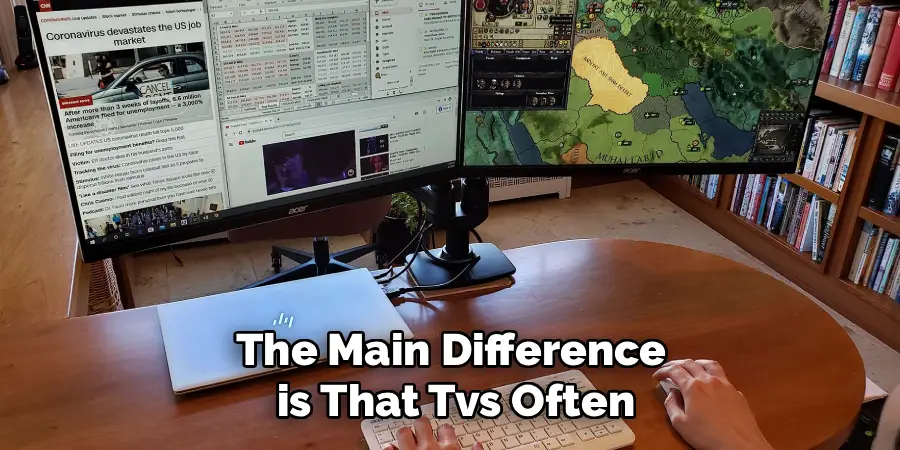
A TV works as a second monitor as long as it has an HDMI input — which most TVs made in the last decade do. Connect it the same way you would any HDMI monitor and configure it in your display settings. The main difference is that TVs often have lower pixel density than monitors, which can make text look softer at normal viewing distances. Sitting farther from the TV reduces this effect noticeably.
Conclusion
Adding external monitors to a laptop is one of the highest-return upgrades you can make to your workspace — and the setup process is far simpler than it looks from the outside. The key steps are checking your GPU’s output limit, identifying your available ports, choosing the right cables or dock, and spending a few minutes in display settings to configure resolution and screen arrangement correctly.
Most connection problems come down to cables, drivers, or a missed setting — all of which are fixable in minutes once you know where to look.
If your current single-screen setup is slowing you down, today is a good time to act. Use this guide to confidently work through how to set up multiple monitors on laptop, start with one extra display, and see how quickly the extra space changes how you work.
