
Getting your Soundcore headphones connected to a new device should be simple, and it usually is once you know the right steps. Whether you just unboxed a fresh pair or you want to link them to a second phone, tablet, or laptop, pairing mode is the key that makes the connection happen. It tells your headphones to broadcast a signal so nearby devices can find and connect to them over Bluetooth.
Soundcore makes a wide range of popular models, from the Life series earbuds to the Space and Q series over-ear headphones. While the basic idea behind pairing is the same across the lineup, the exact buttons and timing can differ slightly from one model to the next.
Let’s dive into how to Put Soundcore Headphones in Pairing Mode.
What are the Benefits?
Understanding pairing mode does more than just help you connect once. It gives you control over how your headphones work day to day. Here are the main benefits of knowing this process well.
- Seamless device switching. Many of us use more than one device. You might listen to music on your phone, take calls on your laptop, and watch shows on a tablet. Knowing how to enter pairing mode lets you connect to each device without confusion.
- Faster setup. When you understand the process, setting up a new pair takes seconds instead of minutes. No more guessing which button to hold or how long to press it.
- Fewer connection problems. A lot of Bluetooth issues come from headphones that never fully entered pairing mode. Learning the correct steps helps you avoid dropped connections and devices that won’t find your headphones.
- Better audio experience. A stable, properly paired connection means clearer sound, fewer cutouts, and reliable call quality. You get the full performance your Soundcore headphones were built to deliver.
- Confidence with new gear. Once you master pairing, you can confidently connect to a friend’s speaker setup, a work computer, or a brand-new phone without stress.
What Will You Need?
The good news is that pairing your Soundcore headphones requires very little. Here’s a quick checklist before you begin.
- Your Soundcore headphones, charged to at least 20% battery. Low battery can interrupt pairing.
- The device you want to connect to, such as a smartphone, tablet, or computer with Bluetooth enabled.
- A few minutes in a quiet spot away from other active Bluetooth devices.
- The Soundcore app (optional but helpful) for updates and extra features.
- Your user manual or model number, just in case the button steps differ slightly for your specific headphones.
That’s it. No cables, no special software, and no technical skills required. Once you have these basics ready, you’re set to begin.
10 Easy Steps on How to Put Soundcore Headphones in Pairing Mode
Follow these ten steps in order. They work for most Soundcore models, though button placement and hold times can vary a little. If something feels off, check your manual for the exact instructions for your model.
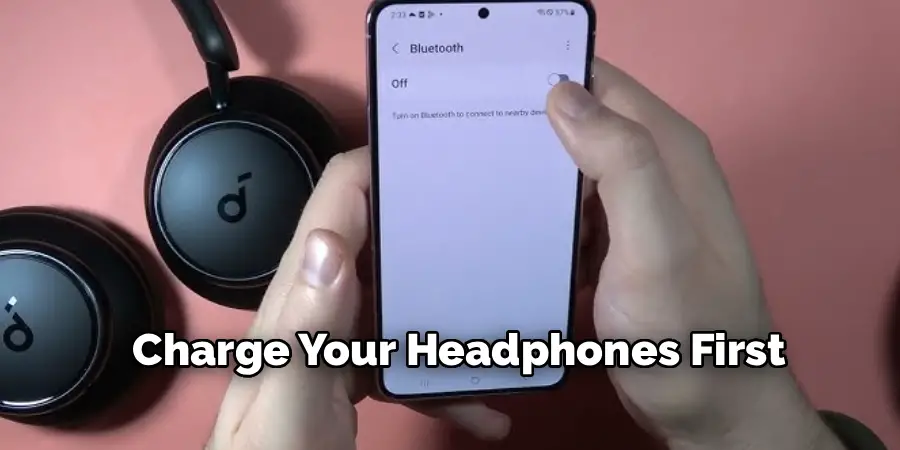
Step 1: Charge Your Headphones First
Before anything else, make sure your headphones have enough power. Plug them into their charging case or cable and let them reach a healthy level. Low battery is one of the most common reasons pairing fails or feels glitchy. A charge of 20% or more is usually plenty to get started, but a fuller charge gives you a smoother experience and avoids interruptions mid-setup.
Step 2: Turn On Bluetooth on Your Device
Pairing only works when your phone, tablet, or computer is actively searching for Bluetooth signals. Open the settings menu on your device and switch Bluetooth on. On most phones, you’ll find this under Settings, then Bluetooth or Connections. Keep this screen open, because you’ll return to it shortly to confirm the connection. If Bluetooth was already on, that’s perfect; you can move ahead.
Step 3: Power On Your Soundcore Headphones
Press and hold the power button on your headphones until you see the indicator light turn on or hear a startup tone. For earbuds like the Life or Space series, simply opening the charging case may power them on automatically. Listen for any voice prompt or chime that confirms the headphones are awake. Once they’re on, you’re ready to enter pairing mode.
Step 4: Locate the Pairing Button
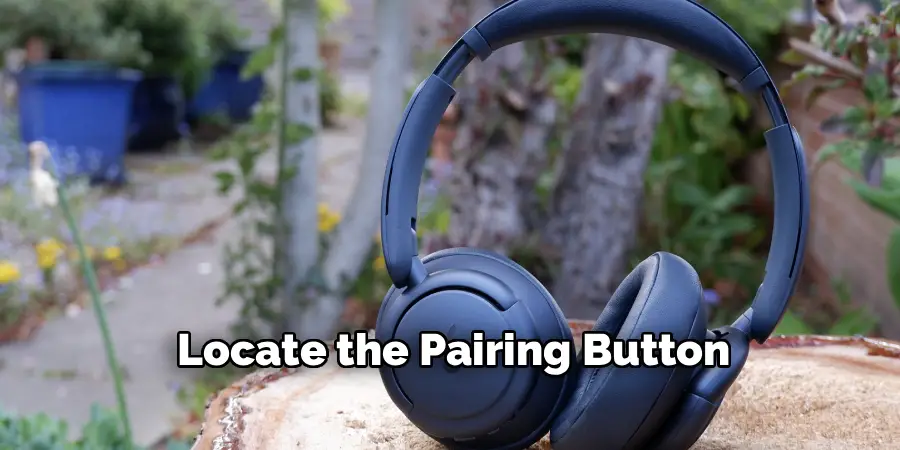
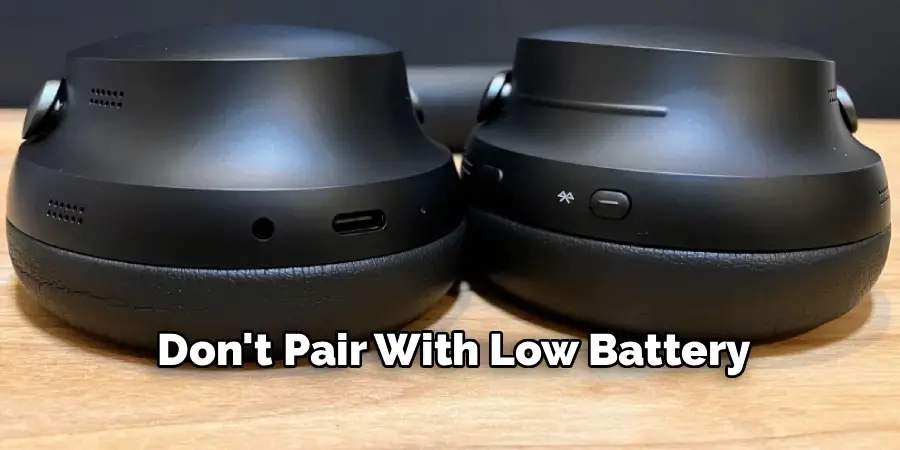
Find the main control button on your headphones. On over-ear models, this is often the power button or a dedicated Bluetooth button. On earbuds, the touch panels or a small button inside the case may handle this job. Knowing exactly where this button sits makes the next steps much easier. If you’re unsure, your user manual will show the button layout for your specific model.
Step 5: Press and Hold to Enter Pairing Mode
This is the key step. Press and hold the power or Bluetooth button for about two to five seconds until the indicator light starts flashing. A flashing blue light, or alternating blue and red, usually means pairing mode is active. Some models also announce “pairing” through a voice prompt. Remember, the exact hold time varies by model, so keep holding until you clearly see or hear the pairing signal.
Step 6: Watch for the Flashing Light or Voice Prompt
Confirmation matters. The flashing light or spoken “pairing” message tells you the headphones are now broadcasting and ready to be discovered. If the light stays solid or simply turns off, the headphones likely didn’t enter pairing mode. In that case, release the button and try Step 5 again, holding a little longer. Once you see that steady flash, you’re good to continue.
Step 7: Find Your Headphones in the Bluetooth List
Return to the Bluetooth settings on your device. Within a few seconds, your headphones should appear in the list of available devices. The name usually matches your model, such as “Soundcore Life P3” or “Soundcore Space Q45.” If you don’t see it right away, tap the refresh or scan option to make your device search again. Stay patient for a moment, as new devices can take a few seconds to show up.
Step 8: Tap to Connect
Once your headphones appear, tap their name to begin connecting. Your device will handle the rest automatically. You may hear a confirmation tone or a voice prompt saying “connected.” On screen, the status next to your headphones should change to “Connected.” This is the moment your headphones and device officially link up, and you’re nearly done.
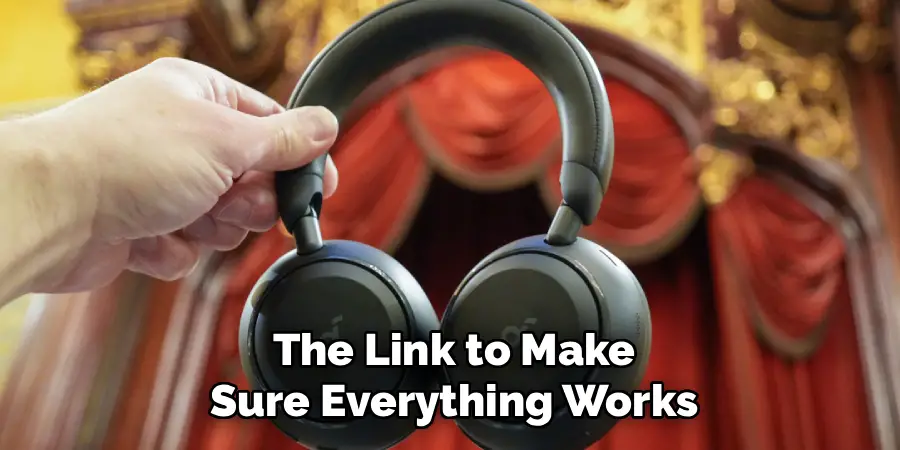
Step 9: Confirm the Connection
Test the link to make sure everything works. Play a short song, video, or audio clip and listen through your headphones. If you hear sound clearly, the pairing was a success. For calls, you can also test the microphone by making a quick test call. A working connection means your Soundcore headphones are ready for everyday use.
Step 10: Open the Soundcore App for Extra Features
For the best experience, download and open the Soundcore app on your device. The app lets you adjust sound settings, switch noise control modes, customize touch controls, and install firmware updates. Updates can improve connection stability and add new features over time. While this step is optional, it helps you get the most out of your headphones and keeps them running smoothly.
5 Things You Should Avoid
Even simple pairing can go sideways if you make these common mistakes. Steer clear of them for a hassle-free setup.
1. Don’t pair with low battery. Trying to connect when your headphones are nearly dead often leads to failed or unstable connections. Always charge first.
2. Don’t surround yourself with too many Bluetooth devices. When several devices are searching at once, signals can clash. Turn off Bluetooth on nearby gadgets you don’t need so your headphones connect cleanly.
3. Don’t release the button too early. Letting go before the light flashes means pairing mode never starts. Hold steady until you get a clear signal.
4. Don’t skip the manual when steps feel unclear. Soundcore models differ, and guessing wastes time. A glance at the user manual saves frustration.
5. Don’t ignore firmware updates. Outdated software can cause connection drops. Use the Soundcore app to keep your headphones current.
Frequently Asked Questions
- Why Won’t My Soundcore Headphones Enter Pairing Mode?
This usually happens for a few reasons. Your battery may be too low, so charge them first. You might also be releasing the button before the light flashes, so try holding it longer. In some cases, the headphones are already connected to another device, which blocks pairing. Resetting them and trying again often solves the issue quickly and easily. - How Do I Connect My Soundcore Headphones to a Second Device?
Most Soundcore models support multipoint or quick switching, though steps vary. First, disconnect from the current device or turn off its Bluetooth. Then put your headphones back into pairing mode using the press-and-hold method. Search for them on your second device and tap to connect. Some newer models let you stay paired to two devices at once for easy switching. - What Does the Flashing Light Mean on My Soundcore Headphones?
The flashing light is your status guide. A flashing blue light, or alternating blue and red, usually means the headphones are in pairing mode and ready to connect. A solid light often means they’re connected, while a flashing red light can signal low battery. Colors and patterns differ by model, so check your manual to confirm what each one means.
Conclusion
How to put soundcore headphones in pairing mode doesn’t have to be confusing. With your headphones charged, Bluetooth turned on, and the right button held until the light flashes, you can connect to almost any device in under a minute.
Just remember that button combinations and timing can vary slightly between Soundcore models, so keep your user manual handy if you ever get stuck.
Follow the ten steps above, avoid the common mistakes, and lean on the Soundcore app for updates and extra controls. Do that, and you’ll enjoy stable connections, clear sound, and effortless switching between all your favorite devices. Now go ahead and get those headphones paired.
